Chapter 4: Software Design
Design Overview
Introduction
The Drawbridge platform is developed using Spring Boot, a Java-based framework that simplifies enterprise application development while adhering to Object-Oriented Design (OOD) principles. Spring Boot provides the tools and infrastructure to implement OOD concepts, such as encapsulation, inheritance, abstraction, and polymorphism, enabling the creation of a modular, scalable, and maintainable platform.
Environment Overview
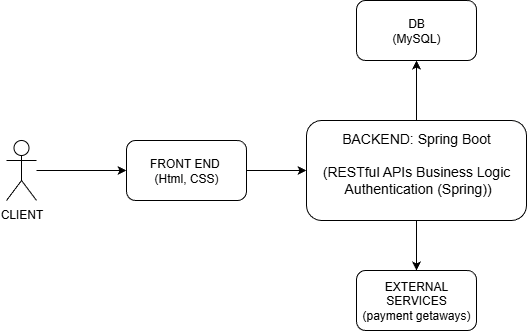
The Drawbridge platform operates in a web-based environment built with Spring Boot while adhering to Object-Oriented Design (OOD) principles. The system uses a client-server architecture where the frontend interacts with the backend via RESTful APIs, and the backend manages business logic, database operations, and external integrations.
System Environment Components:
-
Client-Side Environment:
Devices:
Desktop and Laptop Computers (Windows, macOS, Linux).
Mobile Devices (Android and iOS smartphones and tablets).
Browsers:
Google Chrome, Microsoft Edge, Mozilla Firefox, and Safari (latest versions).
Frontend:
Developed using HTML and CSS, providing a responsive interface for interacting with system
Responsibilities:
Displays the user interface for functionalities like product browsing, account management, and order placement.
Sends HTTP requests to the backend and processes responses.
-
Server-Side Environment:
Backend Framework:
Built using Spring Boot, implementing OOD principles such as encapsulation, inheritance, abstraction, and polymorphism.
Hosting Environment:
Deployed on a cloud-based infrastructure to ensure high availability and scalability.
Security:
Use Spring Security for authentication and role-based access control (RBAC).
Ensure secure communication using HTTPS/SSL/TLS.
-
Database Layer:
Database:
Implements a relational database (MySQL or PostgreSQL) to store data such as user profiles, products, orders, and inventory information.
Responsibilities:
Ensures data consistency and integrity using transactional operations.
Provides interfaces for data access via Spring Data JPA, abstracting complex SQL queries behind simple repository methods.
Security:
All sensitive data (e.g., passwords, payment details) is encrypted at rest and during
transit.
System Architecture
Client Layer (Frontend)
Purpose: Provides the user interface for interaction.
Technology: Built using HTML and CSS, ensuring a responsive and user-friendly experience.
Responsibilities:
Sends HTTP requests to the backend via RESTful APIs.
Displays data (e.g., product catalogs, order status).
Handles user input and interactions (e.g., placing orders, managing inventory).
Application Layer (Backend)
Purpose: Implements the core business logic and manages communication between the client and database.
Technology: Built using Spring Boot, which ensures a modular, maintainable, and scalable backend.
Responsibilities:
Processes requests from the frontend.
Apply business rules (e.g., inventory updates, order validation).
Exposes RESTful APIs for client-server communication.
Manages user authentication and role-based access control using Spring Security.
Data Layer (Database)
Purpose: Stores and retrieves all data for the system.
Technology: Uses MySQL as the relational database.
Responsibilities:
Stores structured data such as users, products, orders, and inventory.
Ensures data consistency and security.
Handles database queries via Spring Data JPA.
External Services
Purpose: Provides integration with third-party services.
Examples: Payment gateways.
Constraints and Assumptions
1 Design Constraints
1.1 Customer-Imposed Constraints
Cloud-Based Deployment:
The system must be hosted on a cloud platform to ensure high availability and scalability.
Accommodated by: Designing the system as a cloud-native application with containerization and load balancers to handle traffic spikes.
Role-Based Access Control (RBAC):
Users (retailers, wholesalers, administrators) must have access restricted based on their roles.
Accommodated by: Implementing Spring Security to enforce RBAC and secure APIs with role-based permissions.
Cross-Platform Access:
The platform must support both desktop and mobile devices with consistent user experience.
Accommodated by: Building the frontend with HTML, CSS, ensuring responsiveness and compatibility across devices.
1.2 Technology Constraints
Use of Spring Boot and OOD Principles:
The backend must be developed using Spring Boot and adhere to Object-Oriented Design (OOD) principles.
Accommodated by: Structuring the backend with well-defined layers (Controller, Service, Repository) and implementing modular, reusable classes.
Database Selection:
A relational database (e.g., MySQL, PostgreSQL) must be used for data storage.
Accommodated by: Designing the data layer with Spring Data JPA to interact with relational databases efficiently.
2 External System Constraints
2.1 Payment Gateways
Requirement:
The platform depends on third-party payment services (e.g., Stripe, PayPal) for transaction processing.
Constraints:
The system must comply with the APIs and data formats provided by the payment gateways.
Payment processing must meet industry security standards (e.g., PCI-DSS compliance).
Accommodated by:
Using secure RESTful APIs for integration and encrypting sensitive payment data during transmission.
2.2 Auto-Restock Cashier System
Requirement:
The platform must communicate with external cashier systems to trigger auto-restock requests when inventory reaches a predefined threshold.
Constraints:
The cashier system may require specific API formats and authentication mechanisms (e.g., API keys or OAuth).
The connection must be reliable to avoid disruptions in restocking workflows.
Accommodated by:
Implementing event-driven services in Spring Boot that monitor inventory and trigger API calls to the cashier system for restocking.
Designing the system to retry requests in case of temporary failures, ensuring reliability.
-
Assumptions
User Devices:
Assumes users will access the platform via modern browsers (e.g., Chrome, Firefox, Safari) on desktops and mobile devices.
The system may not support legacy browsers.
Network Availability:
Assumes users have stable internet connections to access the platform’s features.
Offline functionality is not provided at this stage.
External System Reliability:
Assumes that third-party systems (e.g., payment gateways, cashier systems) will be available and function reliably.
Failure of these systems may temporarily affect related functionality (e.g., payment processing, restocking).
Interfaces and Data Stores
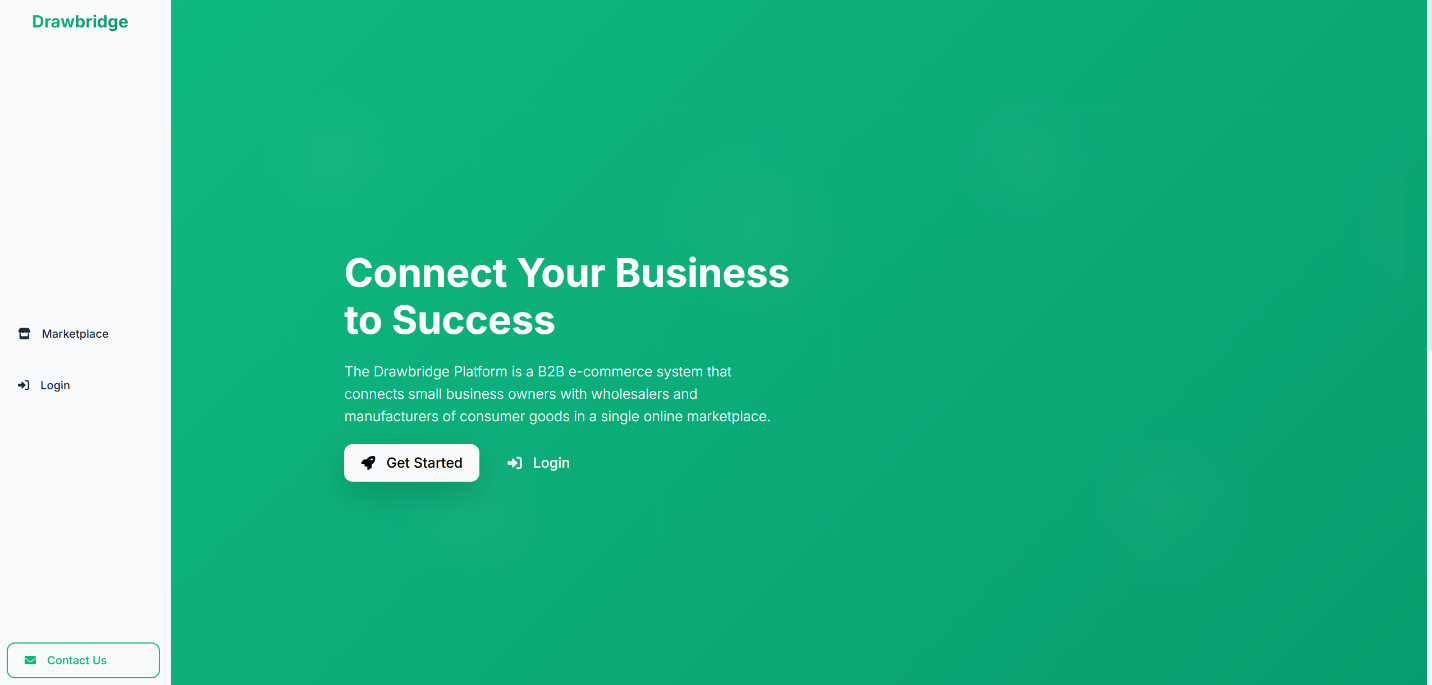
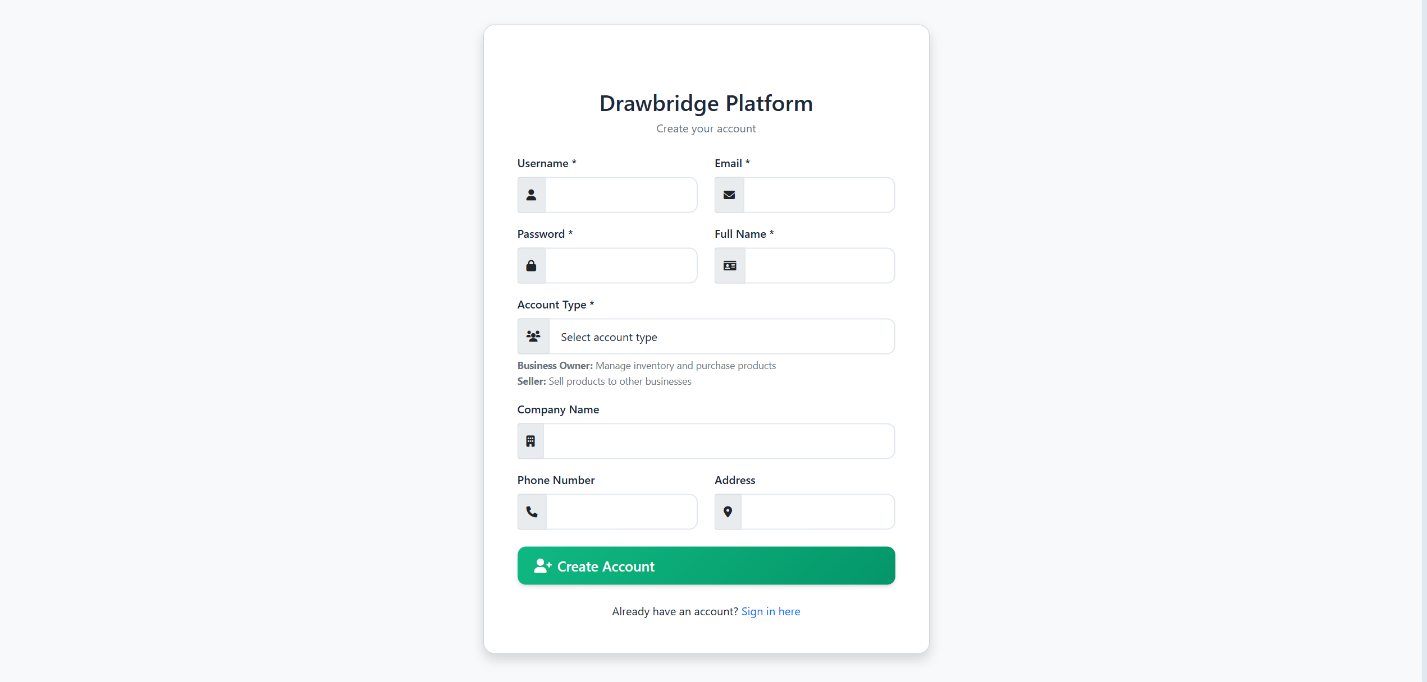
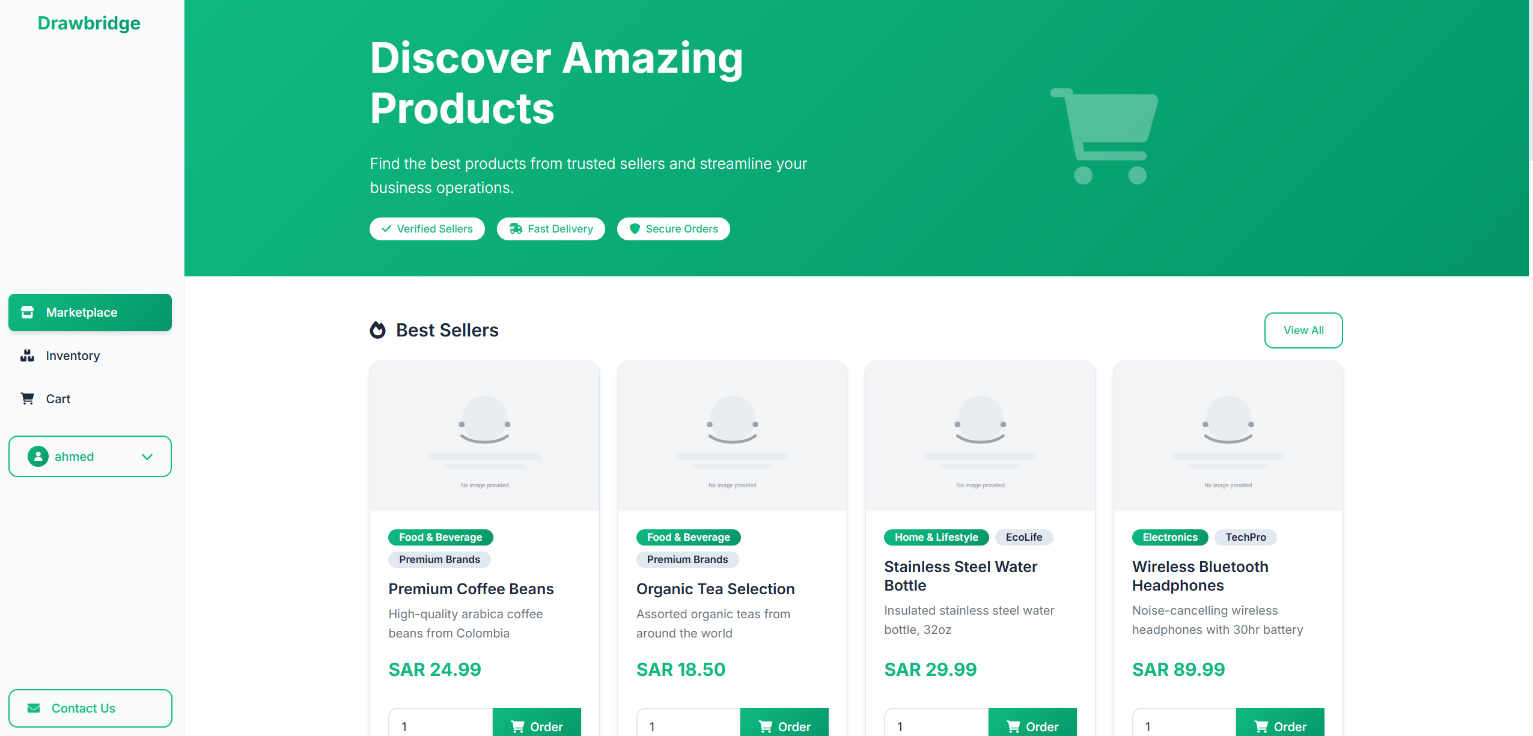
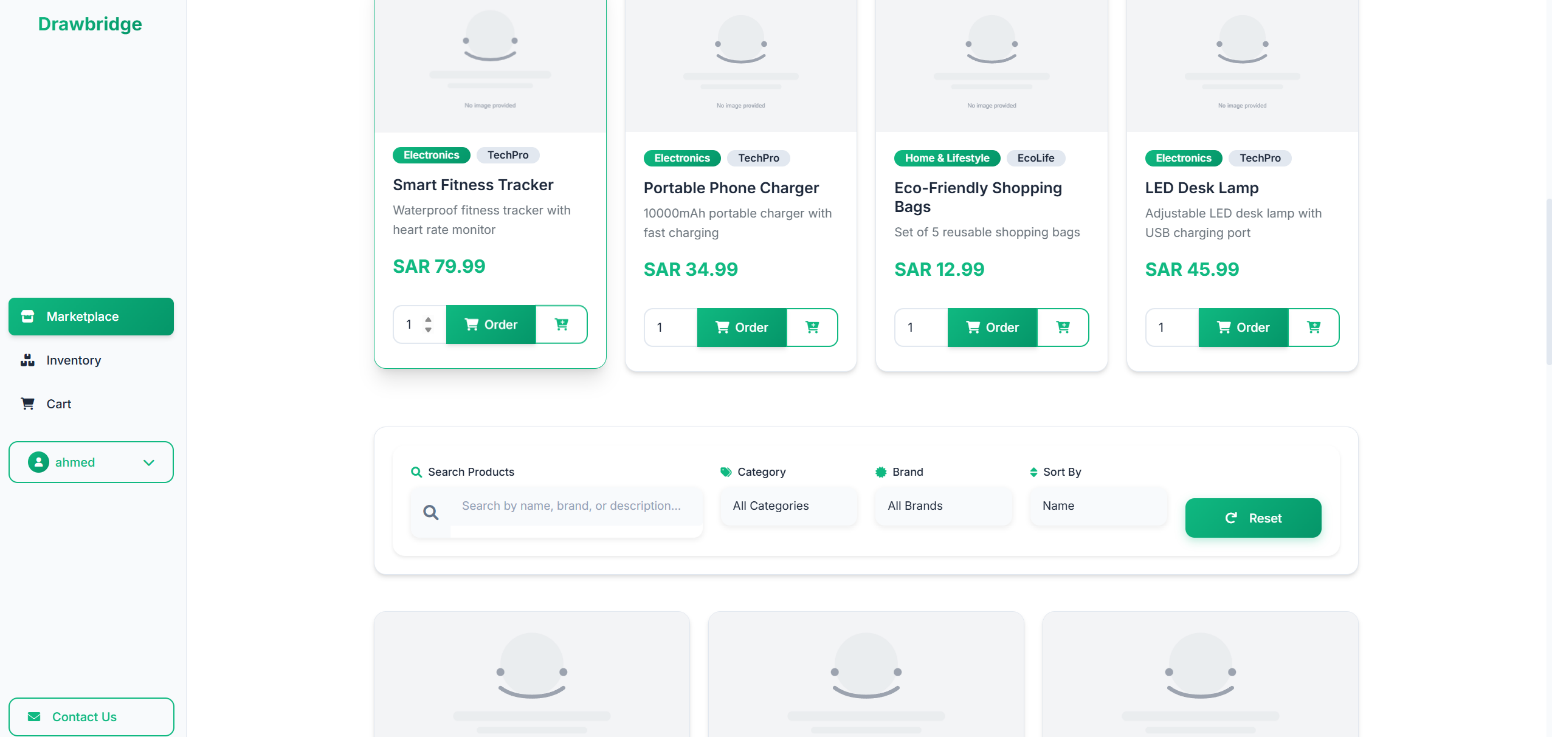
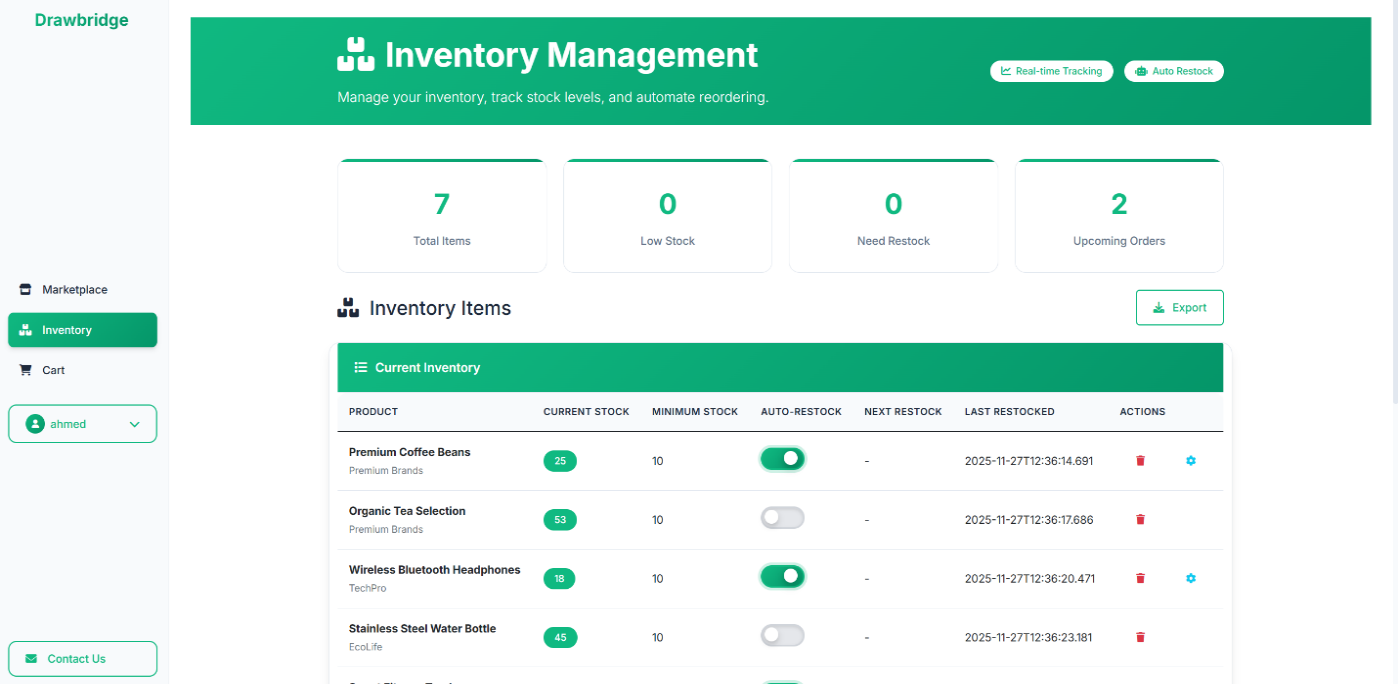
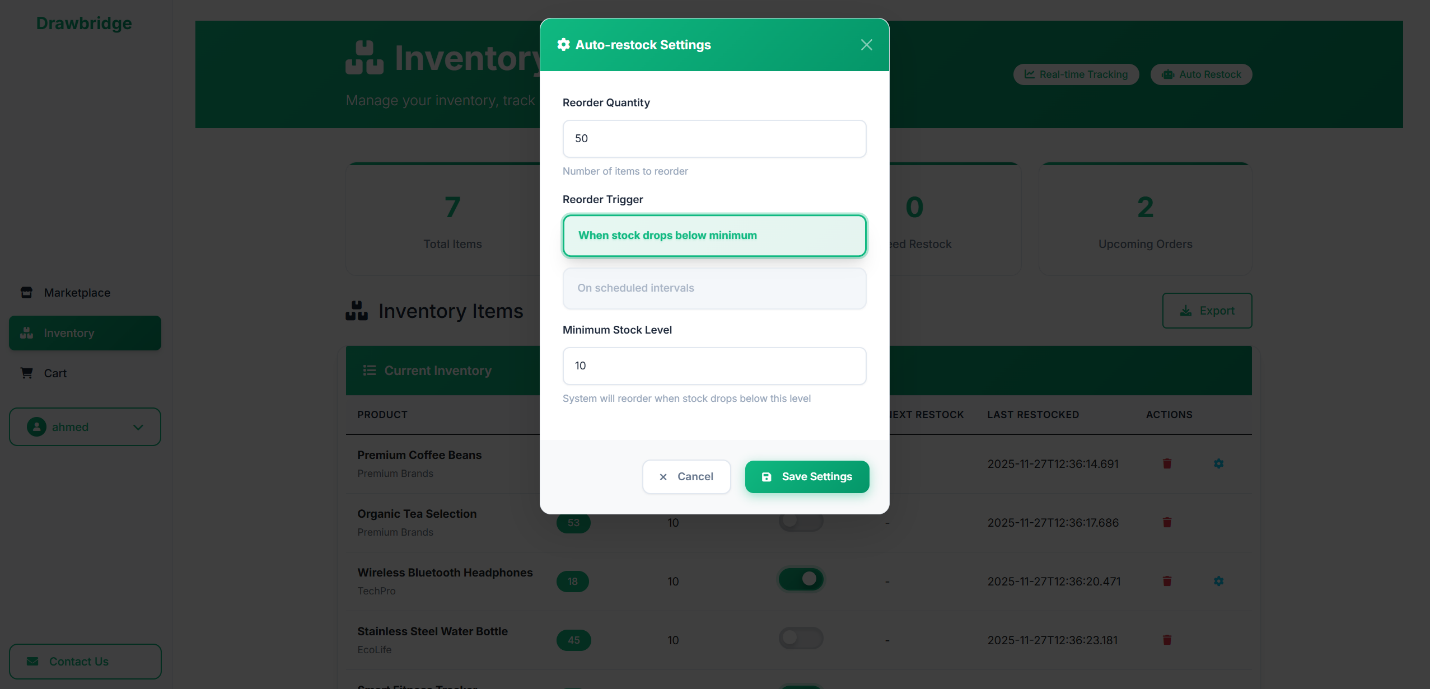
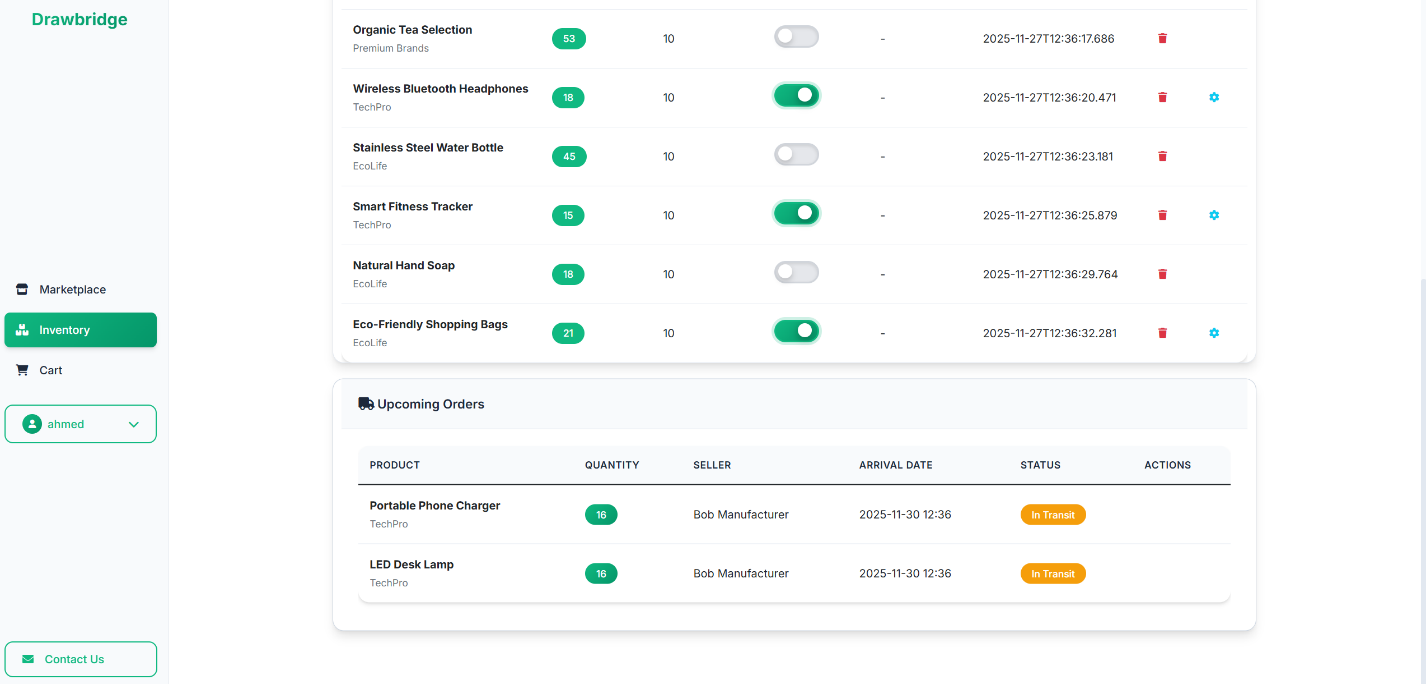
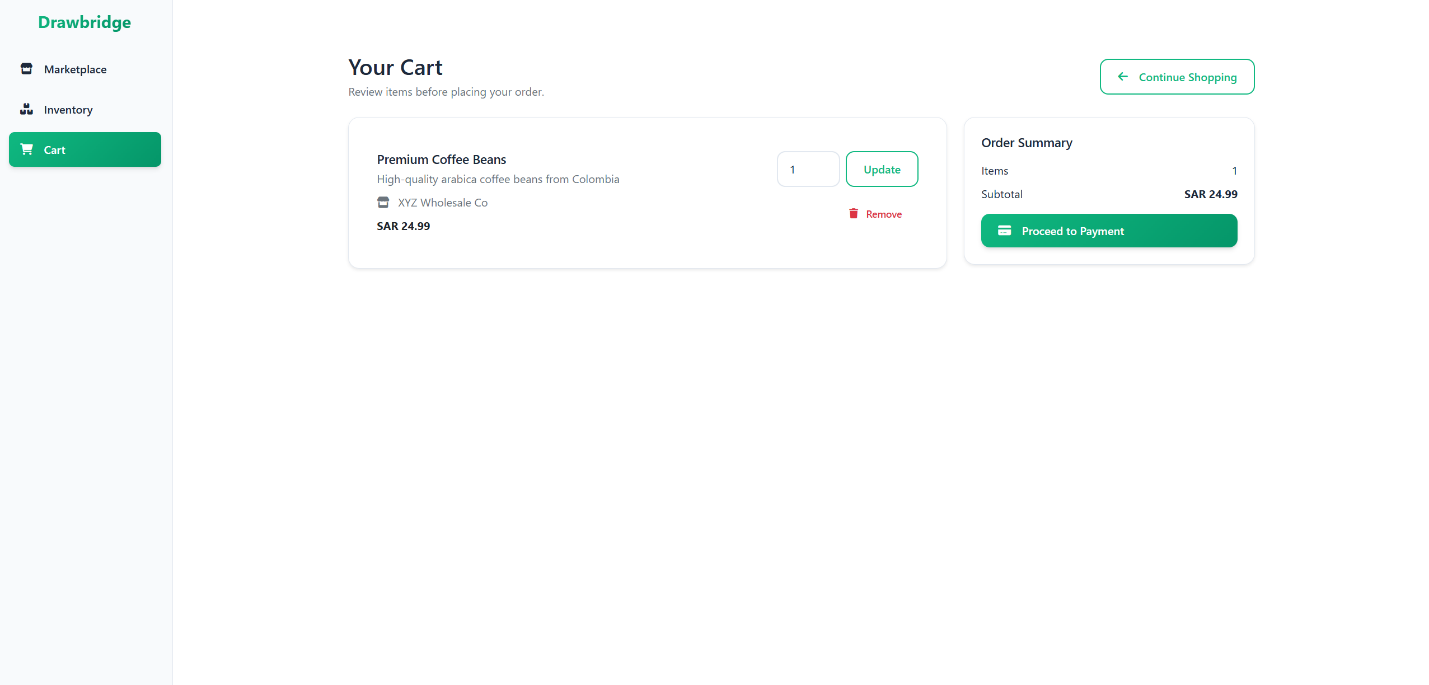
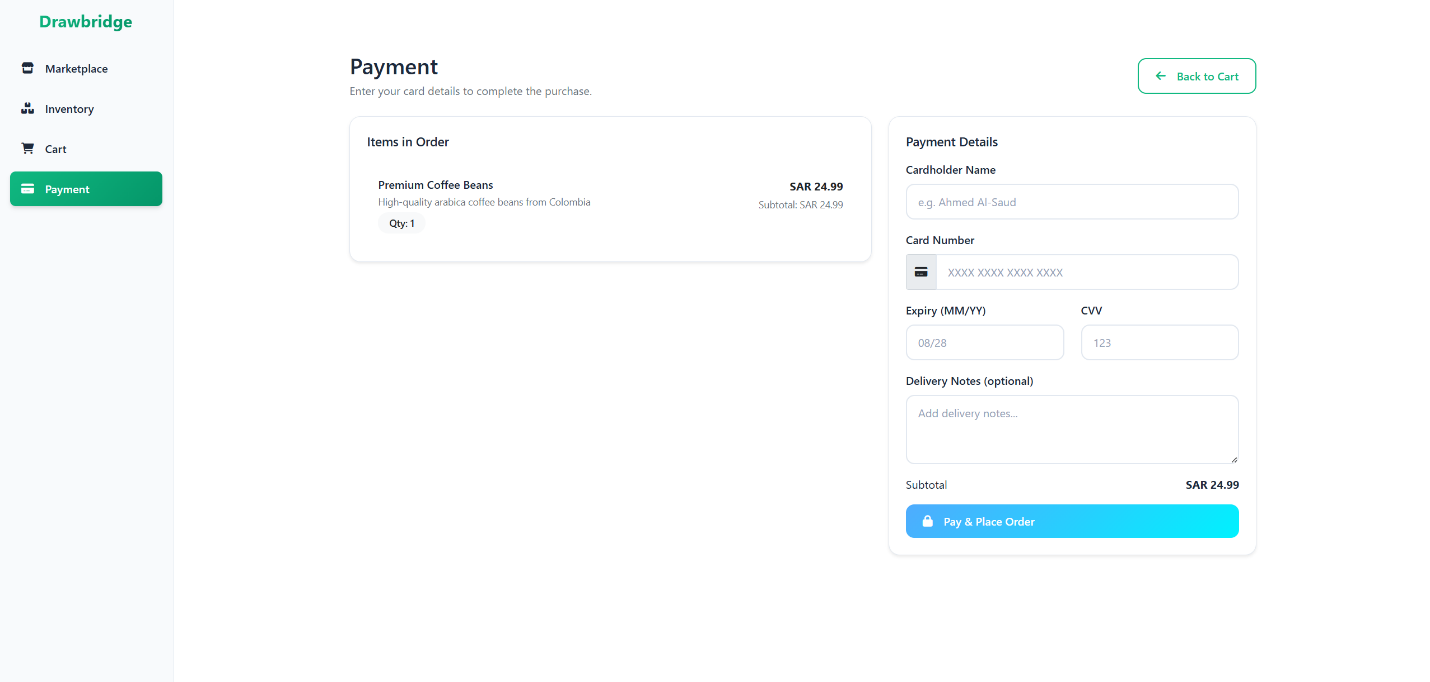
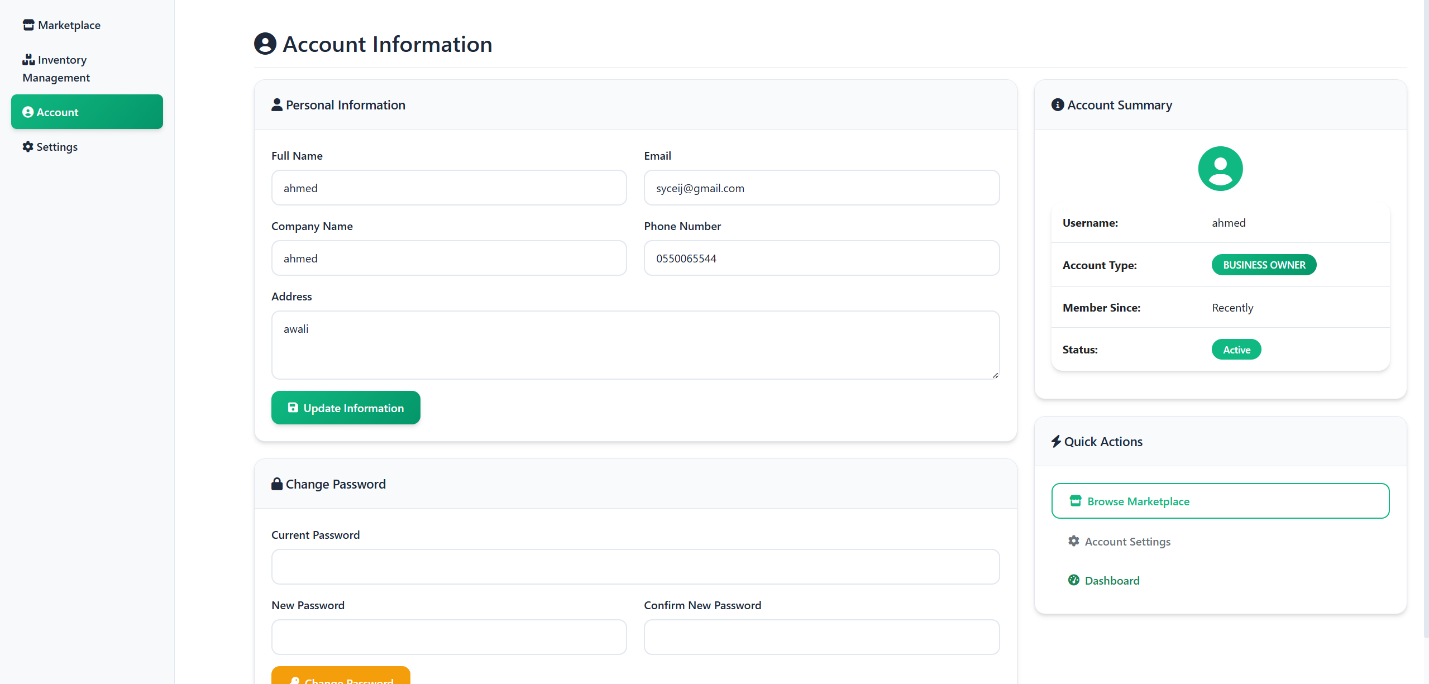
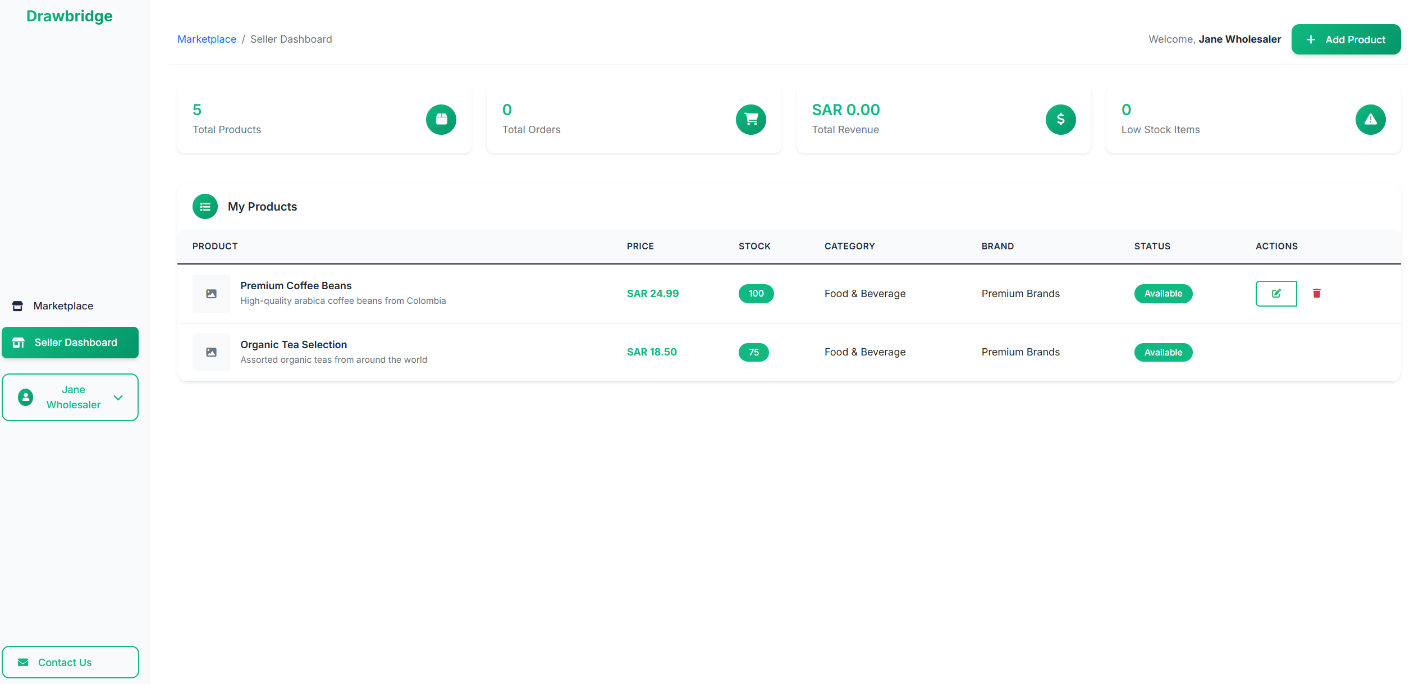
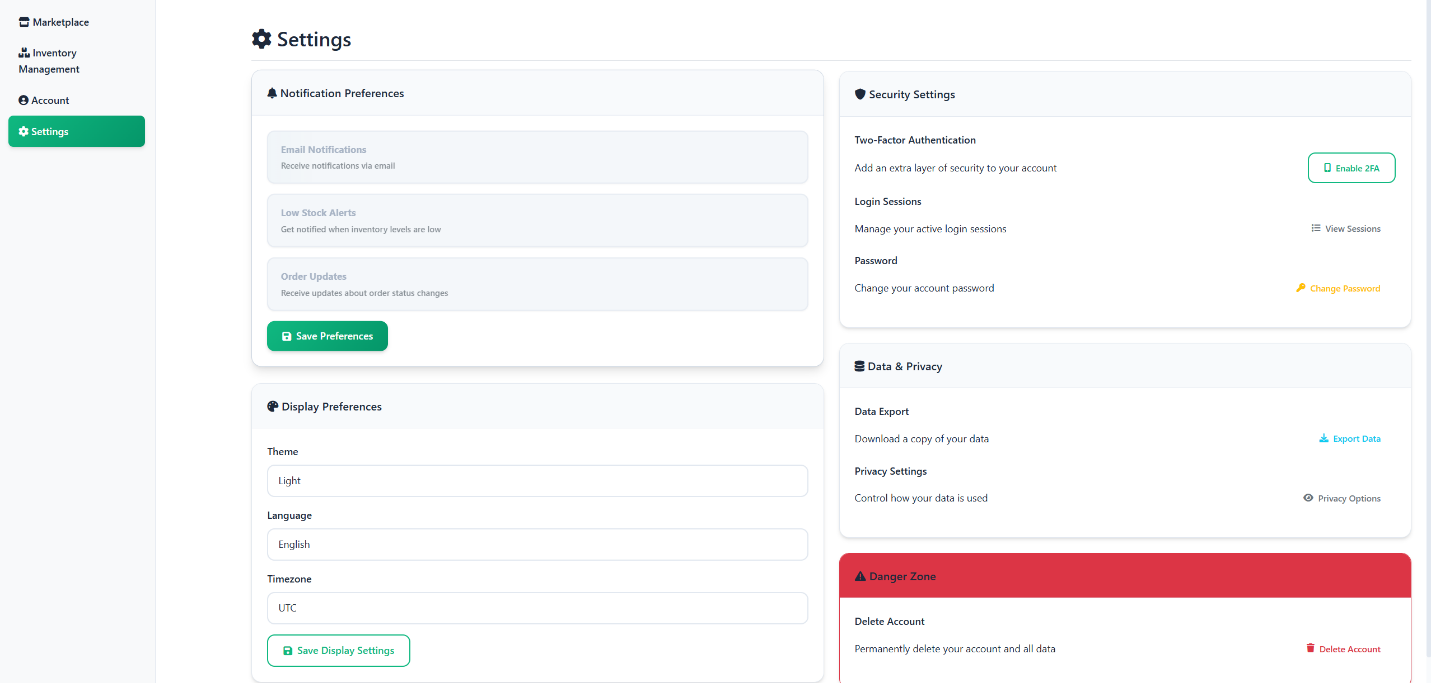
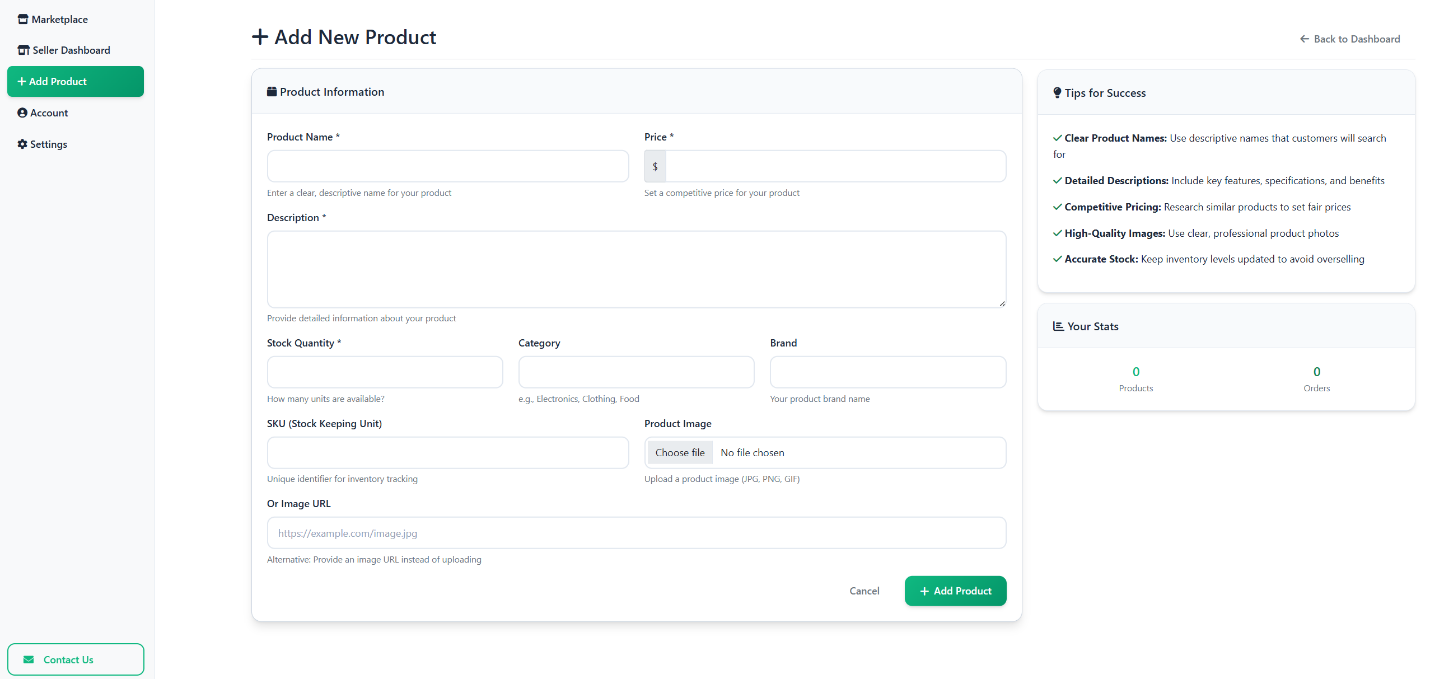
System Interfaces

Data Stores
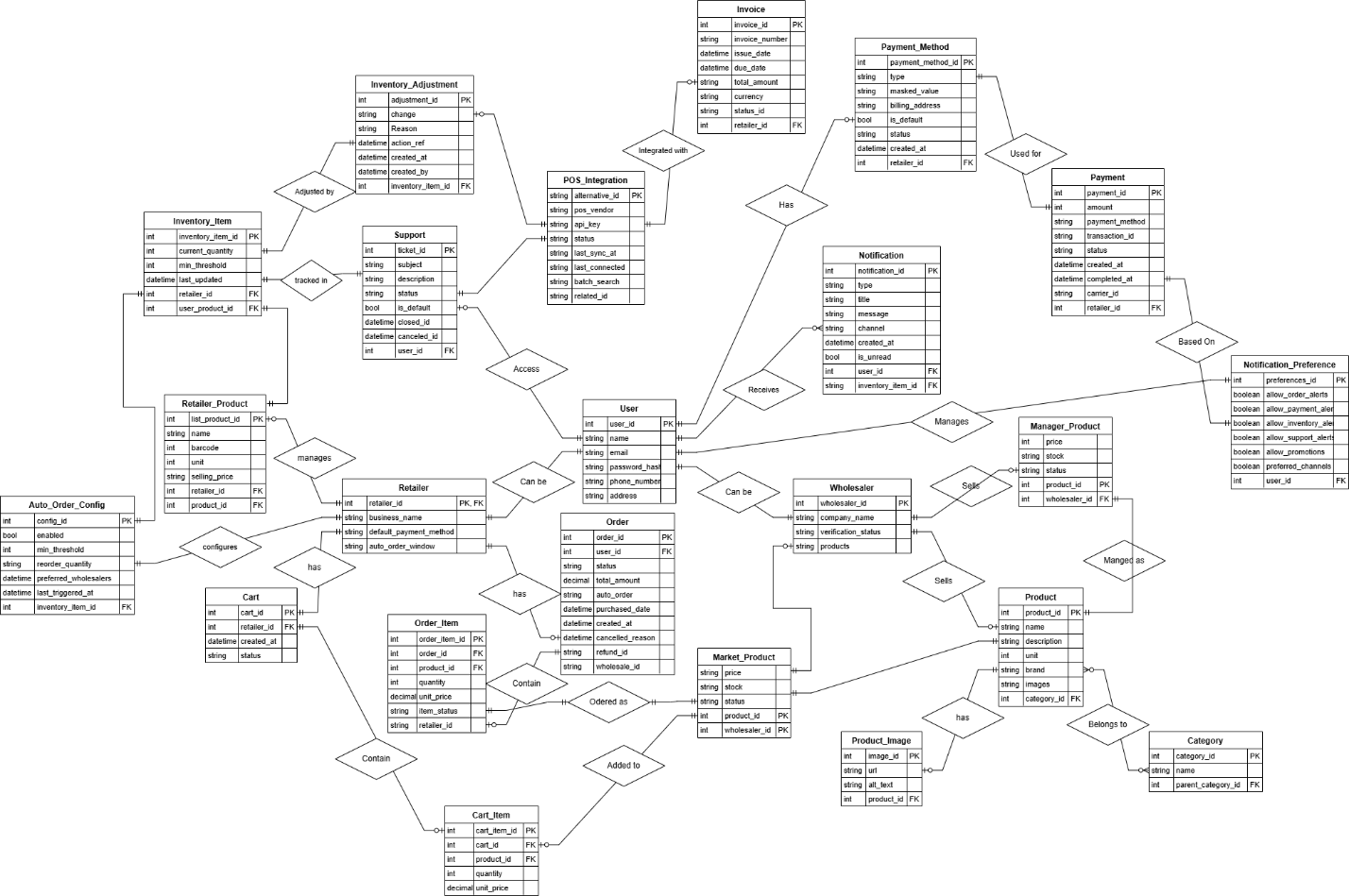
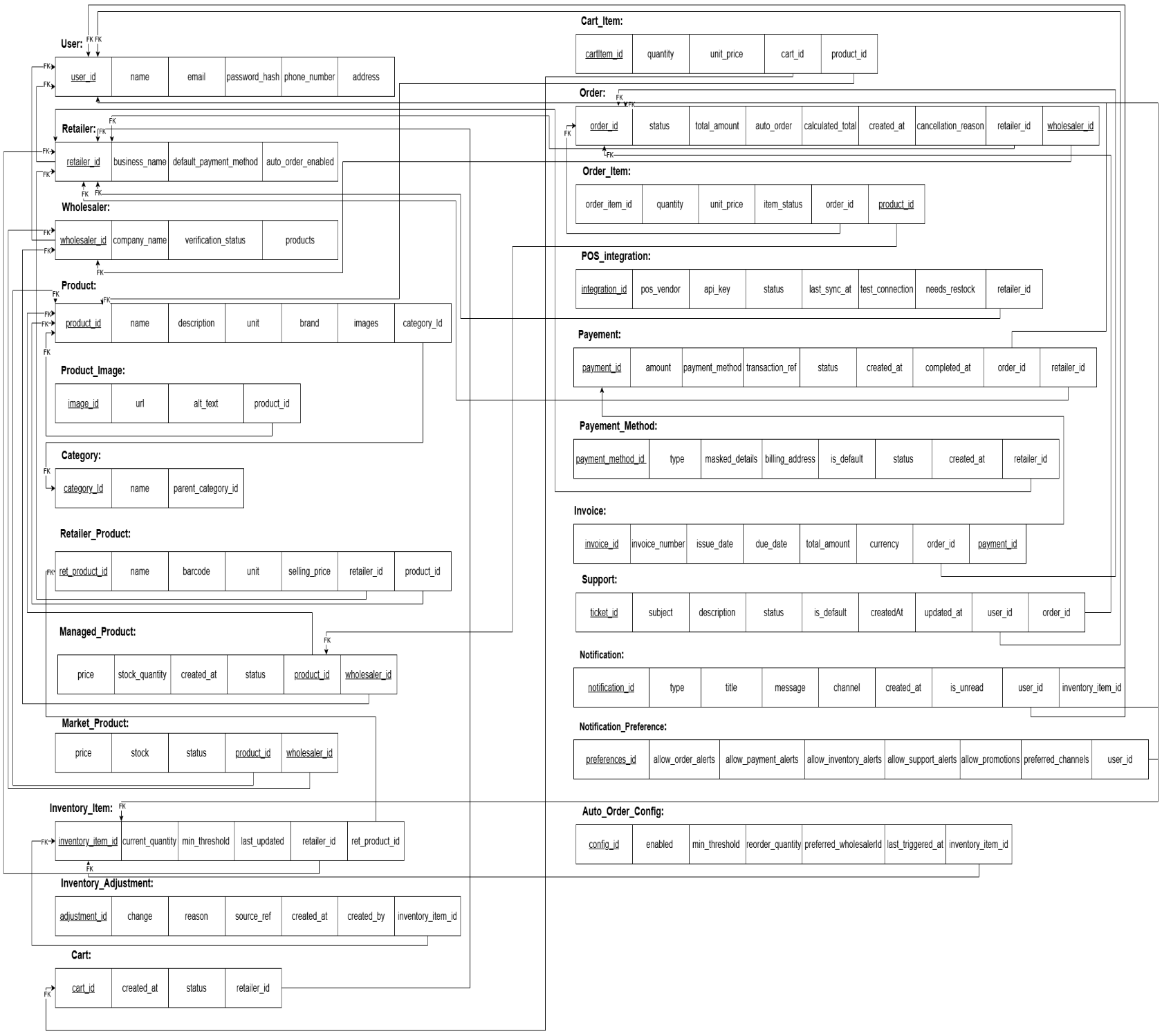
For the Drawbridge platform, the data store will leverage a relational database system (RDBMS), such as MySQL or PostgreSQL, to organize and manage all the data for users, products, inventory, orders, payments, notifications, and other system entities. The data store is essential for maintaining integrity, consistency, and scalability, ensuring that business processes such as ordering, stock management, and payments are handled efficiently.
Additionally, images (such as product images) and other media files can be stored in the database as BLOBs (Binary Large Objects), ensuring that product information and media are linked and easily accessible without relying on external storage. Foreign keys and relations will be used to maintain the integrity of the relationships between different entities like users, orders, products, and inventory items.
| Attribute | Type | Description | Constraints |
|---|---|---|---|
userId |
BIGINT |
Unique identifier for each user |
Primary Key, Auto Increment |
name |
VARCHAR |
Name of the user |
Not Null |
VARCHAR |
Email of the user |
Not Null |
|
passwordHash |
VARCHAR |
Hashed password for user authentication |
Not Null |
phoneNumber |
VARCHAR |
Phone number of the user |
Not Null |
address |
VARCHAR |
Address of the user |
Not Null |
| Attribute | Type | Description | Constraints |
|---|---|---|---|
retailerId |
BIGINT |
Unique identifier for each retailer |
Primary Key, Auto Increment |
businessName |
VARCHAR |
Business name of the retailer |
Not Null |
defaultPaymentMethod |
VARCHAR |
Default payment method for the retailer |
Not Null |
autoOrderEnabled |
BOOLEAN |
Indicates if auto-order is enabled for the retailer |
Not Null |
| Attribute | Type | Description | Constraints |
|---|---|---|---|
wholesalerId |
BIGINT |
Unique identifier for each wholesaler |
Primary Key, Auto Increment |
companyName |
VARCHAR |
Company name of the wholesaler |
Not Null |
verificationStatus |
VARCHAR |
Verification status of the wholesaler (e.g., "VERIFIED") |
Not Null |
| Attribute | Type | Description | Constraints |
|---|---|---|---|
adminId |
BIGINT |
Unique identifier for each admin |
Primary Key, Auto Increment |
name |
VARCHAR |
Name of the admin |
Not Null |
VARCHAR |
Email of the admin |
Not Null |
|
role |
VARCHAR |
Role of the admin (e.g., "SUPER_ADMIN") |
Not Null |
| Attribute | Type | Description | Constraints |
|---|---|---|---|
productId |
BIGINT |
Unique identifier for each product |
Primary Key, Auto Increment |
name |
VARCHAR |
Name of the product |
Not Null |
description |
TEXT |
Description of the product |
Not Null |
categoryId |
INT |
Reference to the category of the product |
Foreign Key, Not Null |
brand |
VARCHAR |
Brand of the product |
Not Null |
unit |
VARCHAR |
Unit of the product (e.g., "kg", "pcs") |
Not Null |
| Attribute | Type | Description | Constraints |
|---|---|---|---|
categoryId |
BIGINT |
Unique identifier for each category |
Primary Key, Auto Increment |
name |
VARCHAR |
Name of the category |
Not Null |
parentCategoryId |
BIGINT |
Reference to the parent category (nullable) |
Foreign Key, Nullable |
| Attribute | Type | Description | Constraints |
|---|---|---|---|
orderId |
BIGINT |
Unique identifier for each order |
Primary Key, Auto Increment |
retailerId |
INT |
Reference to the retailer who placed the order |
Foreign Key, Not Null |
wholesalerId |
INT |
Reference to the wholesaler who provided the products |
Foreign Key, Not Null |
status |
VARCHAR |
Status of the order (e.g., "PENDING", "SHIPPED") |
Not Null |
totalAmount |
DECIMAL |
Total amount of the order |
Not Null |
autoOrder |
BOOLEAN |
Indicates if the order is part of an auto-order system |
Not Null |
| Attribute | Type | Description | Constraints |
|---|---|---|---|
paymentId |
BIGINT |
Unique identifier for each payment |
Primary Key, Auto Increment |
orderId |
INT |
Reference to the associated order |
Foreign Key, Not Null |
payerId |
INT |
Reference to the retailer who made the payment |
Foreign Key, Not Null |
paymentMethodId |
INT |
Reference to the payment method used |
Foreign Key, Not Null |
amount |
DECIMAL |
Amount of the payment |
Not Null |
status |
VARCHAR |
Status of the payment (e.g., "PENDING", "COMPLETED") |
Not Null |
transactionRef |
VARCHAR |
Transaction reference number |
Not Null |
createdAt |
DATETIME |
Timestamp when the payment was created |
Not Null |
completedAt |
DATETIME |
Timestamp when the payment was completed |
Not Null |
| Attribute | Type | Description | Constraints |
|---|---|---|---|
paymentMethodId |
BIGINT |
Unique identifier for each payment method |
Primary Key, Auto Increment |
ownerId |
INT |
Reference to the retailer who owns the payment method |
Foreign Key, Not Null |
type |
VARCHAR |
Type of the payment method (e.g., "CREDIT_CARD", "BANK_TRANSFER") |
Not Null |
maskedDetails |
VARCHAR |
Masked details of the payment method |
Not Null |
billingAddress |
VARCHAR |
Billing address for the payment method |
Not Null |
isDefault |
BOOLEAN |
Indicates if this payment method is the default one |
Not Null |
changePassword |
VARCHAR |
Changes password for payment method (old and new) |
Nullable |
createdAt |
DATETIME |
Timestamp when the payment method was created |
Not Null |
status |
VARCHAR |
Current status of the payment method (e.g., "ACTIVE", "INACTIVE") |
Not Null |
| Attribute | Type | Description | Constraints |
|---|---|---|---|
invoiceId |
BIGINT |
Unique identifier for each invoice |
Primary Key, Auto Increment |
orderId |
INT |
Reference to the associated order |
Foreign Key, Not Null |
invoiceNumber |
VARCHAR |
Unique invoice number |
Not Null |
issueDate |
DATETIME |
Date when the invoice was issued |
Not Null |
dueDate |
DATETIME |
Due date for the invoice payment |
Not Null |
totalAmount |
DECIMAL |
Total amount of the invoice |
Not Null |
currency |
VARCHAR |
Currency used for the invoice |
Not Null |
| Attribute | Type | Description | Constraints |
|---|---|---|---|
notificationId |
BIGINT |
Unique identifier for each notification |
Primary Key, Auto Increment |
recipientId |
INT |
Reference to the user who receives the notification |
Foreign Key, Not Null |
type |
VARCHAR |
Type of notification (e.g., "ORDER", "PAYMENT") |
Not Null |
title |
VARCHAR |
Title of the notification |
Not Null |
message |
TEXT |
Message content of the notification |
Not Null |
channel |
VARCHAR |
Notification channel (e.g., "SMS", "EMAIL") |
Not Null |
createdAt |
DATETIME |
Timestamp when the notification was created |
Not Null |
inventoryItemId |
INT |
Reference to the associated inventory item (nullable) |
Foreign Key, Nullable |
| Attribute | Type | Description | Constraints |
|---|---|---|---|
preferenceId |
BIGINT |
Unique identifier for each notification preference |
Primary Key, Auto Increment |
userId |
INT |
Reference to the user who owns the notification preferences |
Foreign Key, Not Null |
allowOrderAlerts |
BOOLEAN |
Indicates if order alerts are allowed |
Not Null |
allowPaymentAlerts |
BOOLEAN |
Indicates if payment alerts are allowed |
Not Null |
allowInventoryAlerts |
BOOLEAN |
Indicates if inventory alerts are allowed |
Not Null |
allowSupportAlerts |
BOOLEAN |
Indicates if support alerts are allowed |
Not Null |
allowPromotions |
BOOLEAN |
Indicates if promotional alerts are allowed |
Not Null |
preferredChannels |
VARCHAR |
Preferred channels for receiving notifications |
Not Null |
| Attribute | Type | Description | Constraints |
|---|---|---|---|
ticketId |
BIGINT |
Unique identifier for each support ticket |
Primary Key, Auto Increment |
createdBy |
INT |
Reference to the user who created the ticket |
Foreign Key, Not Null |
subject |
VARCHAR |
Subject of the support ticket |
Not Null |
description |
TEXT |
Detailed description of the issue |
Not Null |
status |
VARCHAR |
Status of the ticket (e.g., "OPEN", "CLOSED") |
Not Null |
isDefault |
BOOLEAN |
Indicates if the ticket is the default one |
Not Null |
createdAt |
DATETIME |
Timestamp when the ticket was created |
Not Null |
updatedAt |
DATETIME |
Timestamp when the ticket was last updated |
Not Null |
relatedOrder |
INT |
Reference to the associated order |
Foreign Key, Nullable |
| Attribute | Type | Description | Constraints |
|---|---|---|---|
cartId |
BIGINT |
Unique identifier for each cart |
Primary Key, Auto Increment |
retailerId |
INT |
Reference to the retailer who owns the cart |
Foreign Key, Not Null |
createdAt |
DATETIME |
Timestamp when the cart was created |
Not Null |
status |
VARCHAR |
Status of the cart (e.g., "ACTIVE", "INACTIVE") |
Not Null |
| Attribute | Type | Description | Constraints |
|---|---|---|---|
cartItemId |
BIGINT |
Unique identifier for each item in the cart |
Primary Key, Auto Increment |
cartId |
INT |
Reference to the associated cart |
Foreign Key, Not Null |
productId |
INT |
Reference to the associated product |
Foreign Key, Not Null |
quantity |
INT |
Quantity of the product in the cart |
Not Null |
unitPrice |
DECIMAL |
Price per unit of the product |
Not Null |
| Attribute | Type | Description | Constraints |
|---|---|---|---|
configId |
BIGINT |
Unique identifier for the auto-order configuration |
Primary Key, Auto Increment |
inventoryItemId |
BIGINT |
Reference to the inventory item for auto-order |
Foreign Key, Not Null |
enabled |
BOOLEAN |
Indicates if auto-order is enabled |
Not Null |
minThreshold |
INT |
Minimum quantity for triggering auto-order |
Not Null |
reorderQuantity |
INT |
Quantity to reorder when threshold is met |
Not Null |
preferredWholesalerId |
BIGINT |
Reference to the preferred wholesaler for the order |
Foreign Key, Not Null |
lastTriggeredAt |
DATETIME |
Timestamp when the auto-order was last triggered |
Not Null |
| Attribute | Type | Description | Constraints |
|---|---|---|---|
imageId |
BIGINT |
Unique identifier for each product image |
Primary Key, Auto Increment |
url |
VARCHAR |
URL of the image |
Not Null |
altText |
VARCHAR |
Alternative text for the image (for accessibility) |
Nullable |
productId |
INT |
Reference to the associated product |
Foreign Key, Not Null |
| Attribute | Type | Description | Constraints |
|---|---|---|---|
integrationId |
BIGINT |
Unique identifier for each POS integration |
Primary Key, Auto Increment |
retailerId |
INT |
Reference to the associated retailer |
Foreign Key, Not Null |
posVendor |
VARCHAR |
Name of the POS vendor |
Not Null |
apiKey |
VARCHAR |
API key used for POS integration |
Not Null |
status |
VARCHAR |
Integration status (e.g., "ACTIVE", "INACTIVE") |
Not Null |
lastSyncAt |
DATETIME |
Timestamp of the last synchronization |
Not Null |
| Attribute | Type | Description | Constraints |
|---|---|---|---|
productId |
BIGINT |
Unique identifier for the product |
Primary Key, Auto Increment |
wholesalerId |
INT |
Reference to the wholesaler selling the product |
Foreign Key, Not Null |
price |
DECIMAL |
Price of the product |
Not Null |
stockQuantity |
INT |
Quantity of the product in stock |
Not Null |
status |
VARCHAR |
Current status of the product (e.g., "AVAILABLE") |
Not Null |
| Attribute | Type | Description | Constraints |
|---|---|---|---|
productId |
BIGINT |
Unique identifier for the product |
Primary Key, Auto Increment |
wholesalerId |
INT |
Reference to the wholesaler managing the product |
Foreign Key, Not Null |
costPrice |
DECIMAL |
Cost price of the product |
Not Null |
createdAt |
DATETIME |
Timestamp when the product was created |
Not Null |
status |
VARCHAR |
Current status of the product (e.g., "AVAILABLE") |
Not Null |
| Attribute | Type | Description | Constraints |
|---|---|---|---|
retProductId |
BIGINT |
Unique identifier for each retailer product |
Primary Key, Auto Increment |
retailerId |
INT |
Reference to the retailer selling the product |
Foreign Key, Not Null |
name |
VARCHAR |
Name of the product |
Not Null |
barcode |
VARCHAR |
Barcode of the product |
Not Null |
unit |
VARCHAR |
Unit of measure for the product (e.g., "kg", "pcs") |
Not Null |
sellingPrice |
DECIMAL |
Selling price of the product |
Not Null |
| Attribute | Type | Description | Constraints |
|---|---|---|---|
inventoryItemId |
BIGINT |
Unique identifier for each inventory item |
Primary Key, Auto Increment |
retailerId |
INT |
Reference to the retailer who owns the inventory item |
Foreign Key, Not Null |
retailerProductId |
INT |
Reference to the associated retailer product |
Foreign Key, Not Null |
currentQuantity |
INT |
Current stock level of the product |
Not Null |
minThreshold |
INT |
Minimum threshold for restocking |
Not Null |
lastUpdated |
DATETIME |
Timestamp when the inventory item was last updated |
Not Null |
| Attribute | Type | Description | Constraints |
|---|---|---|---|
orderItemId |
BIGINT |
Unique identifier for each order item |
Primary Key, Auto Increment |
orderId |
INT |
Reference to the associated order |
Foreign Key, Not Null |
productId |
INT |
Reference to the ordered product |
Foreign Key, Not Null |
quantity |
INT |
Quantity of the ordered product |
Not Null |
unitPrice |
DECIMAL |
Price per unit of the product |
Not Null |
itemStatus |
VARCHAR |
Status of the item in the order |
Not Null |
| Attribute | Type | Description | Constraints |
|---|---|---|---|
adjustmentId |
BIGINT |
Unique identifier for each inventory adjustment |
Primary Key, Auto Increment |
inventoryItemId |
BIGINT |
Reference to the associated inventory item |
Foreign Key, Not Null |
change |
INT |
Quantity change in inventory |
Not Null |
reason |
VARCHAR |
Reason for the inventory adjustment (e.g., "POS_SALE") |
Not Null |
sourceRef |
VARCHAR |
Reference to the source of the adjustment (e.g., order number) |
Not Null |
createdAt |
DATETIME |
when the inventory was made |
Not Null |
createdBy |
VARCHAR |
User or system that performed the adjustment |
Not Null |
Structural Design
Class Diagram
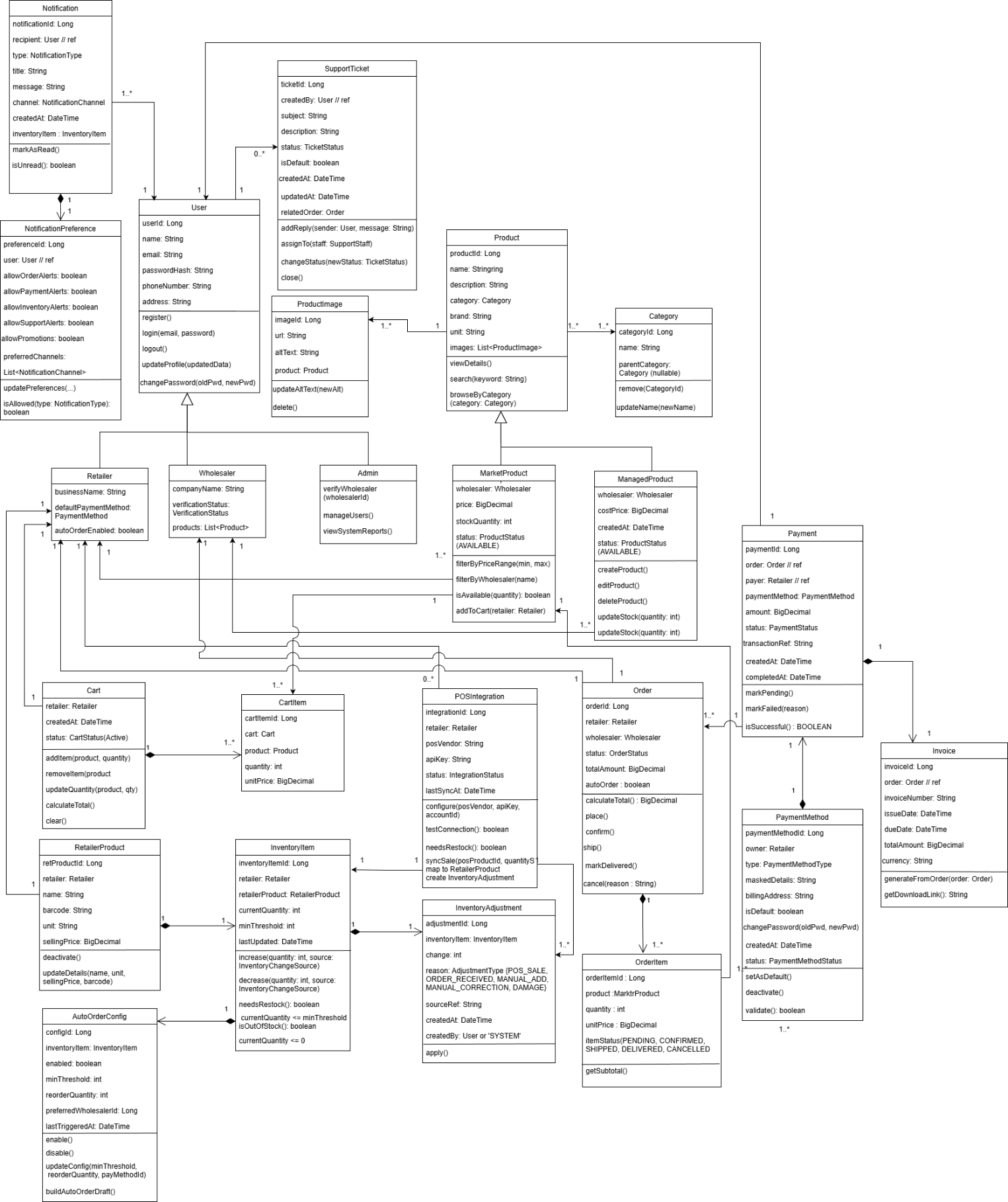
The following class diagram presents the overall structure of the system, showing all major entities, user roles, and their interactions across product management, inventory, orders, payments, notifications, and support services. It provides a clear overview of how the system’s components relate and function
Class Descriptions
The system’s class diagram gives a thorough overview of all key components that work together to manage products, organize categories, track inventory, process orders, manage carts, handle payments, send notifications, and support customer service. These classes define how the platform operates at every stage, ensuring accurate data, scalability, and smooth coordination between users, products, operations, and services.
User Hierarchy
At the heart of user management is the general User class, which represents any person interacting with the platform. It includes shared attributes like userId, name, email, passwordHash, and createdAt, and it offers core features for logging in, updating profiles, and accessing the system. Different user roles extend this class, each adding specific responsibilities:
Retailer: Can browse products, manage their own inventory, set up restocking, prepare shopping carts, and place orders.
Wholesaler: Publishes product listings, manages available stock, and fulfills orders from retailers.
Admin: Manages system-wide functions, oversees user accounts, ensures data consistency, and handles reporting.
SupportStaff: Responds to help tickets, assists users, and solves system-related issues.
This inheritance model standardizes how users behave across the system, avoiding duplicated logic by centralizing shared functions.
Product, Category, and Image Handling
Product management is handled through a set of classes that cover both wholesaler and retailer needs. The Product class-along with variants like MarketProduct and ManagedProduct-captures key details such as productId, name, price, description, brand, and status.
Each product is linked to a Category, which can have hierarchical levels to support structured navigation and filtering. The ProductImage class manages associated images using a composition approach to ensure each image is directly tied to a single product.
Together, these classes organize products logically and ensure they’re visually represented on the platform.
Inventory Management
Retailers track their stock through the InventoryItem class, which logs quantity, minimum stock levels, timestamps, and the linked product. Any updates to inventory are recorded in the InventoryAdjustment class, maintaining a clear history of stock changes.
Restocking is automated via the AutoOrderConfig class, which sets rules for reordering when inventory drops below a defined threshold. This configuration includes restock amounts and preferred payment methods, helping the system automatically initiate replenishment when needed.
Cart and Checkout Process
The Cart and CartItem classes manage the process of choosing and preparing items for purchase. Retailers each have an active cart filled with CartItem entries that hold product, quantity, and pricing data.
Once reviewed, the cart becomes an Order. Each product in the order is tracked using an OrderItem, which stores details like quantity, unit price, and subtotal. The order also monitors its progress-covering steps like placement, confirmation, shipping, and delivery.
Payments and Invoicing
Financial operations are handled through several classes:
PaymentMethod keeps a list of saved payment options, including the type, masked details, and validation data.
Payment records actual transactions, noting the amount, status, timestamps, and related references.
Invoice generates official billing documents with fields such as invoice number, issue date, due date, and total.
These classes work together to ensure secure, traceable, and well-managed payment processes.
Notifications
The notification system includes:
Notification, which holds messages sent to users-covering things like order updates, payment confirmations, inventory alerts, or support responses.
NotificationPreference, which stores how each user prefers to receive different types of messages.
This setup supports a tailored communication experience, keeping users updated on relevant events in a way that suits their preferences.
Customer Support
Customer service is modeled through the SupportTicket class, which records user issues, priority levels, descriptions, timestamps, and ticket statuses. Support staff are assigned to tickets and communicate with users using structured message threads within each ticket-ensuring clear, trackable communication.
Design Rationale
This system is built with modularity and clarity in mind, separating responsibilities across different classes:
Product and inventory classes manage the catalog and stock operations.
Cart and order classes handle the purchase flow.
Payment, notification, and support modules provide vital services without overcomplicating core business logic.
The user hierarchy connects everything and enables consistent access control.
Altogether, this architecture is designed to be maintainable and adaptable as the platform evolves and new features are introduced.
Sequence Diagram
Update Inventory Sequence Diagram
Sequence diagrams descriptions
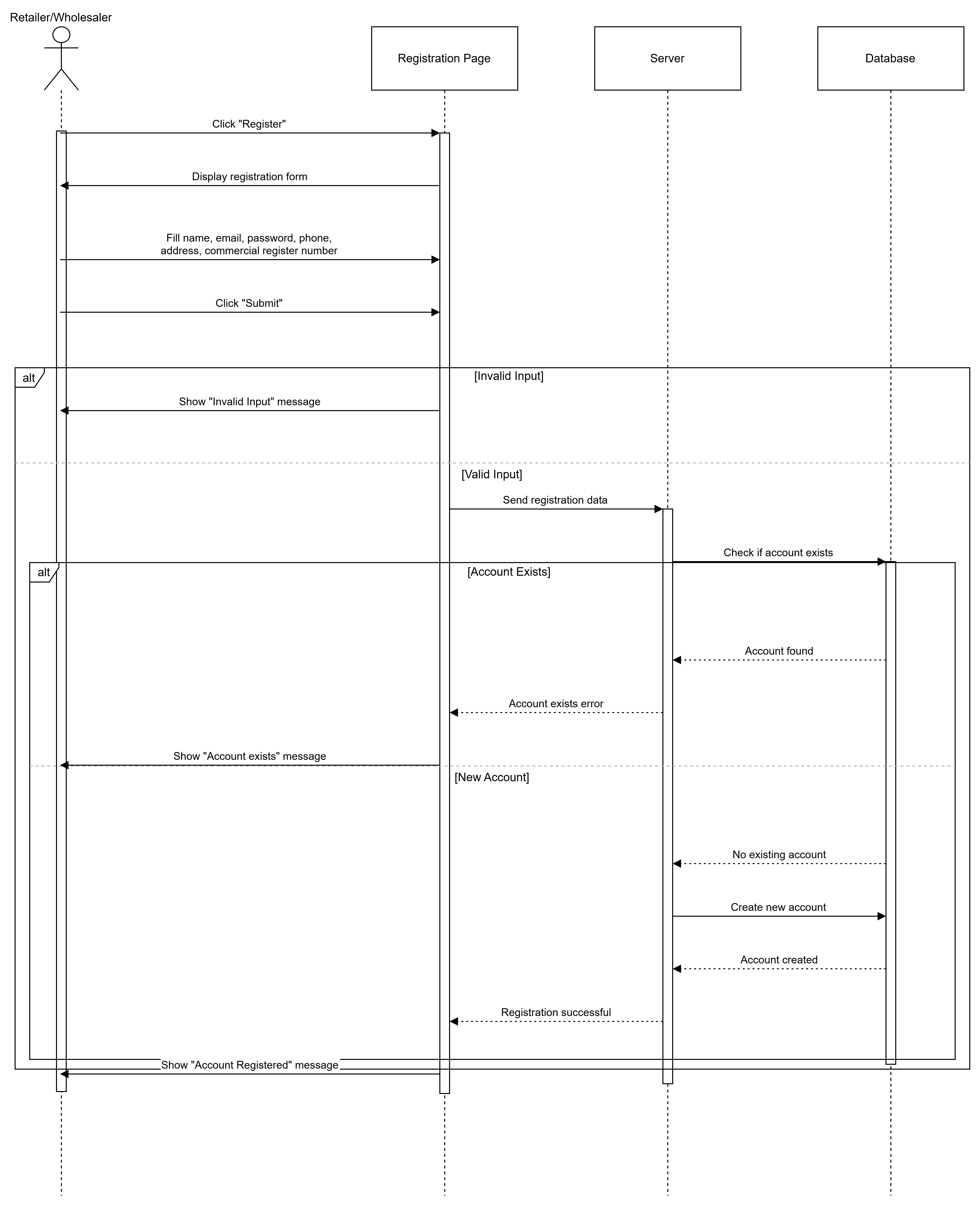
F1.1 Register User:
This sequence diagram illustrates the user registration process in the Drawbridge platform. The interaction begins when a retailer or wholesaler clicks the "Register" button, triggering the display of a registration form. The user fills in required information including name, email, password, phone number, address, and commercial register number, then submits the form. The diagram shows two main exception paths: First, if the input validation fails on the client side, the UI immediately displays an "Invalid Input" message without contacting the server. Second, if the input is valid, the system sends the registration data to the server, which queries the database to check if an account with the provided email already exists. If an account exists, an error message is returned; otherwise, a new account is created in the database, and a success confirmation is displayed to the user. The activation boxes show when each component (UI, System, and Database) is actively processing requests.
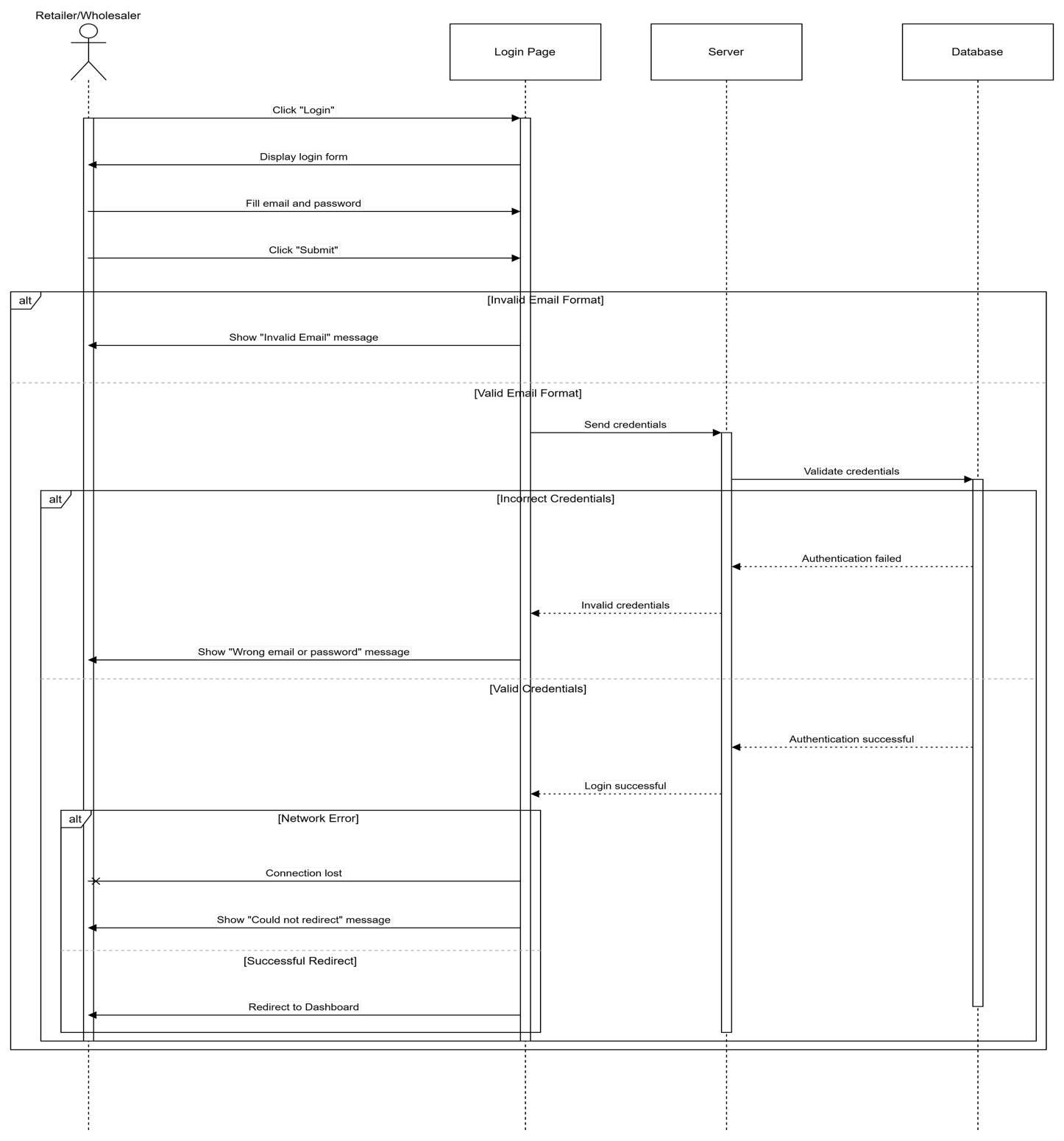
F1.2 Login:
This sequence diagram depicts the authentication process for registered users accessing the Drawbridge platform. The flow begins when a user clicks the "Login" button and is presented with a login form requesting their email and password credentials. The diagram illustrates three exception scenarios: First, if the email format is invalid, the UI performs client-side validation and immediately shows an error without sending data to the server. If the email format is valid, the credentials are sent to the server for authentication. The server queries the database to validate the credentials. If the credentials are incorrect, the system returns a "Wrong email or password" message. If authentication is successful, the system attempts to redirect the user to the dashboard. A network error during redirection triggers a "Could not redirect" message; otherwise, the user successfully accesses their dashboard. The lifelines show the continuous involvement of each component throughout the authentication process.
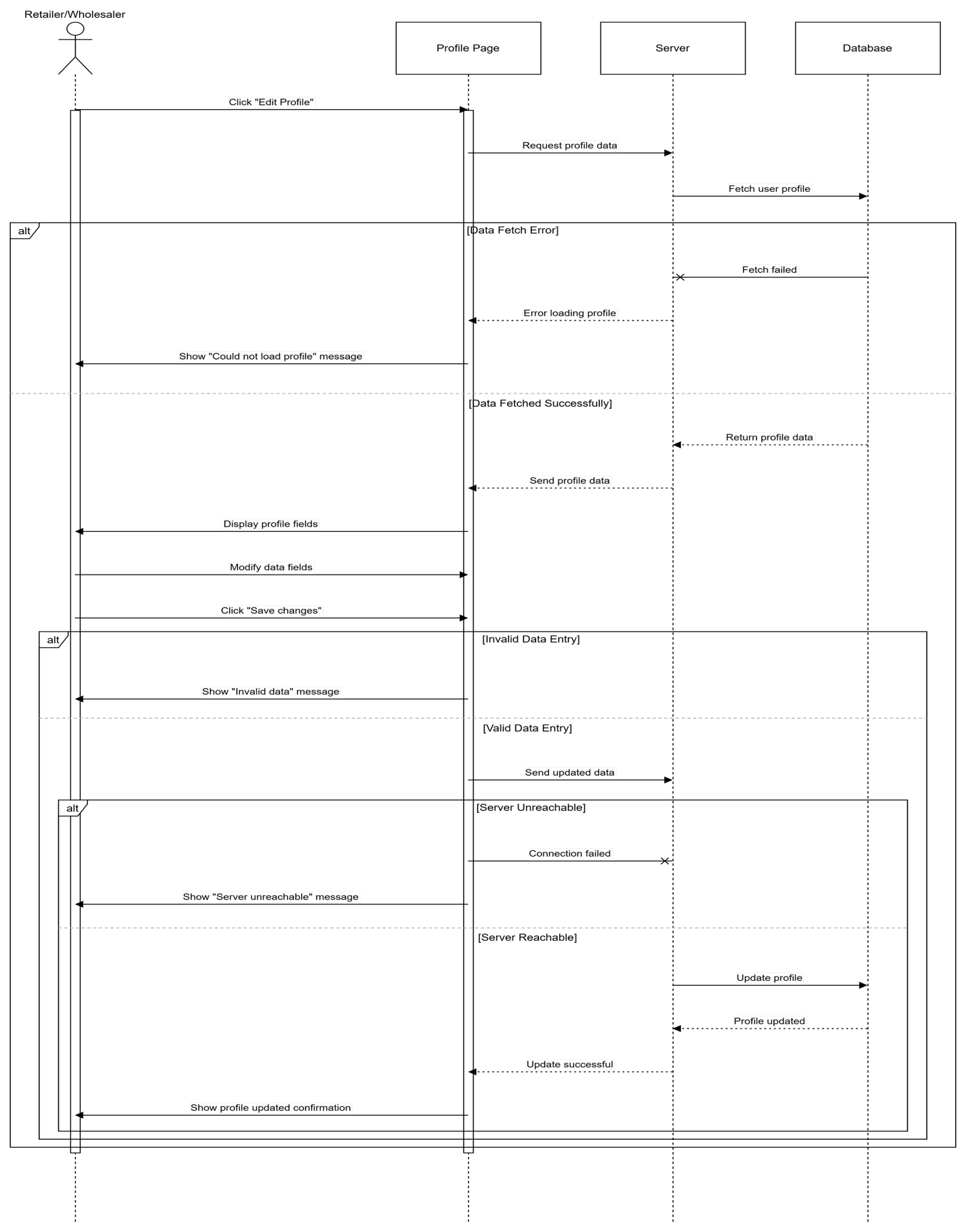
F1.3 Update Profile:
This sequence diagram represents the profile update functionality available to logged-in users of the Drawbridge platform. The interaction initiates when a user clicks "Edit Profile," triggering a request to fetch current profile data from the database through the server. The diagram shows multiple exception paths: First, if there’s a data fetch error from the database, the system displays a "Could not load profile" message. If profile data loads successfully, the user can view and modify their information fields (name, email, password, phone number, address, commercial register number). After making changes and clicking "Save changes," the system validates the input. Invalid data triggers an error message without contacting the server. For valid data, the system sends update requests to the server. If the server is unreachable, an appropriate error message is shown. When the server successfully receives the request, it updates the database and confirms the successful profile update to the user. This diagram demonstrates complex nested decision paths with multiple failure points.
F1.4 Logout:
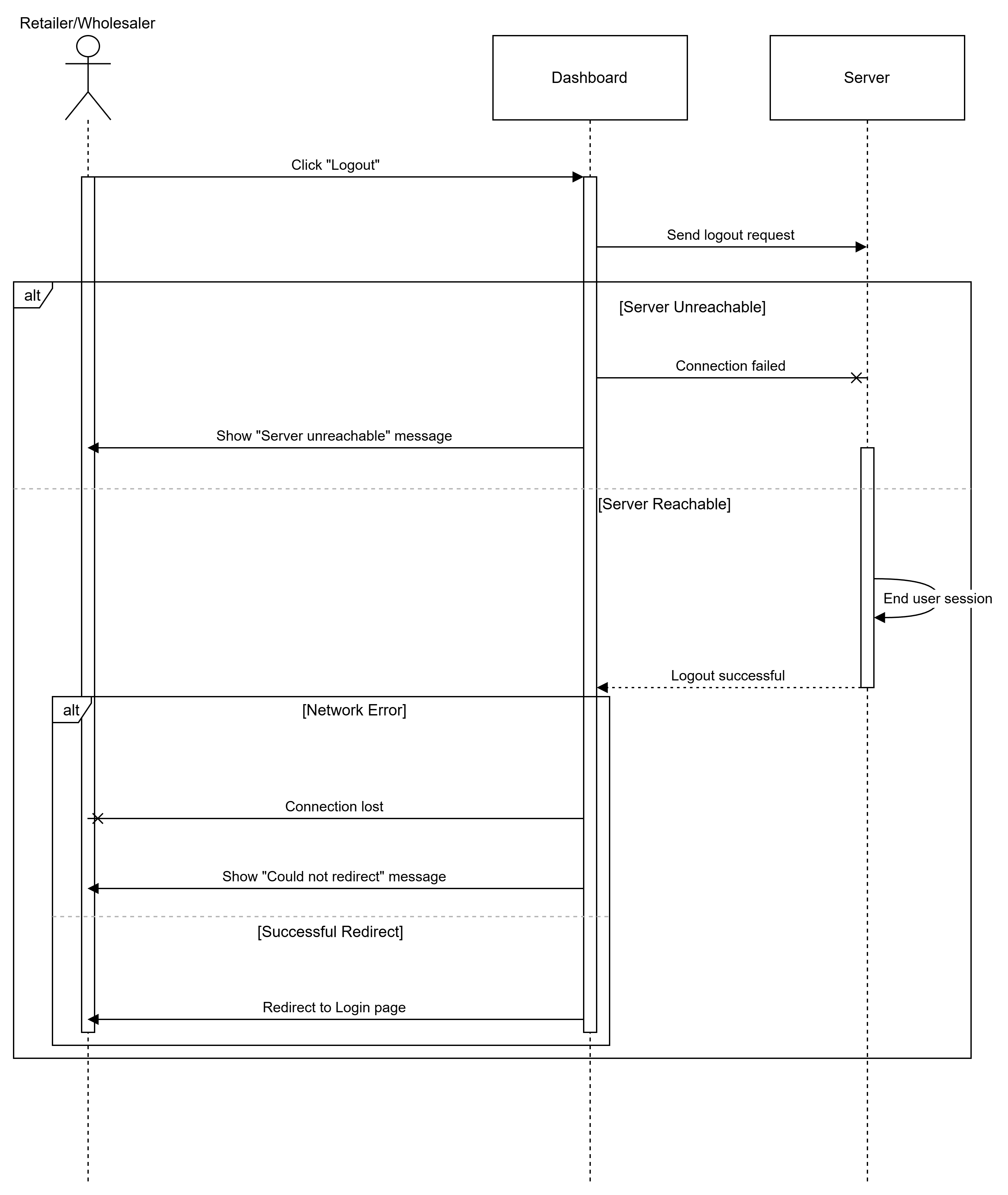
This sequence diagram illustrates the logout process that securely terminates a user’s session in the Drawbridge platform. The flow begins when an authenticated user clicks the "Logout" button from their dashboard, sending a logout request to the server. The diagram presents two main exception scenarios: If the server is unreachable when the logout request is sent, the UI displays a "Server unreachable" message and the session may not be properly terminated on the server side. If the server successfully receives the request, it processes the logout by ending the user’s session. Following successful session termination, the system attempts to redirect the user to the login page. A network error during this redirection displays a "Could not redirect" message, while successful redirection returns the user to the login page, ready for a new authentication. This simpler diagram involves only two components (UI and Server) since no database interaction is required for session termination.
F2.1 Browse Products:
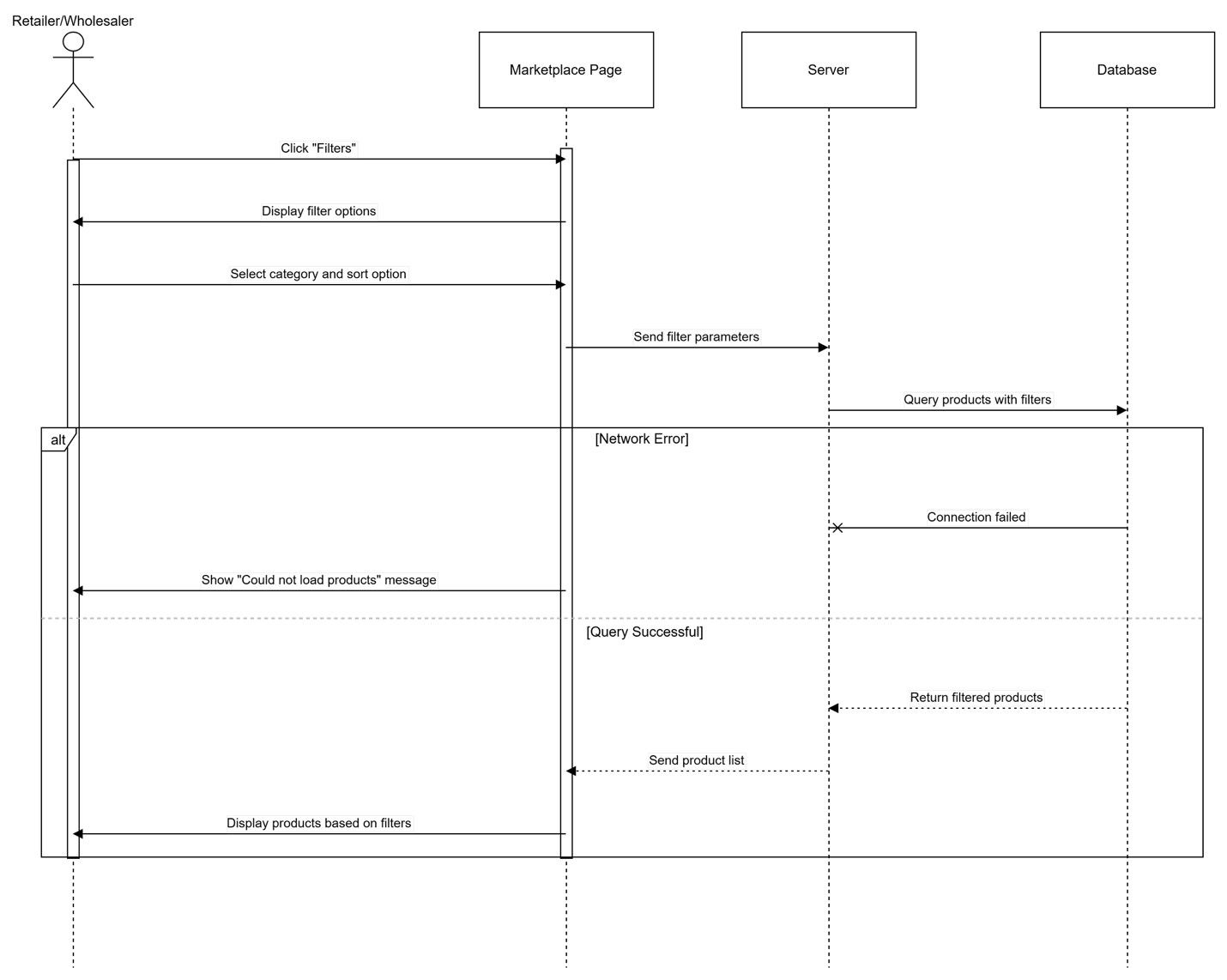
This sequence diagram represents the product browsing functionality in the Drawbridge marketplace, where retailers and wholesalers can view and filter product listings. The interaction begins when a logged-in user navigates to the Marketplace page and clicks on "Filters," which displays available filtering options including category and sort preferences. After the user selects their desired category and sort option, the UI sends these filter parameters to the server, which then queries the database for matching products. The diagram shows one primary exception path: if a network error occurs during the database query, the connection fails and the user sees a "Could not load products" message, preventing them from viewing any results. In the successful path, the database returns the filtered product list to the server, which forwards it to the UI for display. The user then sees products organized according to their selected filters. This diagram demonstrates the typical data retrieval pattern used throughout the marketplace, where user preferences drive dynamic content loading from the backend database.
F2.2 Search Products:
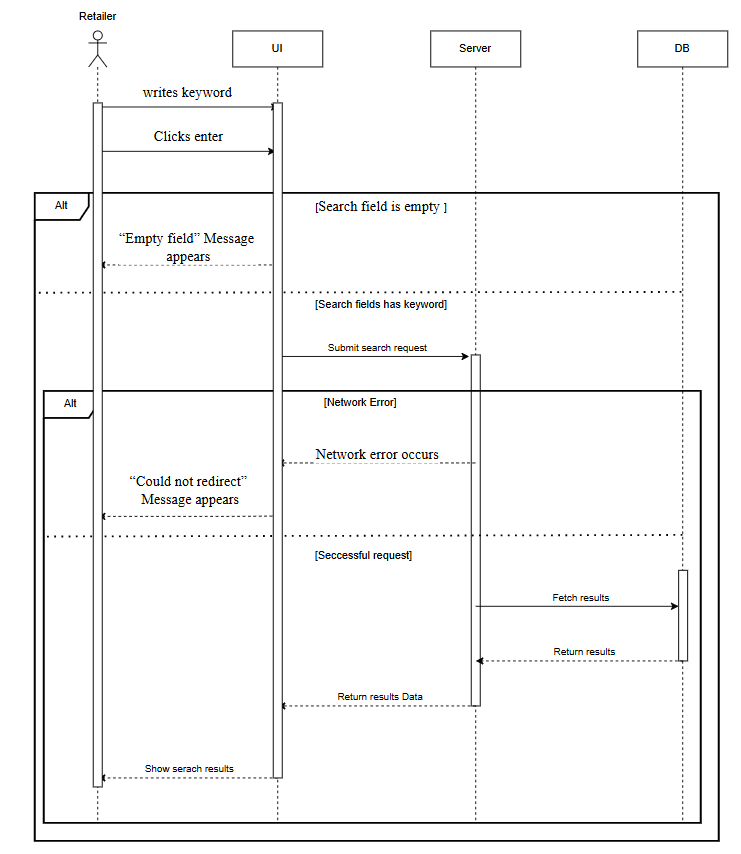
This sequence diagram illustrates the product search functionality that allows retailers to find specific products in the Drawbridge marketplace by entering keywords. The interaction begins when a user clicks on the "Search" field and enters a product name or keyword, then presses enter to initiate the search. The diagram shows two exception paths: First, if the user attempts to search with an empty search field, the UI performs client-side validation and immediately displays an "Empty field" message without sending a request to the server. Second, if the search field contains valid input, the UI sends the search query to the server, which queries the database for matching products. If a network error occurs during this process, the system displays a "Could not redirect" message, preventing the search results from loading. In the successful path, the database returns matching products to the server, which forwards them to the UI for display. This search functionality provides retailers with a quick way to locate specific products without browsing through categories.
F2.3 View Product Details:
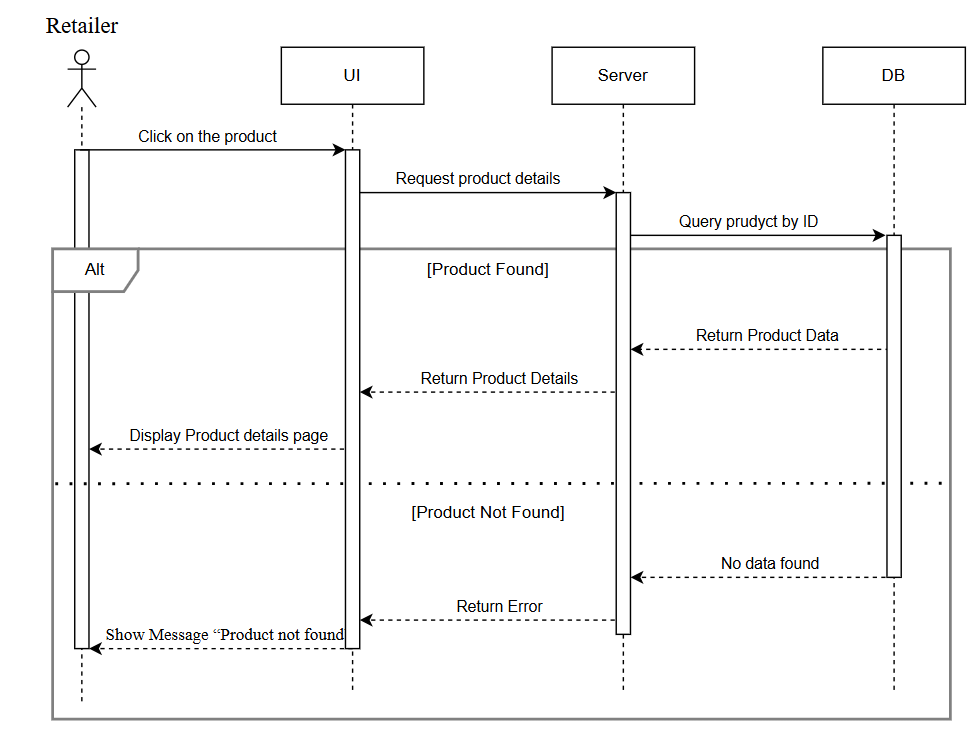
This sequence diagram represents the functionality that allows retailers to view comprehensive information about a specific product in the Drawbridge marketplace. The interaction is triggered when a user clicks on a product listing, which sends a request to load the detailed product page using the Product ID. The diagram shows one primary exception scenario: if the requested product is not found in the database (possibly due to deletion or an invalid Product ID), the system displays a "Product not found" message to the user. In the successful path, the server retrieves the complete product information from the database, including details such as name, description, pricing, stock availability, images, specifications, and supplier information, then displays this information on the product details page. This functionality is essential for retailers to make informed purchasing decisions by reviewing comprehensive product information before adding items to their cart.
F3.1 Update Inventory:
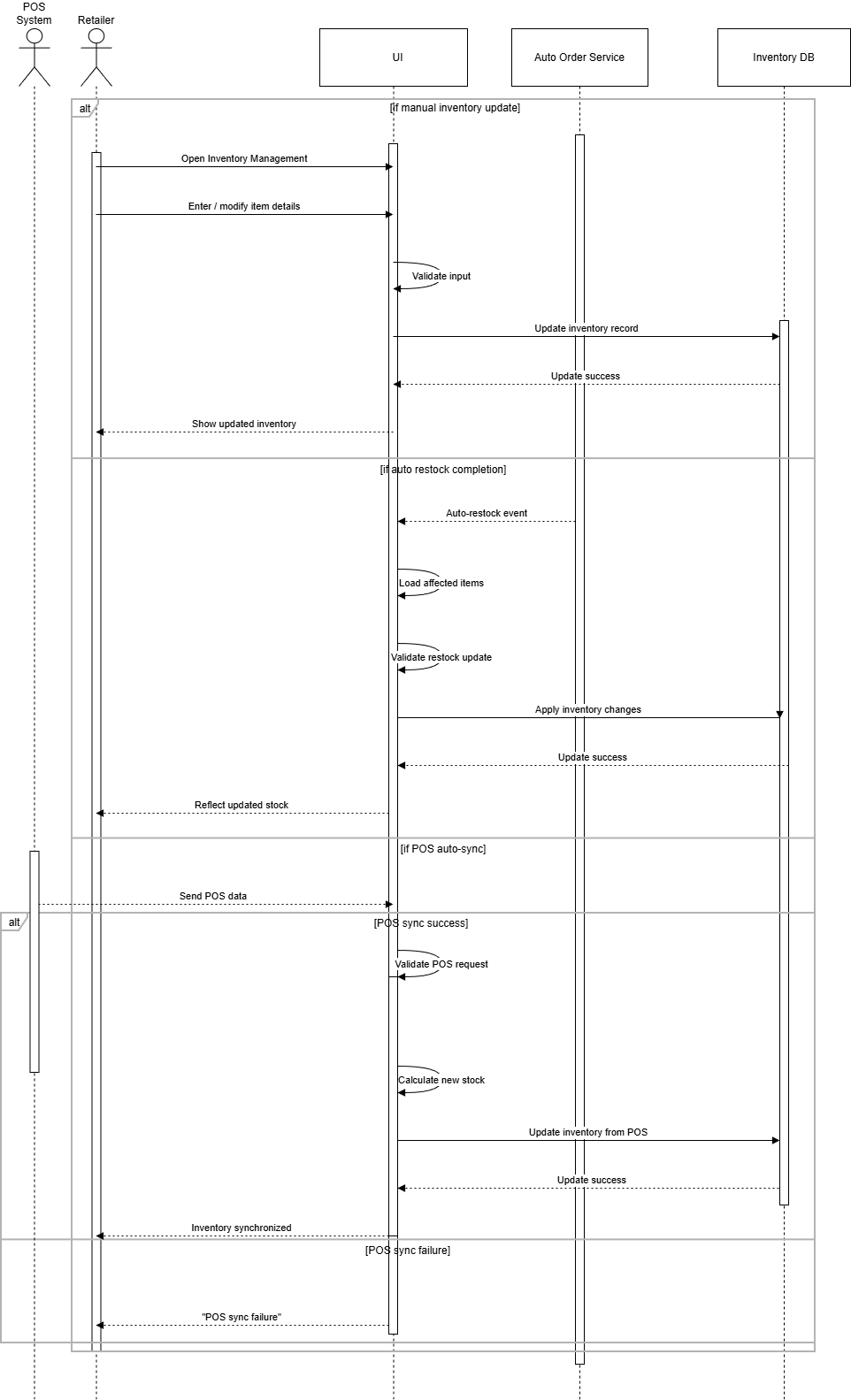
This sequence diagram depicts the inventory update process in the Drawbridge platform, which can be triggered through multiple channels: manual user input, automatic restocking completion, or Point of Sale (POS) system synchronization. The process involves updating item details including Item ID, name, stock levels, and restock configuration. The diagram shows one main exception path related to POS integration: if the POS synchronization fails due to connectivity issues, authentication problems, or API errors, the system displays a "POS sync failure" message to alert the retailer. In successful scenarios, the system receives inventory updates through one of three methods: direct user input where retailers manually add or modify item details, automatic restock completion triggered by the Auto Order feature when stock reaches predefined thresholds, or POS auto-sync where sales data automatically updates inventory levels in real-time. After receiving updates through any of these channels, the system validates and applies the changes to the database, ensuring accurate inventory tracking across all integrated systems.
F3.2 Integrate POS System:
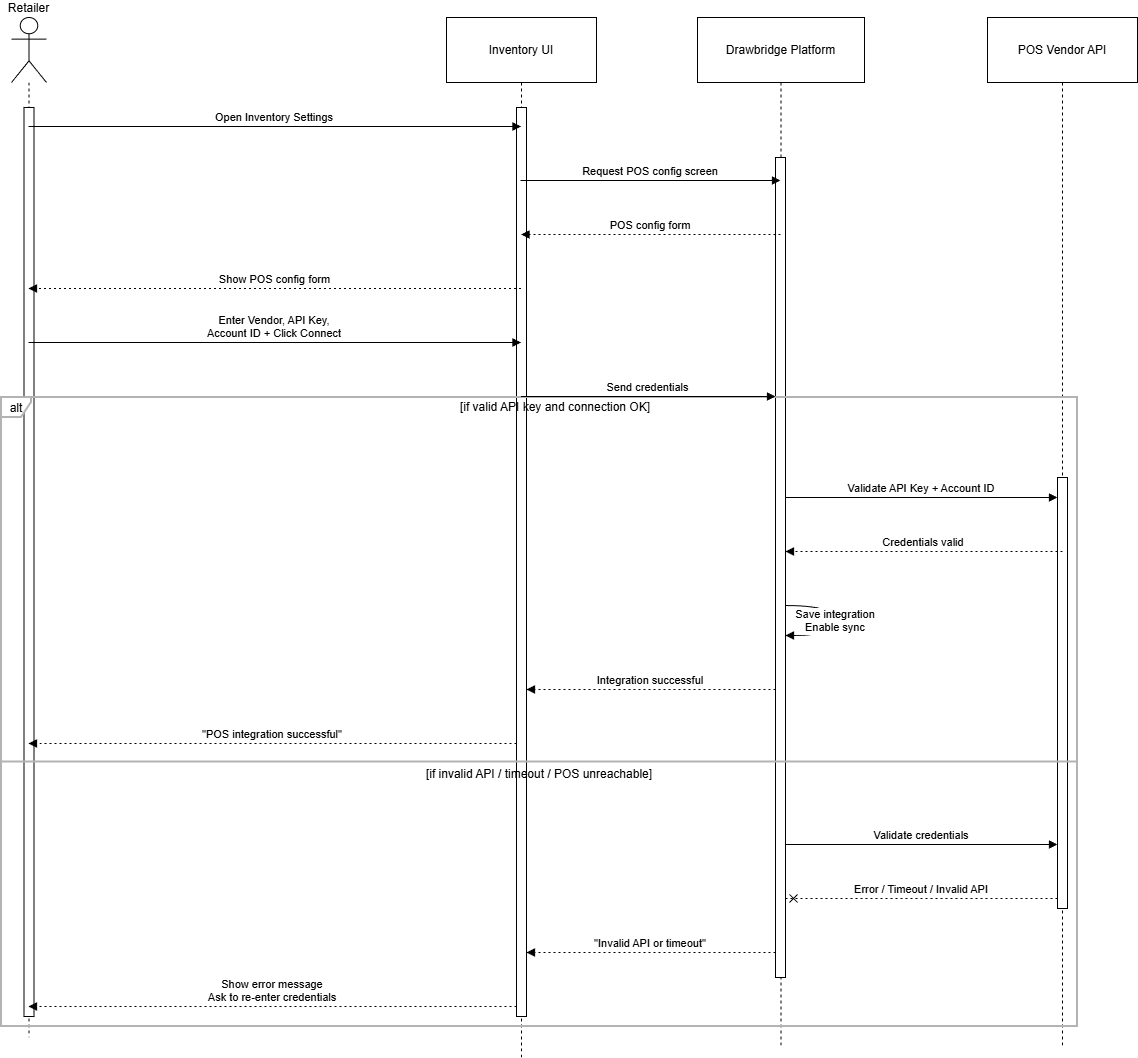
This sequence diagram illustrates the POS (Point of Sale) system integration process that enables retailers to synchronize their physical store sales data with the Drawbridge platform. The interaction begins when a user clicks on "Config POS Integration" in their inventory settings, triggering the display of a configuration form.
The retailer enters their POS system credentials, including POS Vendor name, API Key, and Account ID, then attempts to confirm the connection. The diagram shows one primary exception scenario: if the provided API key is invalid, incorrect, or if the connection times out due to network issues or POS system unavailability, the system displays an "Invalid API or timeout" message, requiring the user to verify their credentials and try again. In the successful path, the system validates the credentials with the POS vendor’s API, establishes a secure connection, and confirms the successful integration. Once linked, the POS account can automatically sync sales data with Drawbridge’s inventory management system, enabling real-time stock level updates and reducing manual data entry.
F3.3 Configure Auto Order:
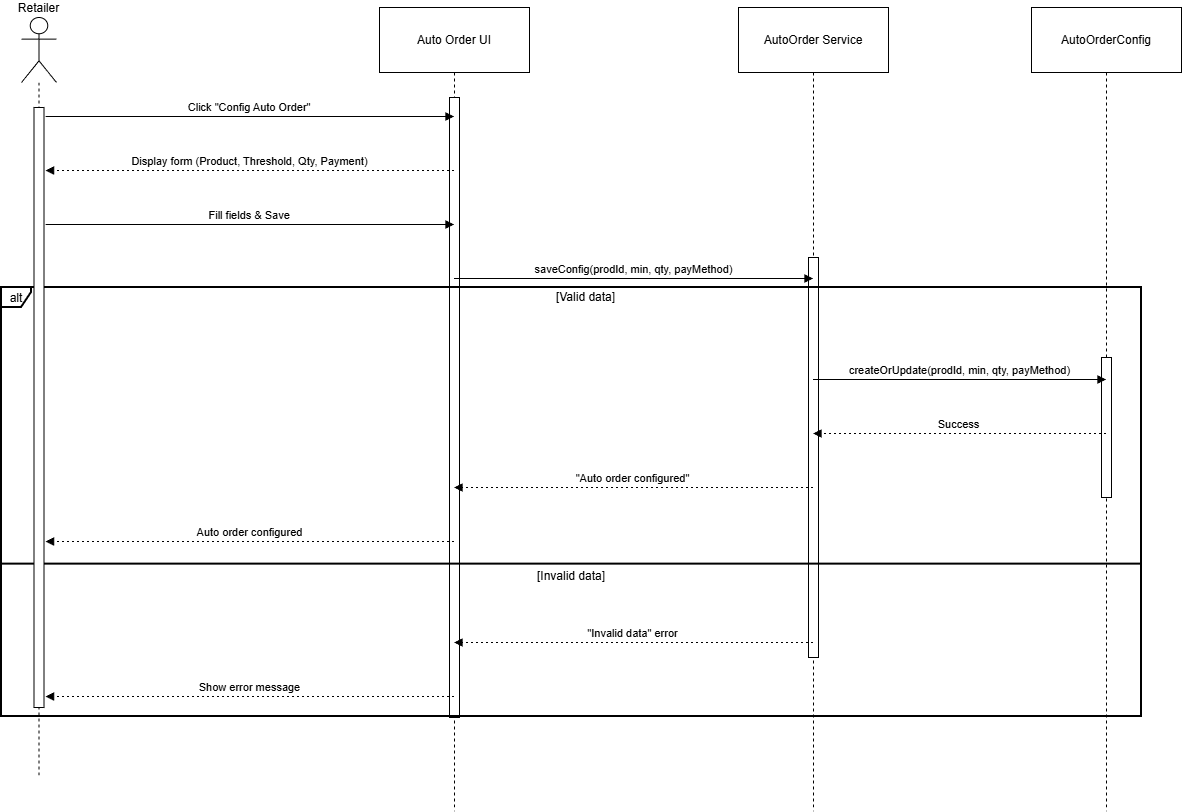
This sequence diagram represents the Auto Order configuration feature that allows retailers to set up automatic restocking parameters for their inventory items. The interaction begins when a user navigates to the Inventory page and clicks on "Config Auto Order" for a specific item.
The user fills in critical configuration fields including Product ID (the item to be auto-ordered), Minimum Threshold (the stock level that triggers automatic reordering), Reorder Quantity (how many units to purchase when triggered), and Payment Method (the payment option to use for automatic orders). The diagram shows one exception path: if the user enters invalid data (such as negative quantities, missing required fields, or incompatible payment methods), the system performs validation and displays an "Invalid data" message without saving the configuration. In the successful path, after the user completes all fields correctly and clicks save, the system validates the configuration parameters and stores them in the database. Once configured, the system will automatically monitor stock levels and place orders when inventory falls below the specified threshold, ensuring continuous product availability without manual intervention.
F4.1 Place Order:
This sequence diagram illustrates the order placement process where retailers purchase products from wholesalers through the Drawbridge marketplace. The interaction is triggered when a user clicks "Place order" after adding desired products to their cart.
The user selects their preferred payment method and shipping address, then reviews and confirms all order details including product list, quantities, pricing, and delivery information. The system then processes the payment through the integrated payment gateway. The diagram shows one critical exception scenario: if payment processing fails due to insufficient funds, declined cards, authentication errors, or payment gateway issues, the system displays a "Payment failure" message and the order is not confirmed. In the successful path, the payment gateway validates and processes the payment, the system records the transaction, updates inventory levels, notifies the wholesaler, and generates an order confirmation for the retailer. This confirmation includes order details, estimated delivery timeline, and tracking information, completing the B2B transaction cycle.
F4.2 Cancel Order:
This sequence diagram represents the order cancellation functionality that allows retailers to cancel pending orders before they are shipped. The interaction begins when a user identifies an order they wish to cancel and clicks the "Cancel Order" button, typically from their order history or order details page.
When the cancellation request is sent to the server, the system checks the current order status to verify it has not yet been shipped. The diagram shows one primary exception scenario: if the order has already been shipped or is in transit, the system cannot process the cancellation and displays an "Order already shipped" message, informing the user they must contact support or follow the returns process instead. In the successful path, if the order status is still "pending" or "processing," the system cancels the order, updates the order status in the database, potentially processes any refunds if payment was already collected, restores product inventory levels, notifies the wholesaler of the cancellation, and displays a cancellation success message to the retailer. This feature provides flexibility for retailers to modify their purchasing decisions before order fulfillment.
F4.3 View Orders Details:
This sequence diagram depicts the order history and details viewing functionality available to both retailers and wholesalers in the Drawbridge platform. The interaction is triggered automatically when a user navigates to or opens their orders page from the dashboard or navigation menu.
Upon opening the orders page, the system immediately fetches order data from the database, including order history, current order statuses, product details, payment information, shipping addresses, and tracking information. The diagram shows one exception scenario: if a network error occurs during data retrieval due to connectivity issues, server problems, or database unavailability, the system displays a "Could not load products" message. In the successful path, the system retrieves all relevant order information and displays it in an organized format, typically showing a list or table of orders with key details such as Order ID, date, status (pending, processing, shipped, delivered, cancelled), total amount, and recipient information. Users can typically click on individual orders to view complete order details including itemized product lists, shipping tracking, and payment receipts.
F5.1 Push Notification:
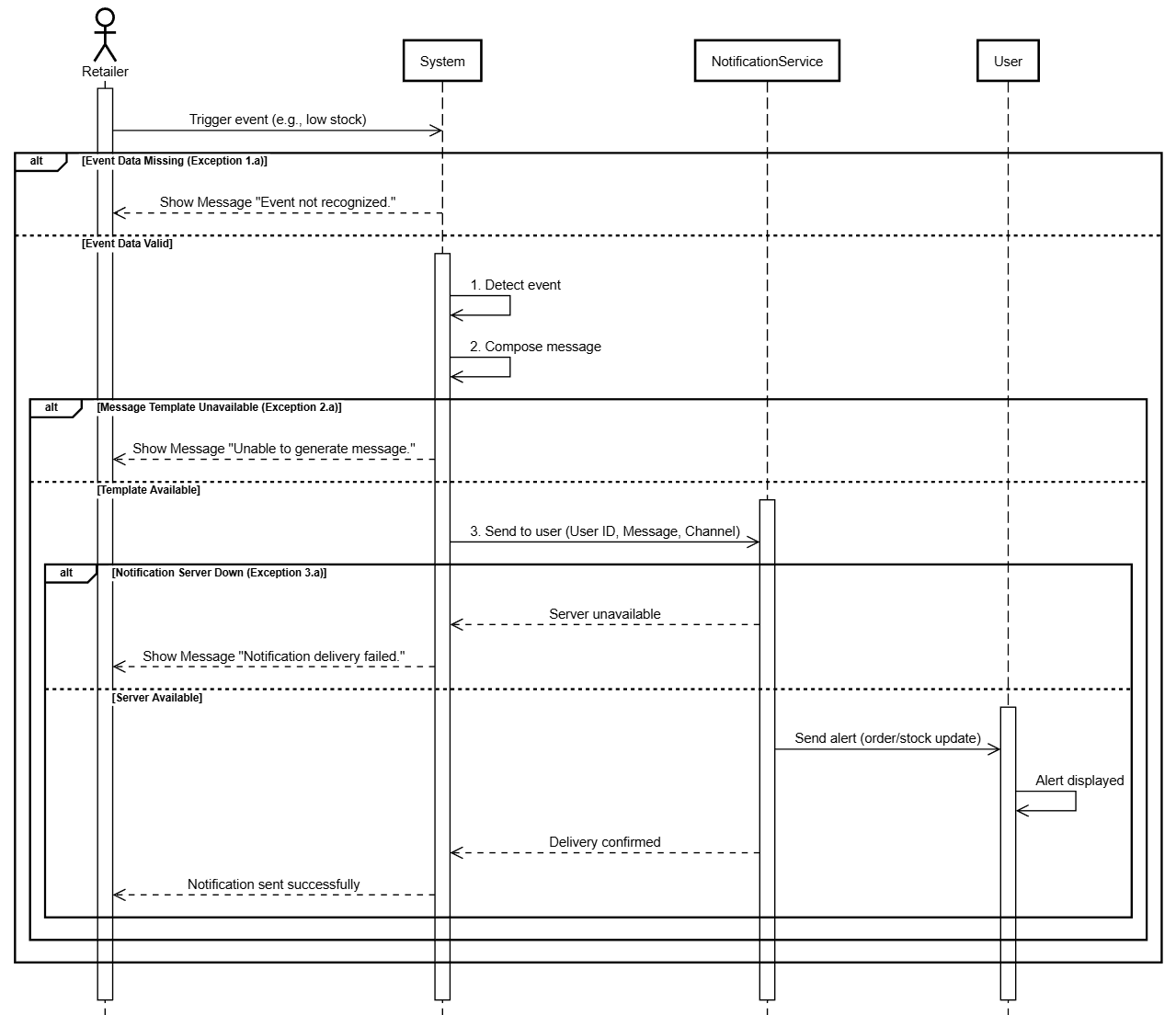
This sequence diagram illustrates the automated push notification system that sends alerts to retailers regarding important events such as low stock levels, order updates, shipment status changes, or promotional offers. Unlike user-initiated actions, this process is triggered automatically when the system detects specific events. The notification flow begins when the system’s monitoring service detects a triggerable event (such as inventory falling below threshold, order status changing, or new promotional campaigns). The system then composes an appropriate message based on the notification type and user preferences, personalizing the content with relevant details. Finally, the notification is sent to the user through their preferred delivery channel (in-app notification, email, or SMS). The diagram shows three exception scenarios: First, if event data is missing or corrupted, the system cannot identify what type of notification to send and displays "Event not recognized." Second, if the message template is unavailable or contains errors, the system shows "Unable to generate message." Third, if the notification server is down or unreachable, the notification cannot be delivered and the system logs "Notification delivery failed." In the successful path, the alert is successfully delivered to the user through their chosen channel, keeping them informed of critical business events in real-time.
F5.2 Manage Notifications:
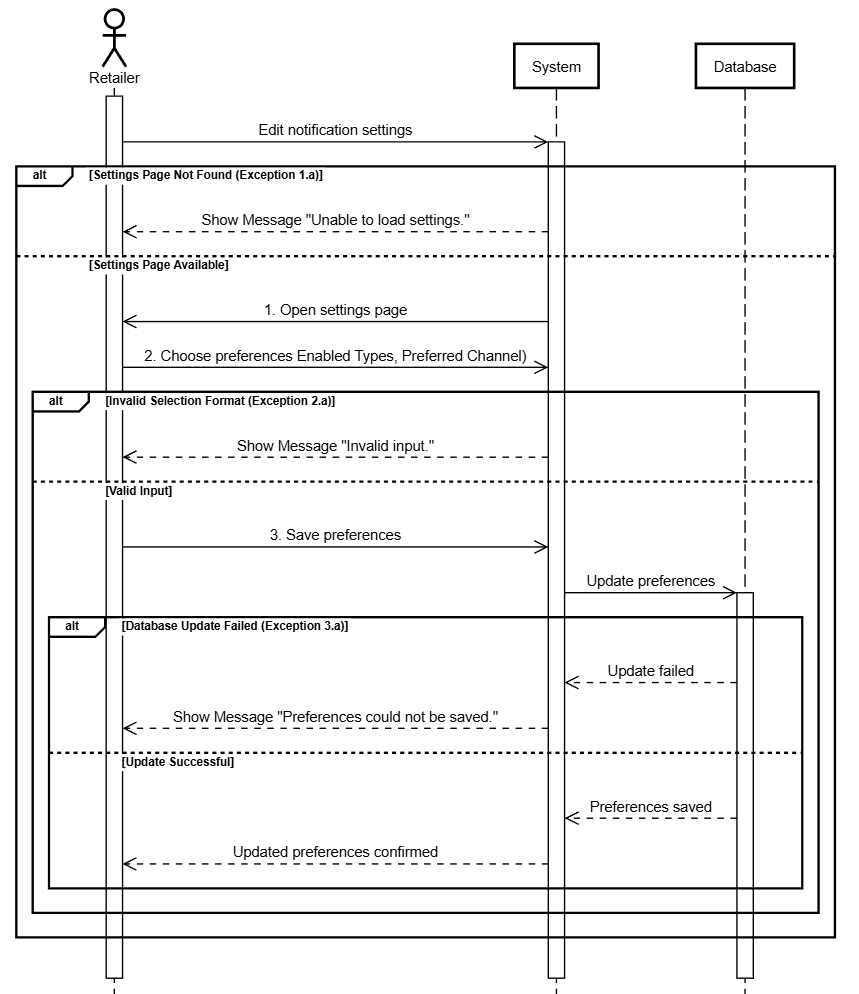
This sequence diagram represents the notification preferences management interface that allows retailers to customize which types of alerts they receive and through which channels. The interaction begins when a user navigates to their account settings and clicks to edit notification settings. The user opens the notification settings page where they can view current preferences and available notification types including stock alerts (low inventory warnings), order notifications (order confirmations, shipping updates, delivery confirmations), and promotional alerts (special offers, new product announcements). The user selects which notification types to enable or disable and chooses their preferred delivery channels (in-app notifications, email, or phone/SMS) for each type. After making their selections, the user saves the preferences. The diagram shows three exception scenarios: First, if the settings page fails to load due to server issues or routing errors, the system displays "Unable to load settings." Second, if the user’s selections are in an invalid format (such as malformed data or incompatible combinations), the system shows "Invalid input." Third, if the database update fails when attempting to save preferences, the system displays "Preferences could not be saved." In the successful path, the system validates and stores the updated preferences, ensuring future notifications are delivered according to the user’s specified preferences.
F6.1 View Inventory Statistics:
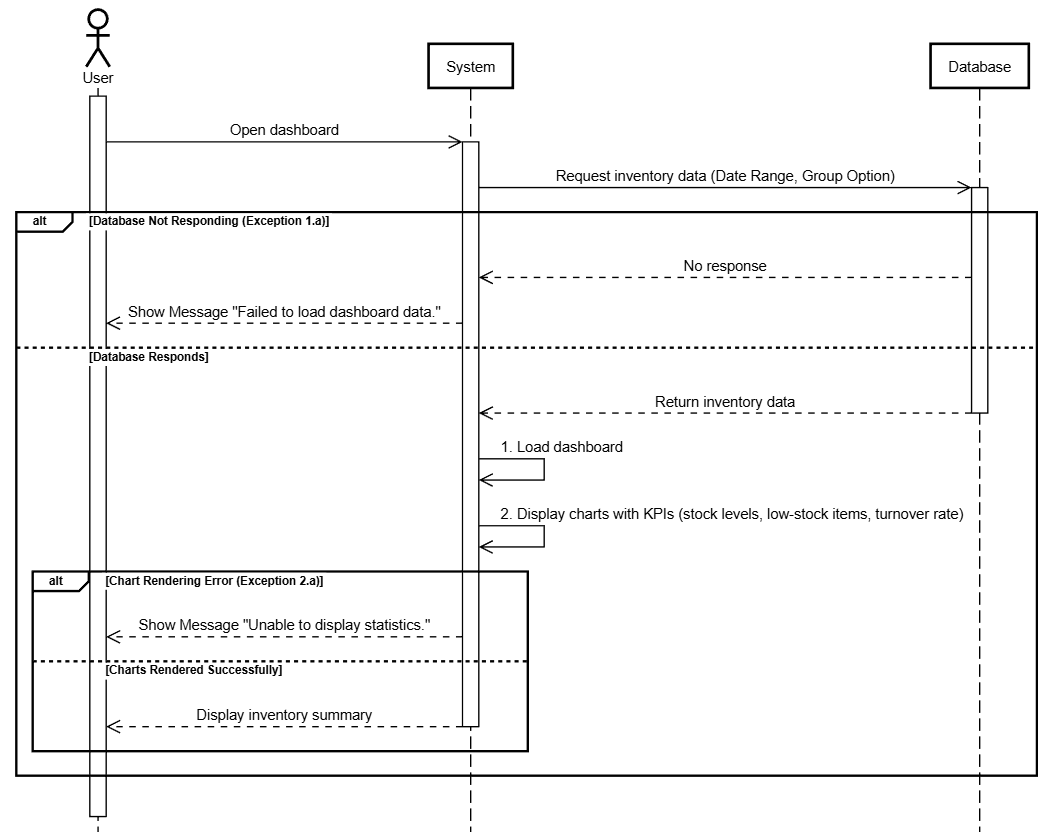
This sequence diagram depicts the inventory analytics dashboard that provides both retailers and wholesalers with comprehensive insights into their current stock levels and inventory performance. The interaction is triggered automatically when a user opens their main dashboard or navigates to the inventory statistics section. The system loads the dashboard interface and retrieves inventory data based on user-specified parameters including date range and grouping options (by category, brand, or location). The dashboard displays key performance indicators (KPIs) such as current stock levels across all products, lists of low-stock items requiring attention, inventory turnover rates showing how quickly products sell, stock value calculations, and trend charts showing inventory changes over time. The diagram shows two exception scenarios: First, if the database is not responding due to connectivity issues, maintenance, or system overload, the system displays "Failed to load dashboard data," preventing any statistics from appearing. Second, if chart rendering fails due to corrupted data, browser compatibility issues, or JavaScript errors, the system shows "Unable to display statistics" while possibly still showing raw data in table format. In the successful path, all inventory statistics are successfully retrieved, processed, and displayed through interactive charts, graphs, and tables, empowering users to make data-driven inventory management decisions.
F6.2 View Order Statistics:
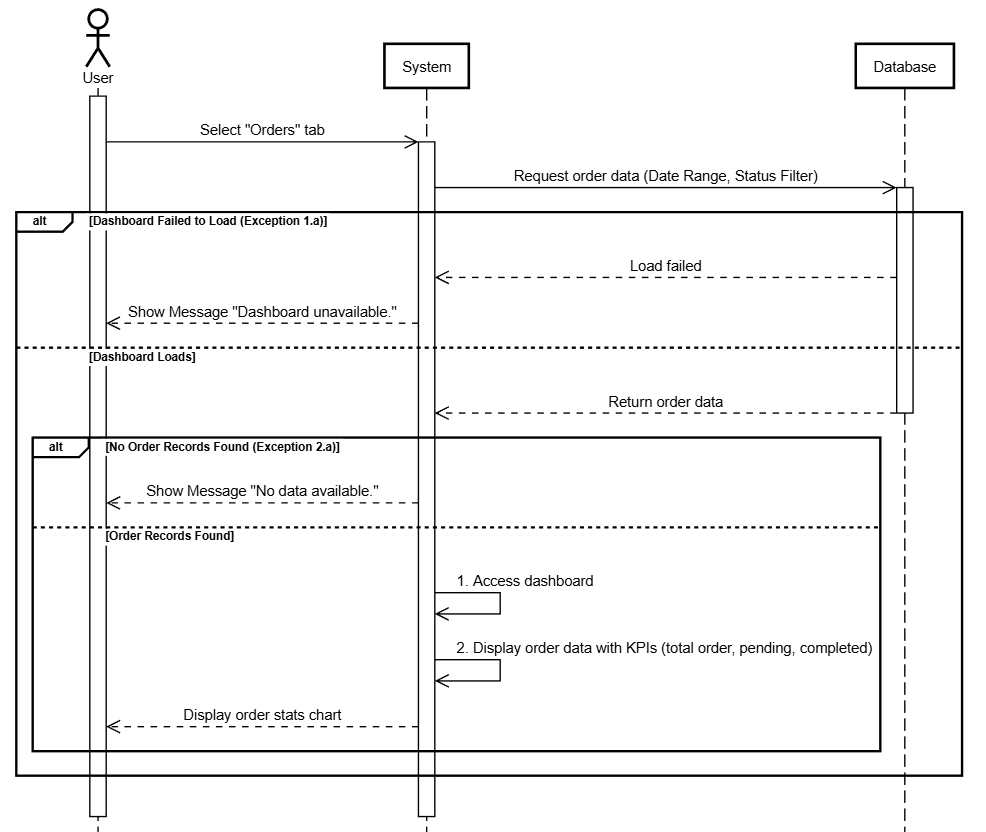
This sequence diagram illustrates the order analytics functionality that provides retailers and wholesalers with comprehensive insights into their order patterns and sales performance. The interaction is triggered when a user selects the "Orders" tab from their dashboard navigation.
Upon accessing the orders analytics section, the system retrieves order data filtered by user-specified parameters including date range and status filters (all orders, pending, processing, completed, or cancelled). The dashboard displays critical KPIs including total order count, number of pending orders awaiting processing or payment, completed orders with delivery confirmation, cancelled orders, total revenue, average order value, and order trends over time. The diagram shows two exception scenarios: First, if the dashboard fails to load due to server errors, authentication issues, or system maintenance, the system displays "Dashboard unavailable," preventing access to any analytics. Second, if no order records are found matching the selected filters (possibly because the account is new or the date range contains no orders), the system shows "No data available" with suggestions to adjust filters or create orders. In the successful path, the system successfully retrieves, processes, and visualizes order data through charts, graphs, and summary tables, enabling users to analyze their sales performance, identify trends, and make informed business decisions.
F6.3 View Latest Notifications:
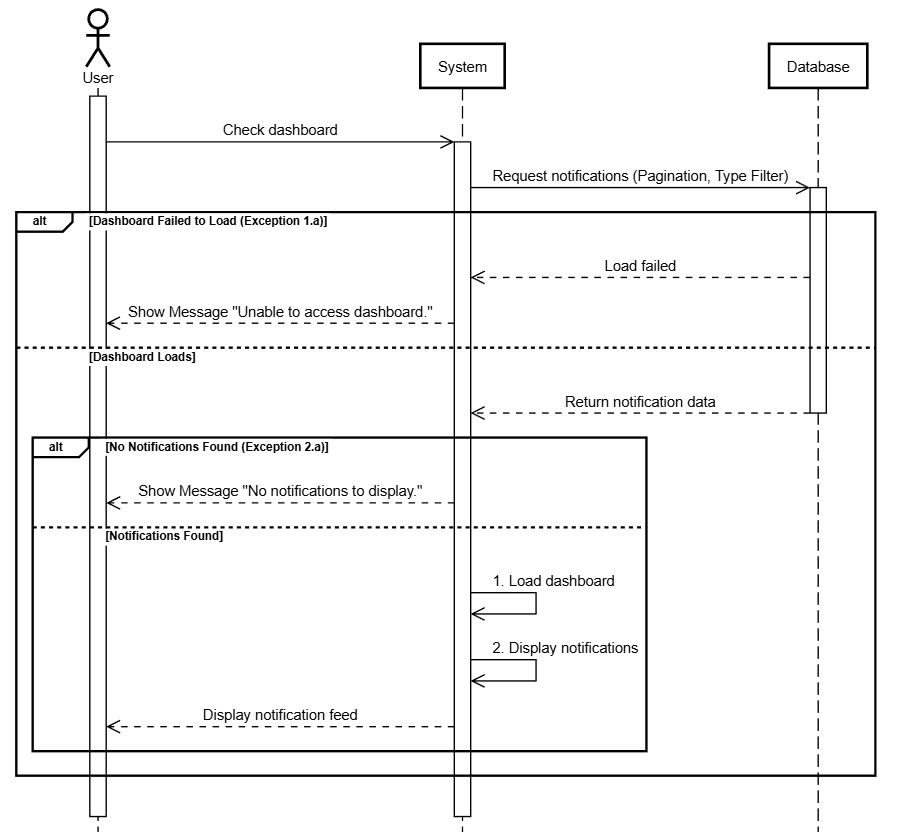
This sequence diagram represents the notification feed that displays recent alerts and system messages to both retailers and wholesalers directly on their dashboard. The interaction is triggered automatically when a user accesses their dashboard or manually when they check the notifications section.
The system loads the dashboard and retrieves the most recent notifications, applying user preferences such as pagination settings (number of notifications per page) and type filters (showing all notifications or filtering by specific types like stock alerts, order updates, or promotional messages). The notification feed typically displays chronological alerts with key information including notification type, message content, timestamp, and read/unread status. The diagram shows two exception scenarios: First, if the dashboard fails to load due to system errors, network issues, or authentication problems, the system displays "Unable to access dashboard," preventing the user from viewing any content including notifications. Second, if no notifications are found (either because no events have triggered notifications or all notifications have been cleared), the system shows "No notifications to display" with an empty state message. In the successful path, the system successfully retrieves and displays recent notifications in a chronologically ordered feed, keeping users informed of important events, updates, and alerts relevant to their business operations.
F7.1 View Accessibility Panel:
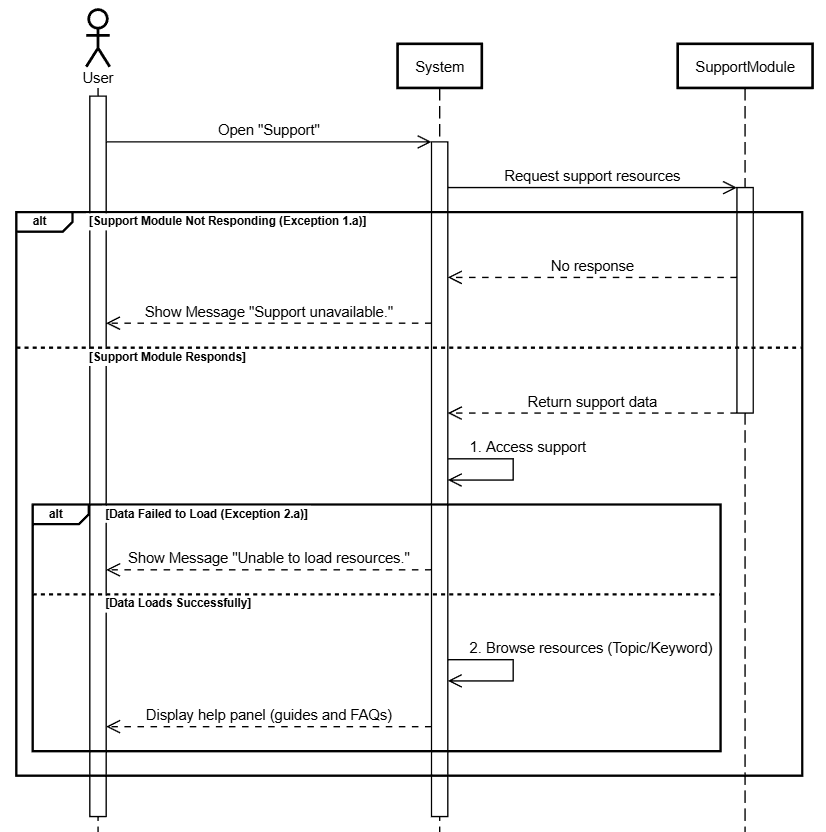
This sequence diagram illustrates the help and support resources interface that provides users with access to guides, FAQs, and documentation to assist them in using the Drawbridge platform effectively. The interaction begins when a logged-in user (retailer or wholesaler) clicks on "Support" or "Help" from the navigation menu.
Upon accessing the support section, users can browse through organized help resources including getting started guides, feature documentation, frequently asked questions (FAQs), troubleshooting tips, video tutorials, and best practices. Users can search for specific topics using keywords to quickly find relevant information. The diagram shows two exception scenarios: First, if the support module is not responding due to server issues, maintenance, or technical problems, the system displays "Support unavailable," preventing users from accessing help resources. Second, if the help content fails to load from the content management system or database, the system shows "Unable to load resources," though basic navigation might still be available. In the successful path, the system successfully loads the accessibility panel with all help resources properly organized and searchable, empowering users to find answers independently and learn how to use platform features effectively without needing to contact support staff.
F7.2 Contact Support Team:
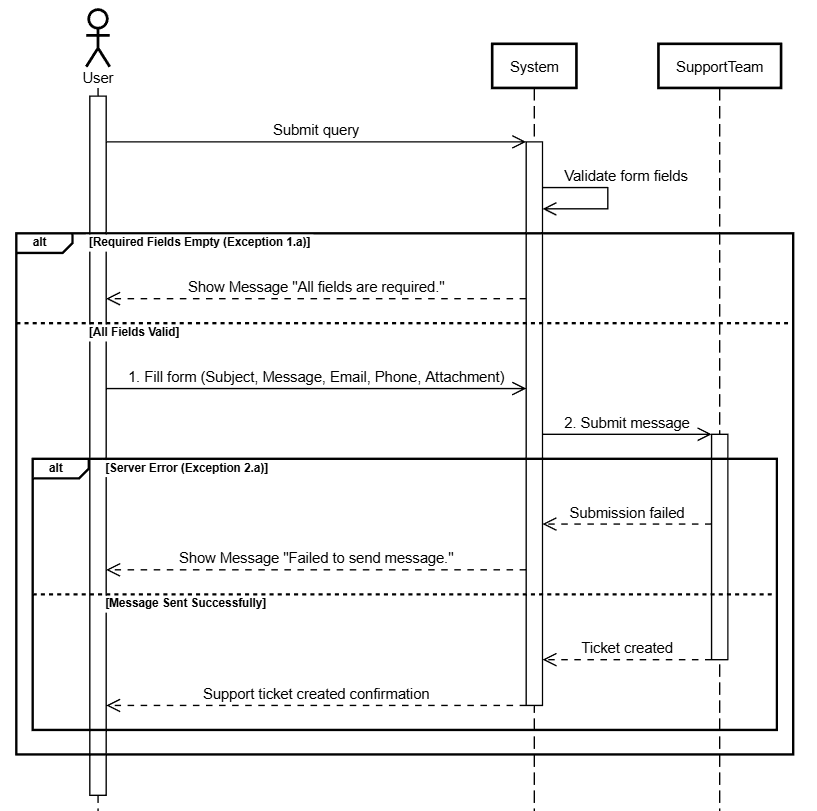
This sequence diagram represents the support ticket creation system that enables retailers and wholesalers to contact the Drawbridge support team for assistance with issues, questions, or technical problems. The interaction begins when a user encounters an issue they cannot resolve through self-help resources and decides to submit a support query.
The user fills out a support contact form providing essential information including subject (brief description of the issue), detailed message explaining the problem or question, contact email for correspondence, optional phone number for urgent issues, and optional attachments (such as screenshots, error logs, or relevant documents) to help support staff understand the issue better. After completing the form, the user submits the message to create a support ticket. The diagram shows two exception scenarios: First, if required fields (typically subject, message, and email) are empty when the user attempts to submit, client-side validation displays "All fields are required," prompting the user to complete the form. Second, if a server error occurs during ticket creation due to system issues, database problems, or email service failures, the system displays "Failed to send message," and the ticket may not be created. In the successful path, the system validates the form data, creates a support ticket with a unique ticket ID, sends the ticket to the support team’s queue, sends a confirmation email to the user with their ticket number, and displays a success message confirming the ticket was created. Support staff can then review and respond to the ticket based on priority.
F8.1 Add Payment Method:
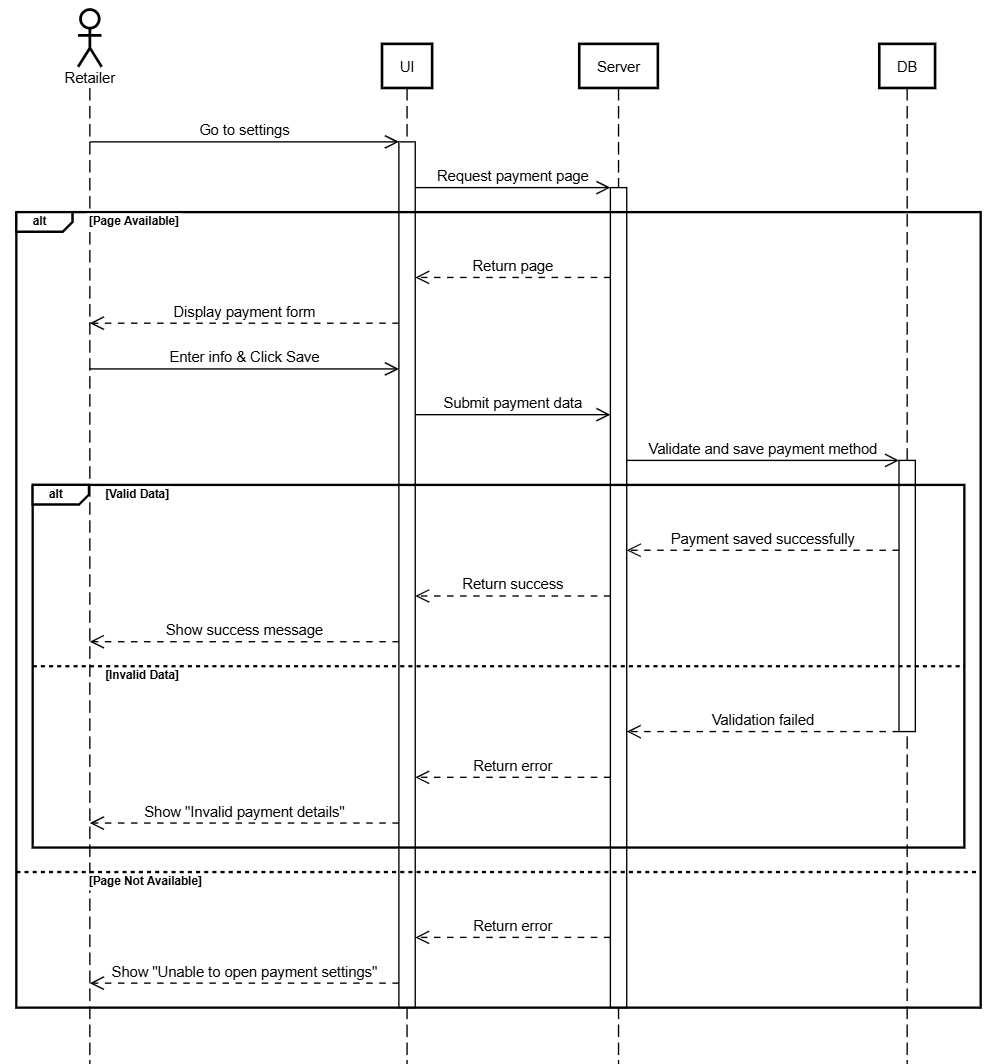
This sequence diagram illustrates the payment method management functionality that allows retailers to securely add or update their payment information for use in ordering products. The interaction begins when a logged-in user navigates to their account settings and selects the option to add or manage payment methods.
The user opens the payment settings page and enters payment card information including cardholder name, card number (which is tokenized for security and never stored in plain text), expiry date, CVV code (used only for verification and not stored), and billing address. After entering all required information, the user saves the payment method. The diagram shows three exception scenarios: First, if the payment settings page is not available due to routing errors, server issues, or insufficient permissions, the system displays "Unable to open payment settings." Second, if invalid card information is entered (such as incorrect card number format, expired card, or invalid CVV), client-side and server-side validation display "Invalid payment details." Third, if a database error occurs while attempting to save the tokenized payment information, the system shows "Failed to save payment method." In the successful path, the system validates the card information, securely tokenizes the card number through a payment processor, stores only the token and necessary metadata (not the actual card number or CVV) in the database, and confirms successful addition of the payment method. Users can then select this saved payment method during checkout for faster order processing.
F8.2 Pay Order:
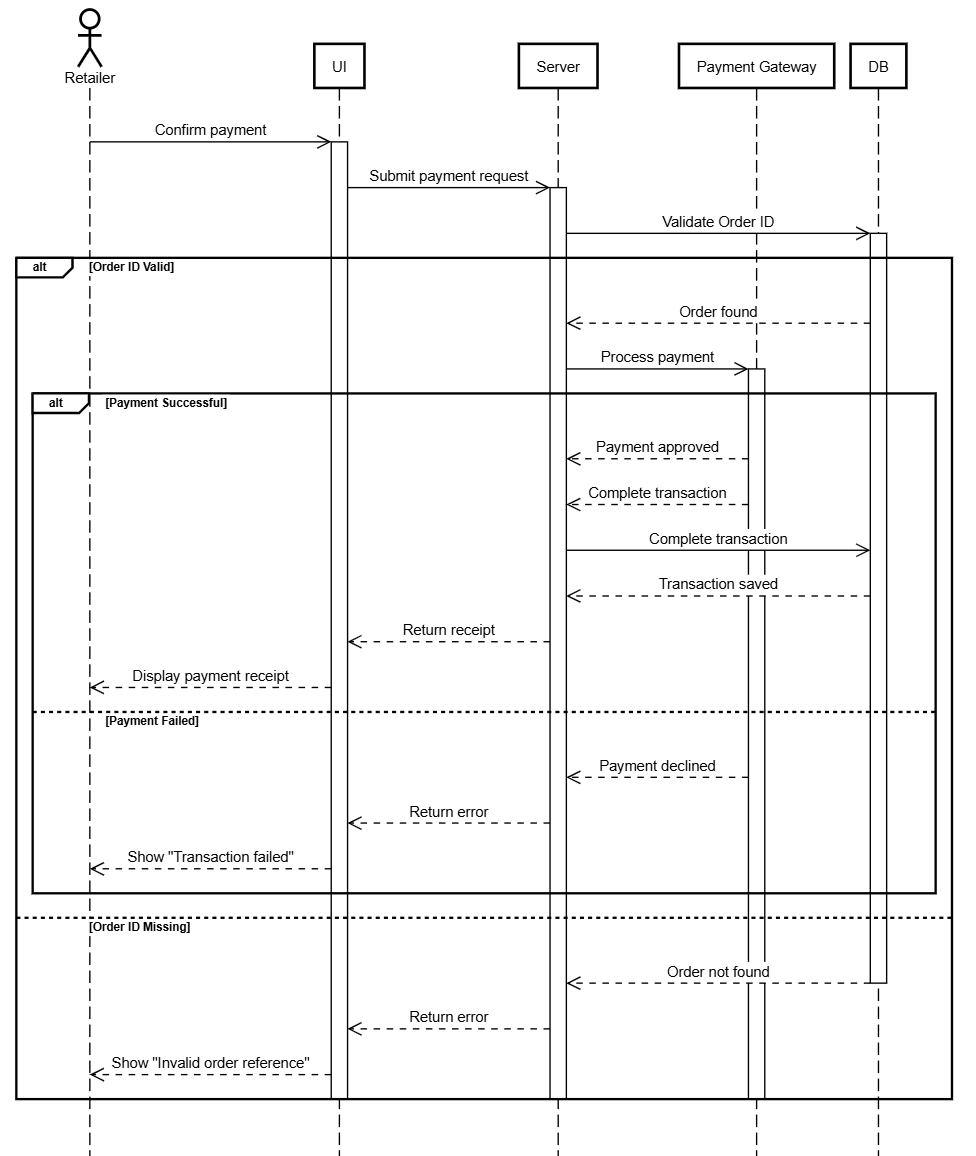
This sequence diagram depicts the payment processing workflow that occurs when a retailer confirms and pays for an order placed with a wholesaler. This interaction involves coordination between the Drawbridge platform and external payment gateway services. The process is triggered when a user confirms their purchase and initiates payment.
The user reviews order details and confirms payment using a previously saved payment method or newly entered payment information. The system validates the payment request including order ID, order amount, payment method token, and authentication credentials (OTP/3DS for secure transactions). The payment gateway processes the transaction, performing fraud checks, verifying available funds, and completing the payment. The diagram shows three exception scenarios: First, if the order ID is missing or invalid when payment is attempted, the system displays "Invalid order reference," preventing payment processing. Second, if payment validation fails during authentication (such as incorrect OTP, failed 3D Secure verification, or expired payment token), the system shows "Payment authentication error." Third, if the payment is declined by the payment gateway due to insufficient funds, card restrictions, or security concerns, the system displays "Transaction failed" and the order remains unpaid. In the successful path, the payment gateway approves the transaction, the system records the successful payment, updates the order status to "paid," generates a payment receipt with transaction details, triggers invoice generation, and notifies both the retailer and wholesaler of the successful payment, allowing order fulfillment to proceed.
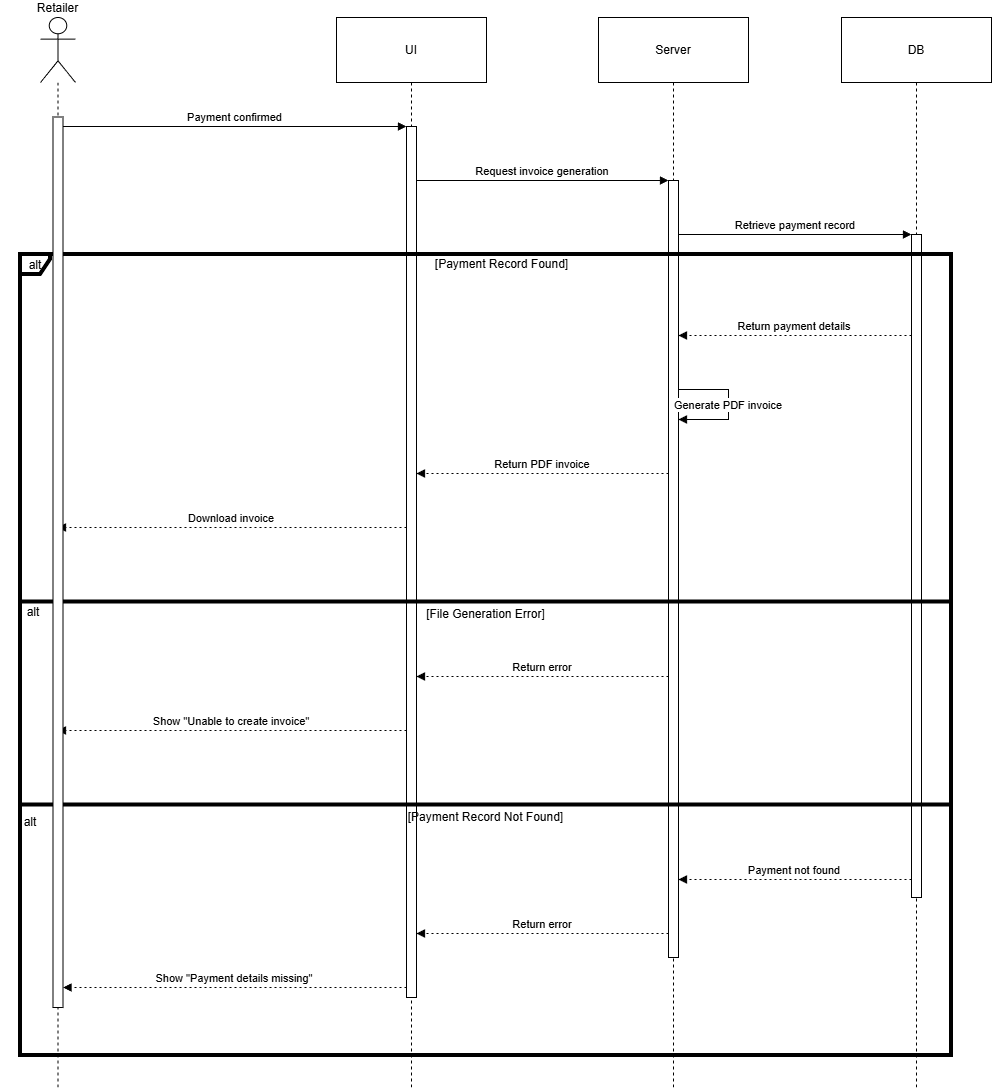
F8.3 Generate Invoice:
This sequence diagram illustrates the automated invoice generation process that creates downloadable PDF invoices immediately after successful order payment. This process is triggered automatically by the system when a payment is confirmed, rather than by direct user action.
Following successful payment confirmation, the system automatically initiates invoice generation by retrieving payment records and order details including Order ID, billing information (company name, tax ID if applicable), itemized product list with quantities and prices, payment method and transaction ID, and billing and shipping addresses. The system then generates a formatted PDF invoice containing all required information for accounting and record-keeping purposes. The diagram shows two exception scenarios: First, if the payment record cannot be found in the database (possibly due to database synchronization issues or incomplete transaction recording), the system displays "Payment details missing," preventing invoice generation. Second, if file generation fails due to PDF library errors, server resource limitations, or file system issues, the system shows "Unable to create invoice," though the order and payment remain valid. In the successful path, the system successfully generates a professional PDF invoice with all order and payment details, stores it in the system for future access, makes it available for immediate download, potentially emails it to the retailer’s registered email address, and displays a confirmation with a download link. This automated invoicing streamlines accounting processes for both retailers and wholesalers.
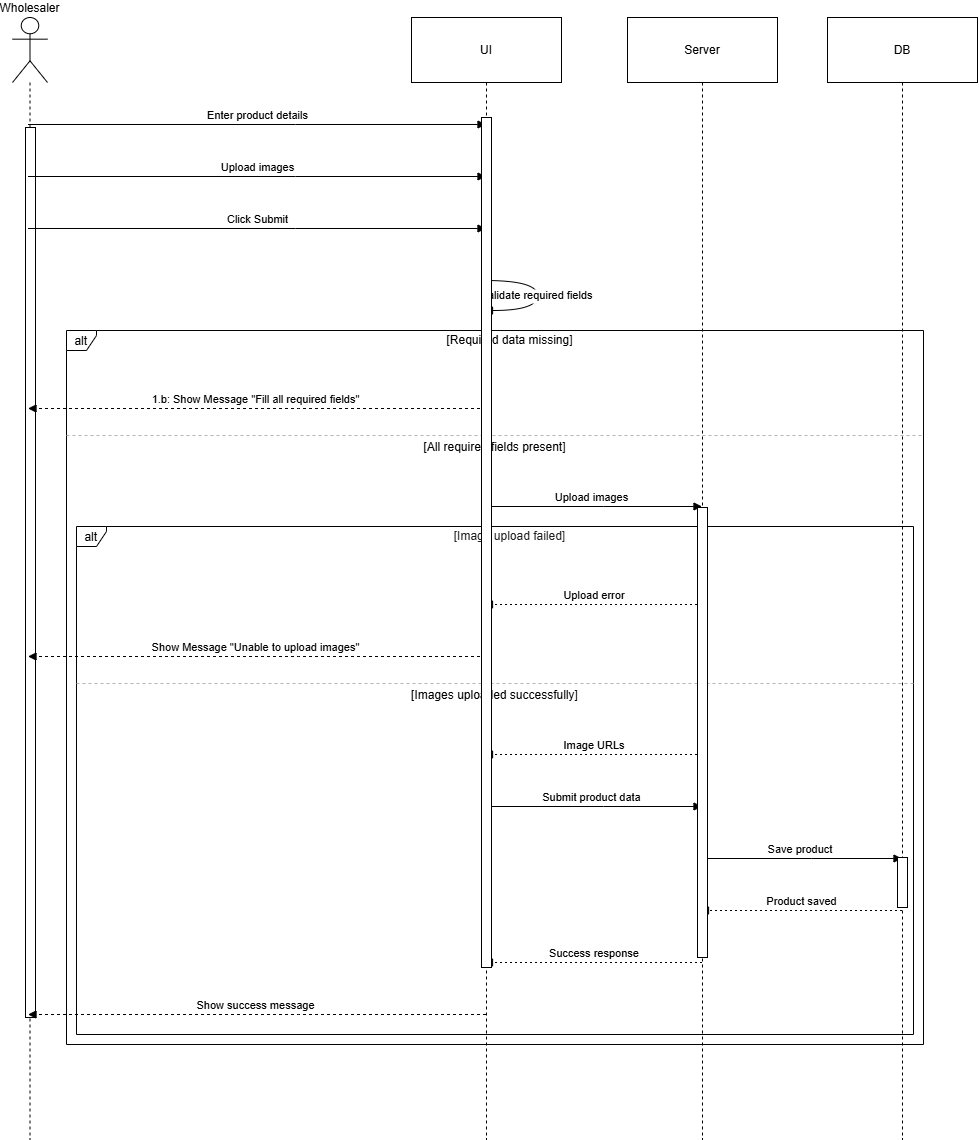
F9.1 Create Product:
This sequence diagram represents the product creation functionality that allows wholesalers to add new product listings to the Drawbridge marketplace. The interaction begins when a wholesaler clicks "Add Product" from their product management dashboard.
The wholesaler enters comprehensive product details including product name, category and brand classification, unit of measure (pieces, boxes, pallets), price per unit, minimum order quantity (MOQ), available stock quantity, detailed product description, and product attributes such as SKU, dimensions, weight, color options, and warranty information. The wholesaler also uploads product images to visually showcase the item. After completing all fields, the wholesaler submits the product listing. The diagram shows three exception scenarios: First, if required data fields are missing or incomplete when submission is attempted, validation displays "Fill all required fields." Second, if image upload fails due to file size limitations, unsupported formats, or server storage issues, the system shows "Unable to upload images," preventing product creation without visual representation. Third, if a database error occurs during product insertion, the system displays "Product creation failed." In the successful path, the system validates all input data, uploads and processes product images, stores the complete product information in the database, assigns a unique Product ID, makes the listing visible in the marketplace, and confirms successful product addition. Retailers can now discover and order this new product.
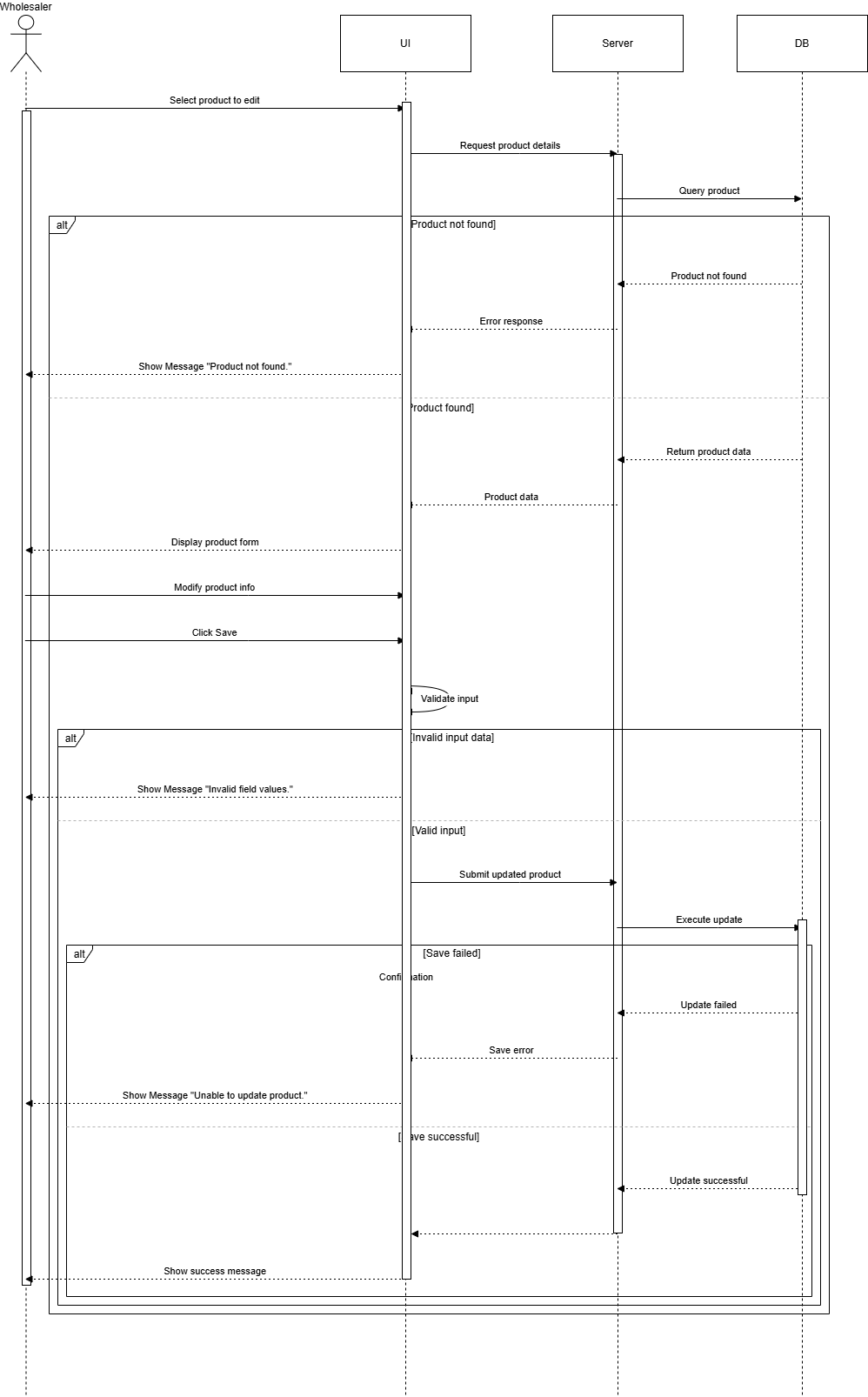
F9.2 Edit Product:
This sequence diagram illustrates the product editing functionality that enables wholesalers to update existing product information in their marketplace listings. The interaction begins when a wholesaler identifies a product requiring updates and selects to edit the listing from their product management interface.
The wholesaler opens the product editor, which loads current product information including all existing fields. The user can then modify any updatable fields such as stock quantity (to reflect inventory changes), price (for promotions or market adjustments), product description (to add details or correct information), product images (to add, remove, or replace photos), category (to recategorize products), and other attributes like dimensions, weight, or specifications. After making desired changes, the wholesaler saves the updates. The diagram shows three exception scenarios: First, if the product cannot be found in the database (possibly due to deletion by another user, database corruption, or incorrect Product ID), the system displays "Product not found." Second, if invalid input data is entered (such as negative prices, non-numeric values in quantity fields, or invalid category selections), validation shows "Invalid field values." Third, if the save operation fails due to database errors, concurrency conflicts, or system issues, the system displays "Unable to update product." In the successful path, the system validates all modified fields, updates the product record in the database, refreshes marketplace listings to show updated information, maintains version history for auditing purposes, and confirms successful product update. The updated information immediately becomes visible to all retailers browsing the marketplace.
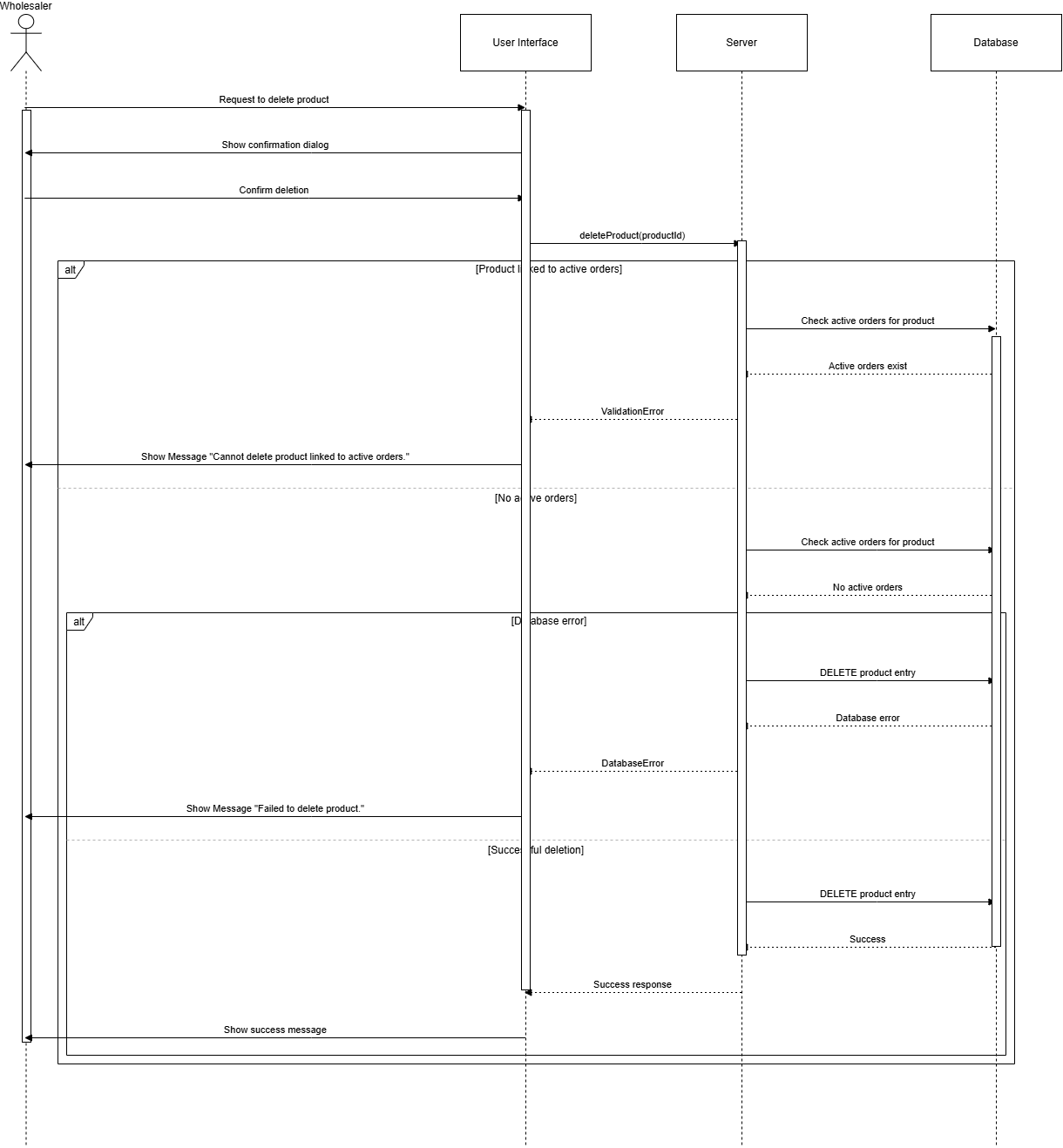
F9.3 Delete Product:
This sequence diagram represents the product deletion functionality that allows wholesalers to remove product listings from the Drawbridge marketplace. The interaction begins when a wholesaler selects a product they wish to remove and clicks the "Delete" option, typically from their product management dashboard.
When a deletion request is initiated, the system first prompts the wholesaler to confirm the deletion to prevent accidental removal of products. After confirmation, the system attempts to remove the product entry from the database. The diagram shows two critical exception scenarios: First, if the product is currently linked to active orders (orders that are pending, processing, or shipped but not yet completed), the system prevents deletion to maintain order integrity and displays "Cannot delete product linked to active orders." This protection ensures that existing orders can be fulfilled and tracked properly. The wholesaler would need to wait until all associated orders are completed or manually handle active orders before deletion. Second, if a database error occurs during the deletion process due to system issues, permission problems, or referential integrity constraints, the system shows "Failed to delete product." In the successful path, the system verifies no active order dependencies exist, removes the product record from the database (or marks it as deleted/archived depending on business rules for historical records), removes associated images and files from storage, updates marketplace listings to hide the deleted product, and confirms successful deletion to the wholesaler. The product is no longer visible or orderable by retailers