Chapter 5: System Implementation & Validation
Introduction
This Chapter focuses on the practical stage where the designed system is developed, integrated, and made operational. It explains how software components, hardware, databases, and interfaces are implemented according to the project requirements. The chapter also covers system validation through testing methods to ensure functionality, reliability, and performance. Overall, it demonstrates that the proposed system works correctly and is ready for deployment or further improvement.
Software testing
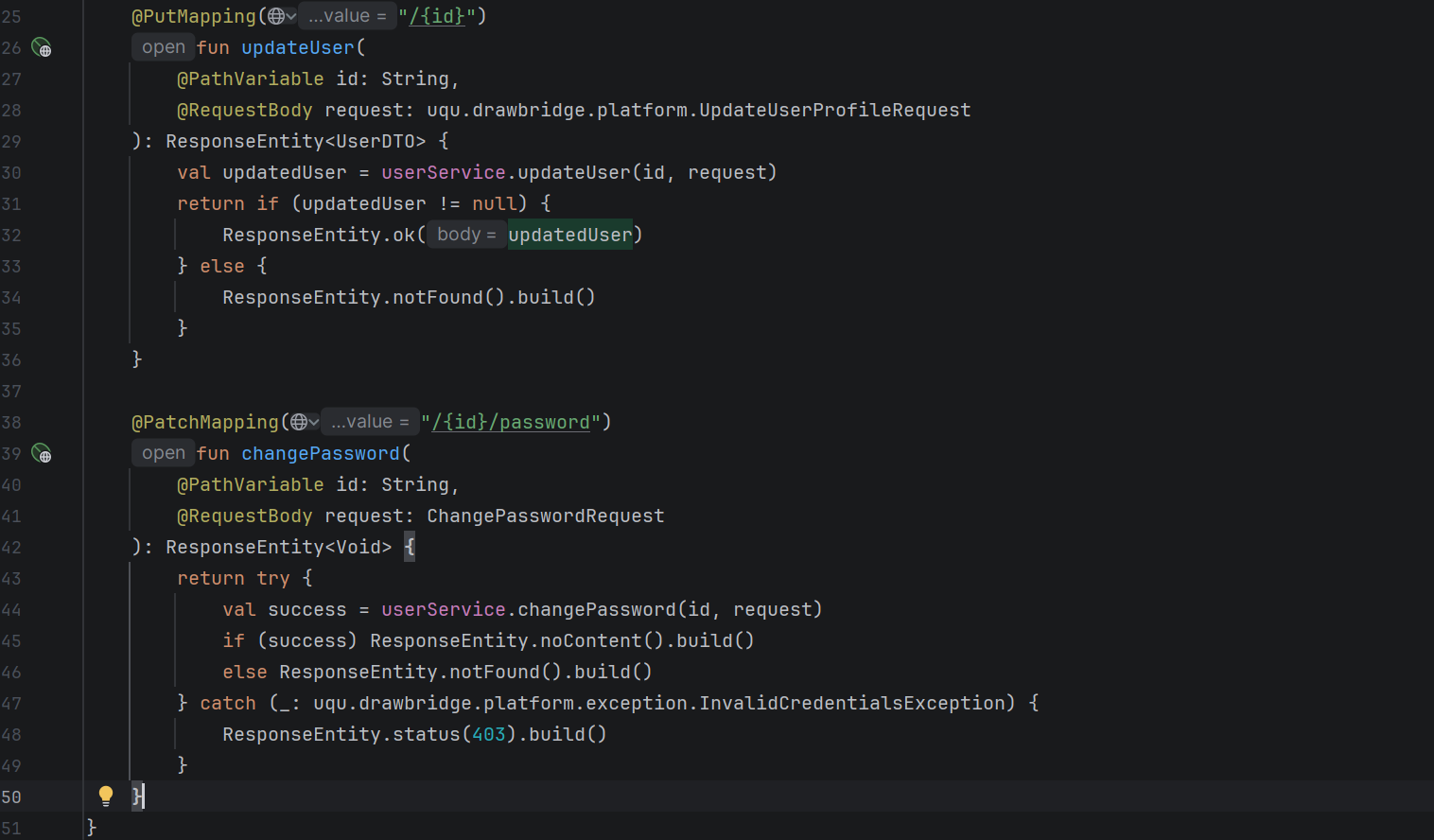
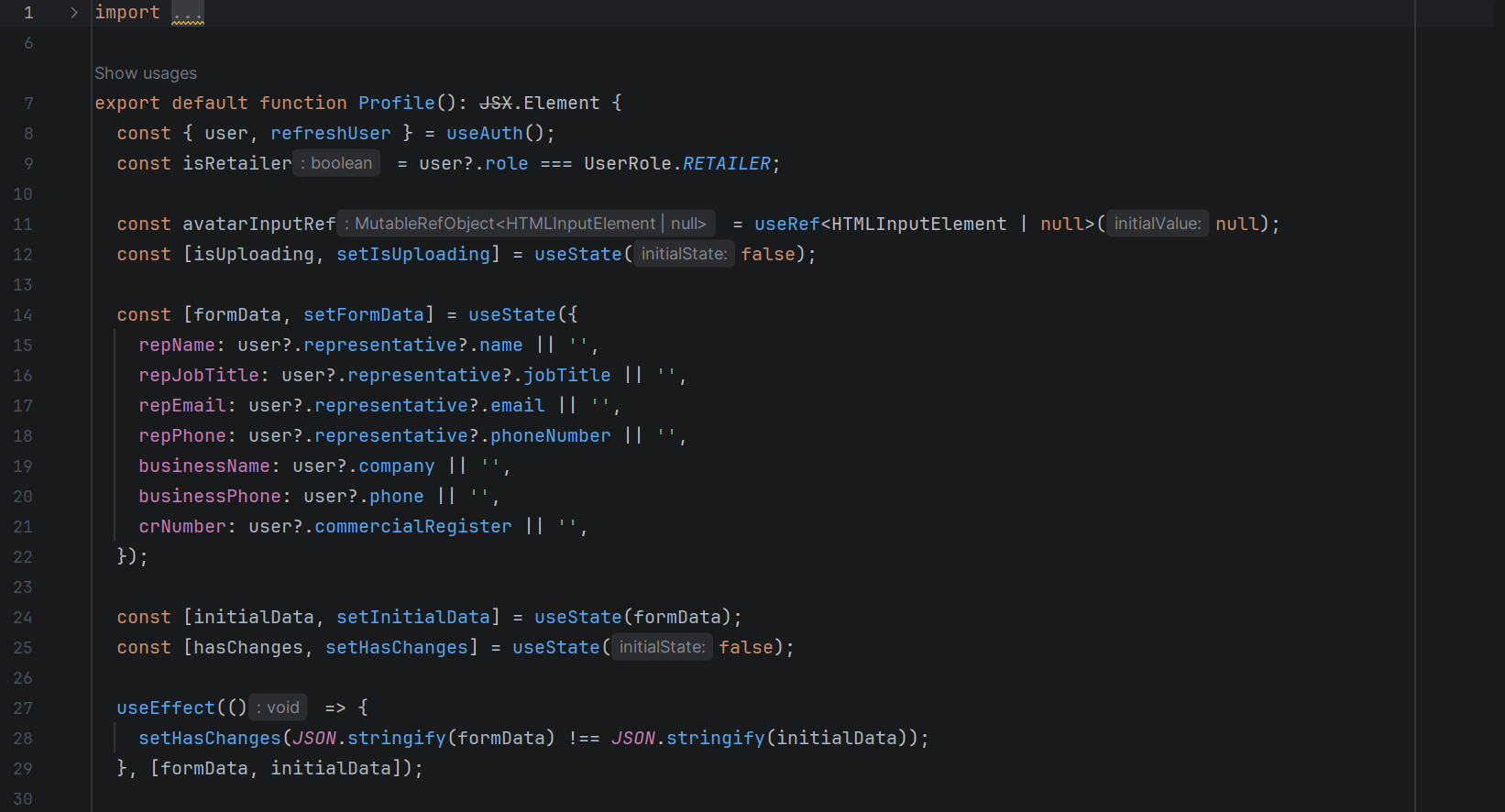
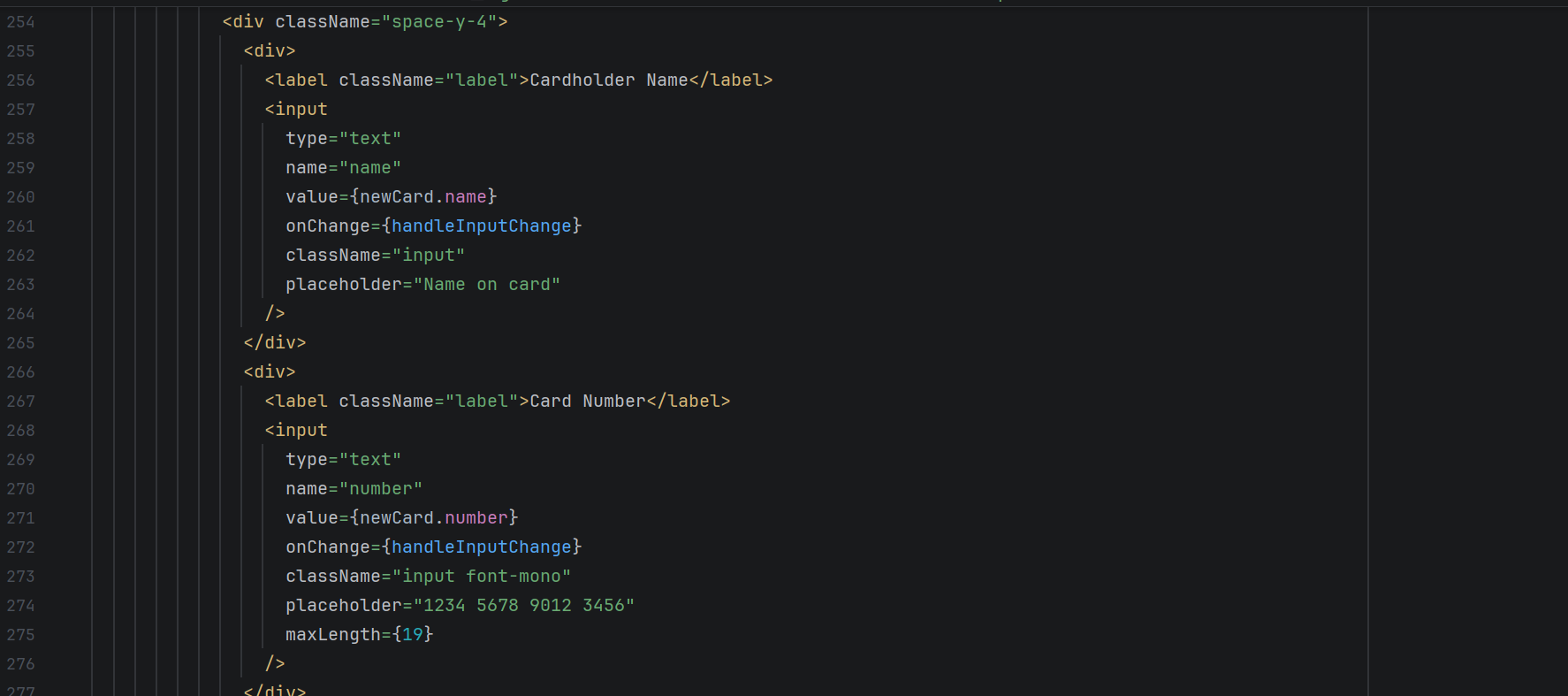
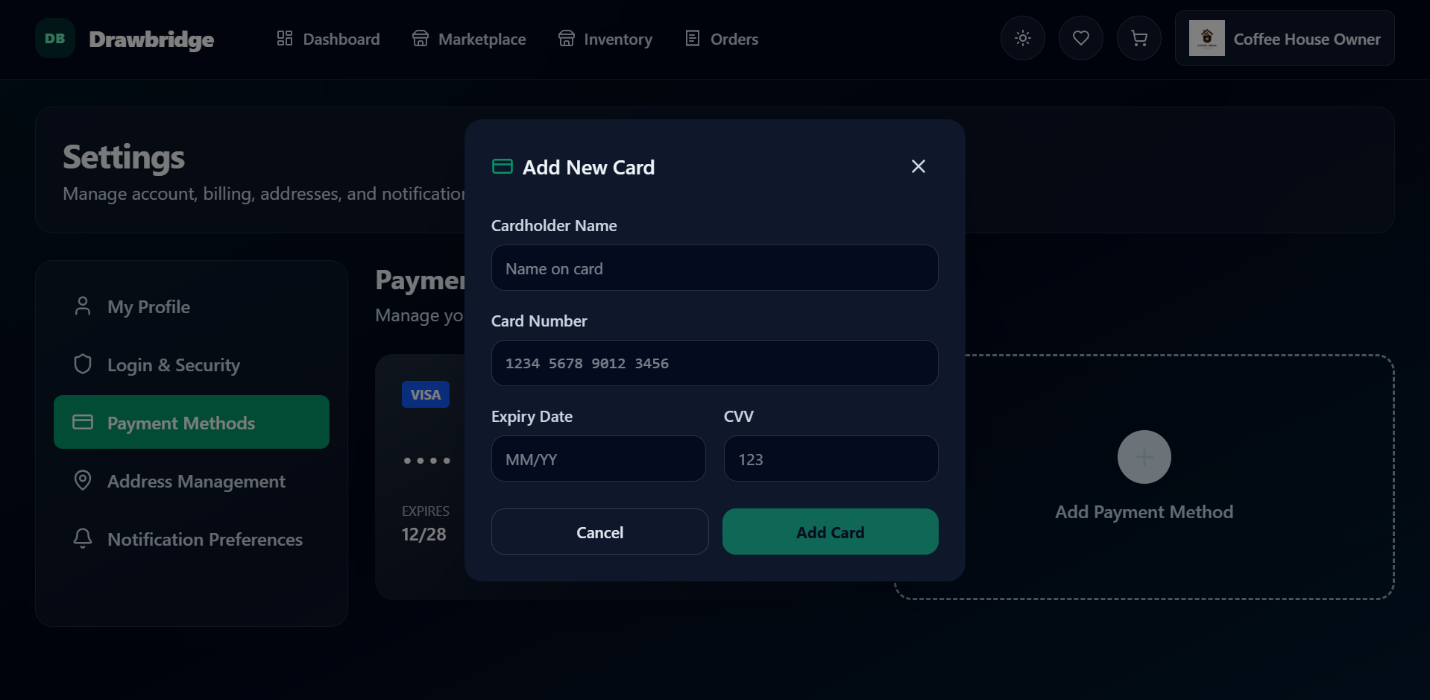
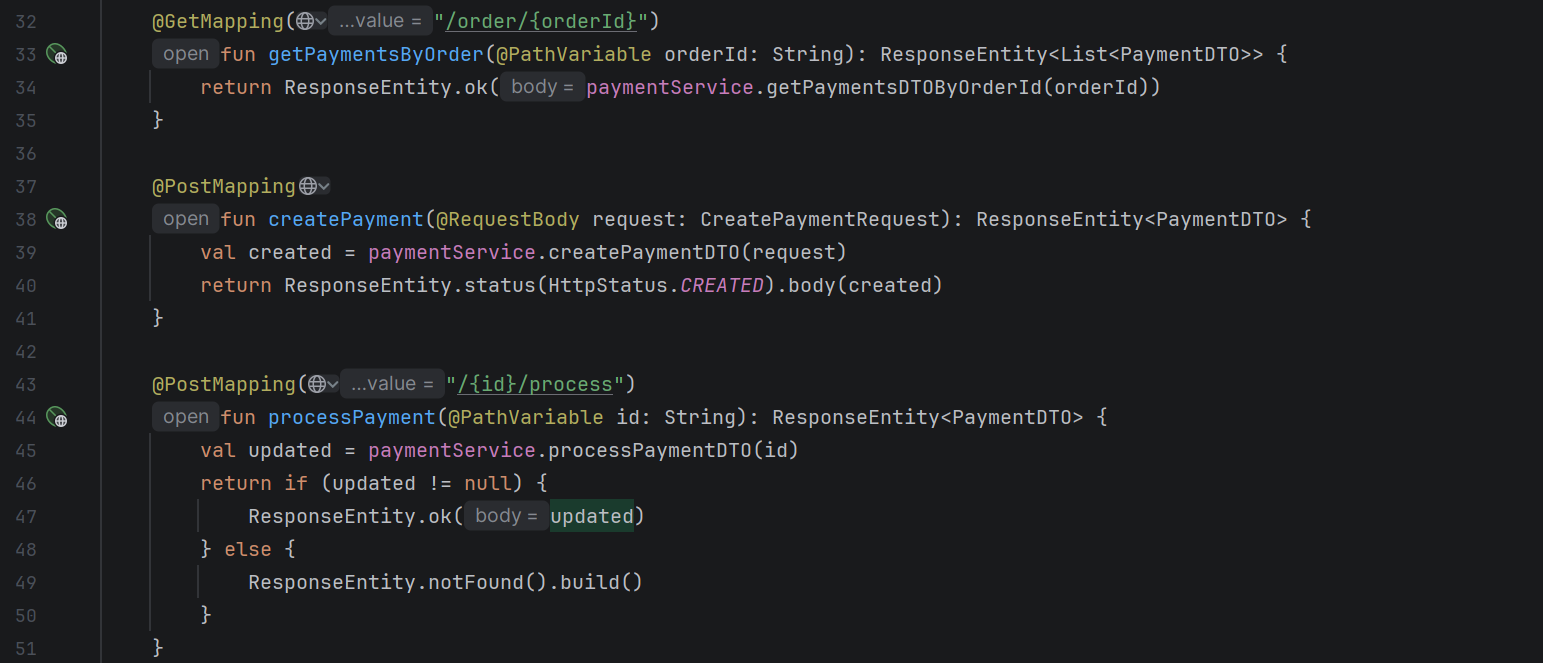
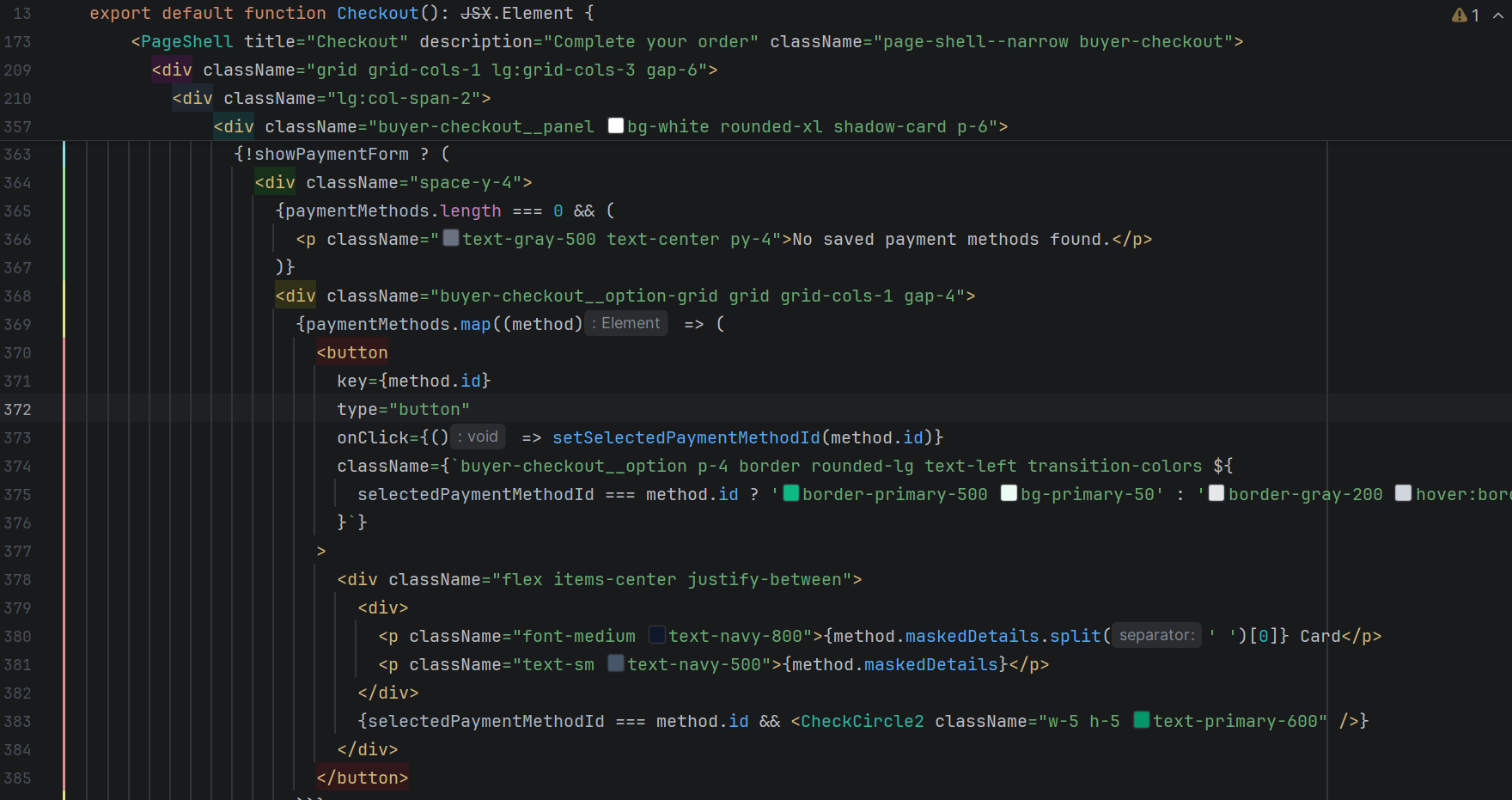
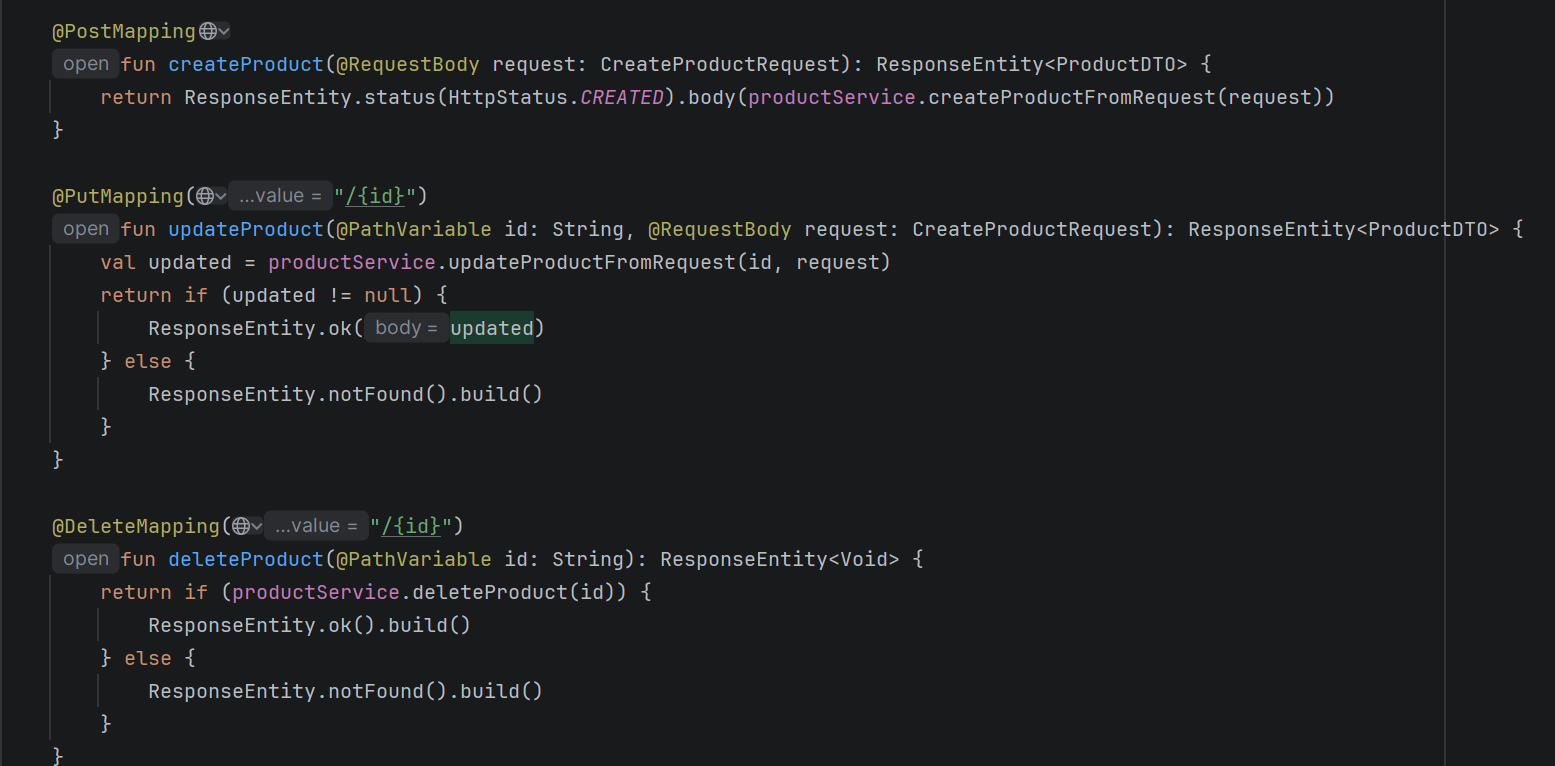
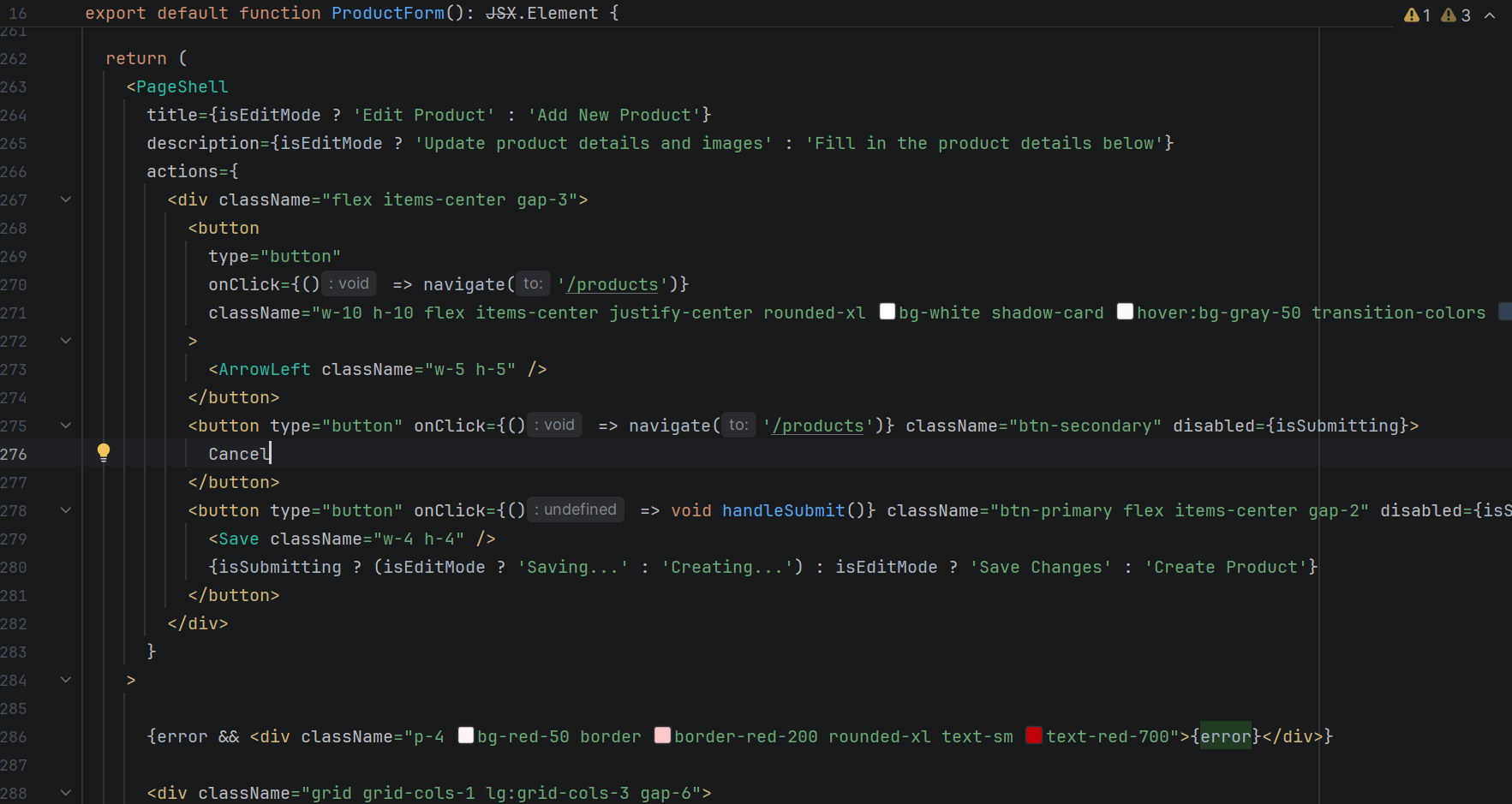
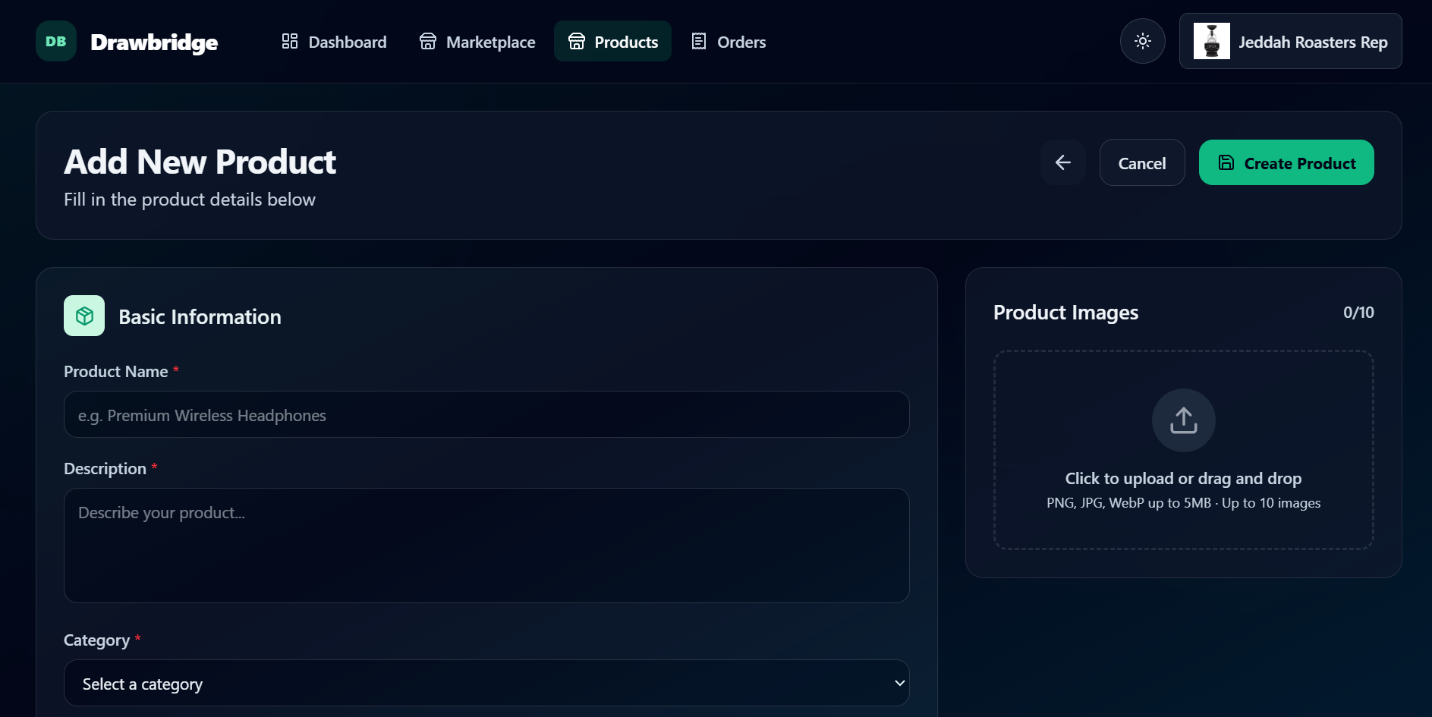
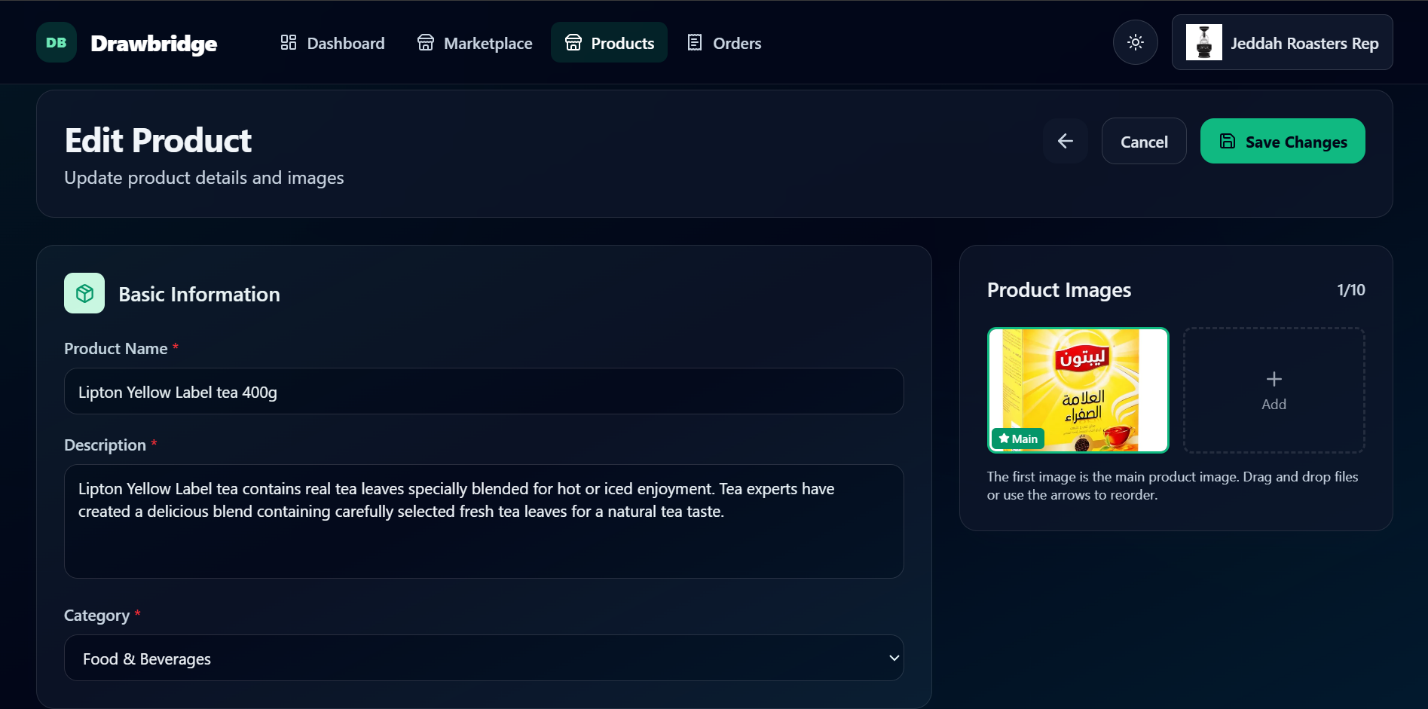
This section outlines the verification and testing processes conducted for the Drawbridge Platform, detailing the adopted verification methodology and the results obtained. A functional checklist was employed as part of the verification and testing plan to confirm that the application adheres to the defined specifications and is thoroughly verified .
Test plan
This section describes the system testing framework and the approach to examining individual components within the Drawbridge Platform. It ensures that every part of the application operates correctly. The comprehensive test plan consists of the following elements:
-
Functional Requirements Testing: Assessing essential application functions to ensure they fulfill user needs effectively .
-
Core Functions Testing: Concentrating on delivering a dependable and smooth user experience that aligns with users’ expectations.
Testing type
Unit Testing
Unit testing involves assessing individual components of an application independently to confirm they operate as intended according to defined requirements. Typically, this process is automated by developing concise test cases that focus on specific portions of the code, referred to as test units. The primary goal of unit testing is to enhance code quality while reducing the likelihood of encountering bugs in subsequent stages of development.
System Testing
System testing evaluates the overall performance of a system once development is finalized. This testing ensures the system functions effectively, adheres to established requirements and standards, and comprehensively addresses user needs. It involves assessing key aspects such as functionality, performance, security, and integration with other components. As a vital phase, system testing verifies the system’s readiness for practical application and identifies any issues that require resolution prior to release. The drawbridge Platform team carried out this testing to confirm the application meets all specified requirements and performs as intended.
Usability Testing
Usability testing focuses on evaluating the user-friendliness of the application. Its purpose is to determine how well the design and interface meet users’ needs and expectations. This process involves assessing aspects such as navigation simplicity, functional clarity, comprehensibility of instructions, responsiveness, and the overall quality of the design. By identifying potential challenges users might encounter while interacting with the application, this testing plays a crucial role in enhancing user experience and satisfaction. The Drawbridge Platform application team carried out this testing to ensure that the design and user experience effectively align with the requirements of its users.
Test Case
Test cases derived from Software Requirement Specification and validated against Software System.
F1: Account Management
F1.1 - Register User
| Test Case ID | Description | Precondition | Test Data | Steps | Expected Outcome | Actual Outcome | Status (Pass/Fail) |
|---|---|---|---|---|---|---|---|
TC-F1.1-01 |
Register Retailer with valid data |
User not registered |
Role:Retailer, all required fields |
1. Go to /register 2. Select Retailer 3. Fill all fields 4. Submit |
Account created, redirected to email verification page |
Account created and redirected to verify-email page |
Pass |
TC-F1.1-02 |
Register Wholesaler with valid data |
User not registered |
Role:Wholesaler, all required fields |
1. Go to /register 2. Select Wholesaler 3. Fill all fields 4. Submit |
Account created, verification email sent |
Account created and verification email sent |
Pass |
TC-F1.1-03 |
Register with mismatched passwords |
User not registered |
password:pass123 confirmPassword:pass456 |
1. Go to /register 2. Enter mismatched passwords 3. Submit |
Error: 'Passwords do not match' |
Error message 'Passwords do not match' displayed |
Pass |
TC-F1.1-04 |
Register with password shorter than 6 chars |
User not registered |
password: abc |
1. Go to /register 2. Enter short password 3. Submit |
Error: 'Password must be at least 6 characters' |
Error message 'Password must be at least 6 characters' |
Pass |
TC-F1.1-05 |
Register with already existing email |
Email already registered |
email: retailer@test.com |
1. Go to /register 2. Enter existing email 3. Submit |
Error: account already exists |
Error message 'Registration failed' displayed |
Pass |
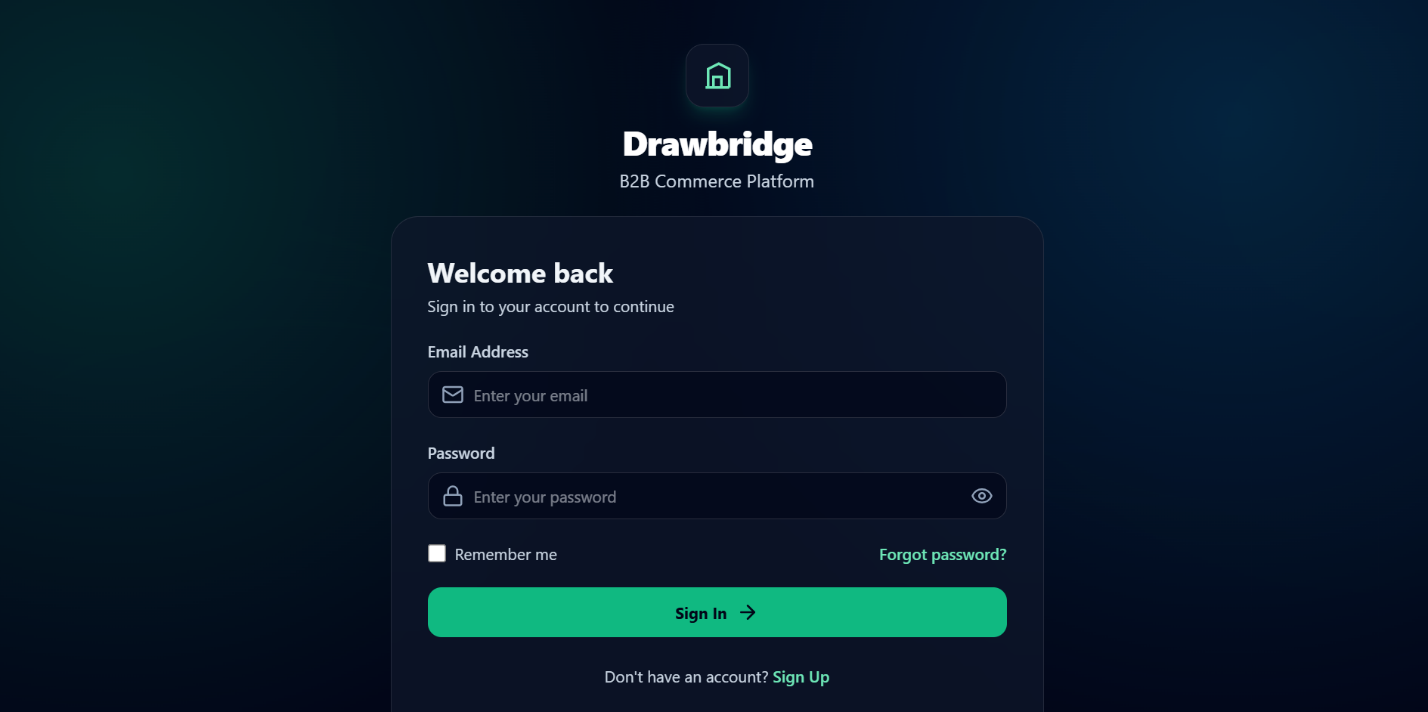
F1.2 - Login
| Test Case ID | Description | Precondition | Test Data | Steps | Expected Outcome | Actual Outcome | Status (Pass/Fail) |
|---|---|---|---|---|---|---|---|
TC-F1.2-01 |
Login with valid Retailer credentials |
Account exists and verified |
email:retailer@test.com password:password |
1. Go to /login 2. Enter credentials 3. Submit |
User logged in, dashboard opens |
Logged in and redirected to dashboard |
Pass |
TC-F1.2-02 |
Login with valid Wholesaler credentials |
Account exists and verified |
email:wholesaler@test.com password:password |
1. Go to /login 2. Enter credentials 3. Submit |
User logged in, dashboard opens |
Logged in and redirected to dashboard |
Pass |
TC-F1.2-03 |
Login with wrong password |
Account exists and verified |
email:retailer@test.com password:wrongpass |
1. Go to /login 2. Enter wrong password 3. Submit |
Error: 'Invalid email or password' |
Error message 'Invalid email or password' |
Pass |
TC-F1.2-04 |
Login with unverified email |
Account not yet verified |
email:unverified@test.com password:password |
1. Go to /login 2. Enter unverified credentials 3. Submit |
Error: email not verified, resend option shown |
Error shown and resend verification link |
Pass |
TC-F1.2-05 |
Login with empty email field |
None |
email:(empty) password:password |
1. Go to /login 2. Leave email empty 3. Submit |
Submission blocked, validation error |
Browser prevented submission, email field |
Pass |
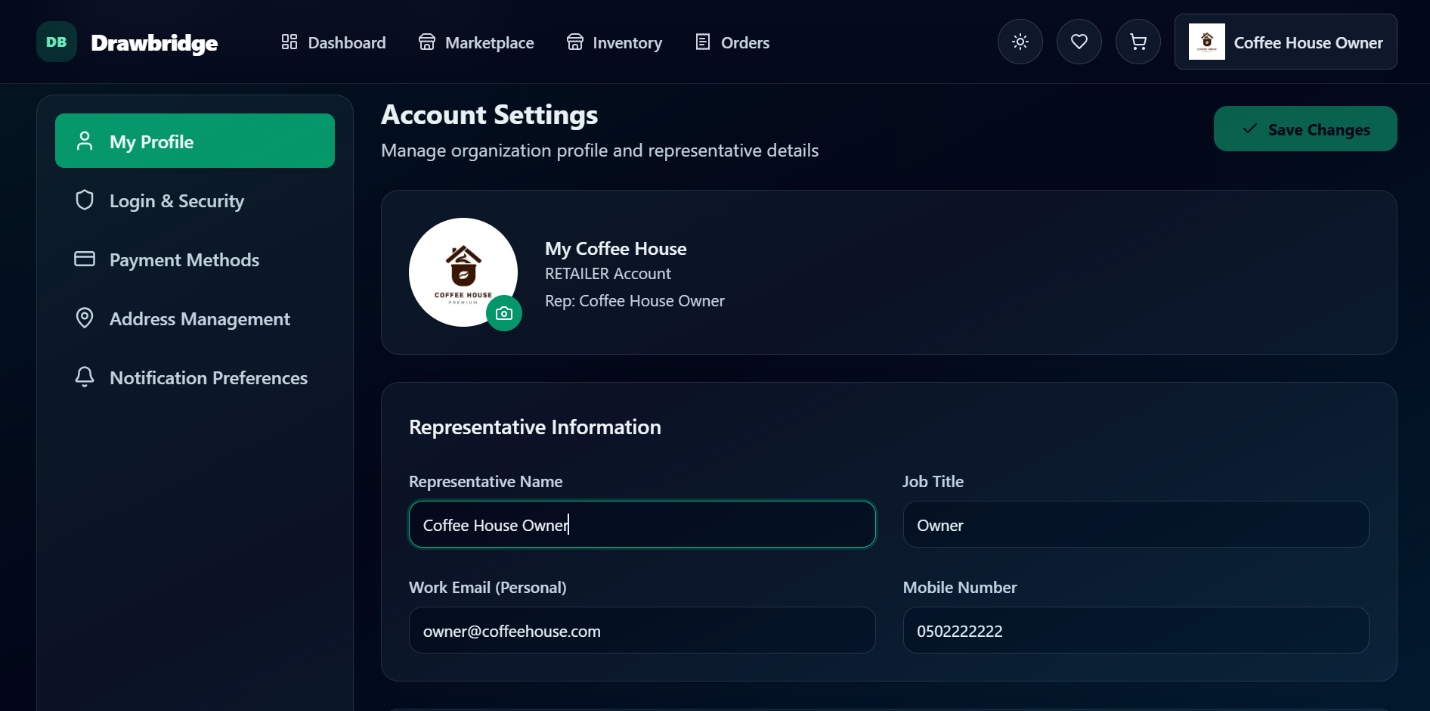
F1.3 - Update Profile
| Test Case ID | Description | Precondition | Test Data | Steps | Expected Outcome | Actual Outcome | Status (Pass/Fail) |
|---|---|---|---|---|---|---|---|
TC-F1.3-01 |
Update representative name |
User logged in |
repName: New Name |
1. Go to /settings/profile 2. Edit rep name 3. Click Save Changes |
Profile updated successfully |
Profile saved and success alert shown |
Pass |
TC-F1.3-02 |
Save button disabled when no changes made |
User logged in, profile loaded |
No changes |
1. Go to /settings/profile 2. Do not change any field 3. Observe Save button |
Save button is disabled |
Save button was disabled, could not submit |
Pass |
TC-F1.3-03 |
Upload profile image |
User logged in |
image: valid JPG or PNG |
1. Go to /settings/profile 2. Click profile picture 3. Upload image |
Image uploaded and profile picture updated |
Image uploaded and profile picture changed |
Pass |
TC-F1.3-04 |
Save profile when server is down |
User logged in, backend unavailable |
Any field change |
1. Change a field 2. Click Save with backend down |
Error message shown, data not saved |
Alert 'Failed to update profile' displayed |
Pass |
F1.4 - Logout
| Test Case ID | Description | Precondition | Test Data | Steps | Expected Outcome | Actual Outcome | Status (Pass/Fail) |
|---|---|---|---|---|---|---|---|
TC-F1.4-01 |
Logout from active session |
User is logged in |
N/A |
1. Click Logout in navigation 2. Confirm |
Session ended, redirected to login page |
Session cleared and redirected to home/login |
Pass |
TC-F1.4-02 |
Access protected page after logout |
User has logged out |
URL: /dashboard |
1. Logout 2. Navigate to /dashboard |
Redirected to login page |
Redirected to /login page |
Pass |
F2: Product Market
F2.1 - Browse Products
| Test Case ID | Description | Precondition | Test Data | Steps | Expected Outcome | Actual Outcome | Status (Pass/Fail) |
|---|---|---|---|---|---|---|---|
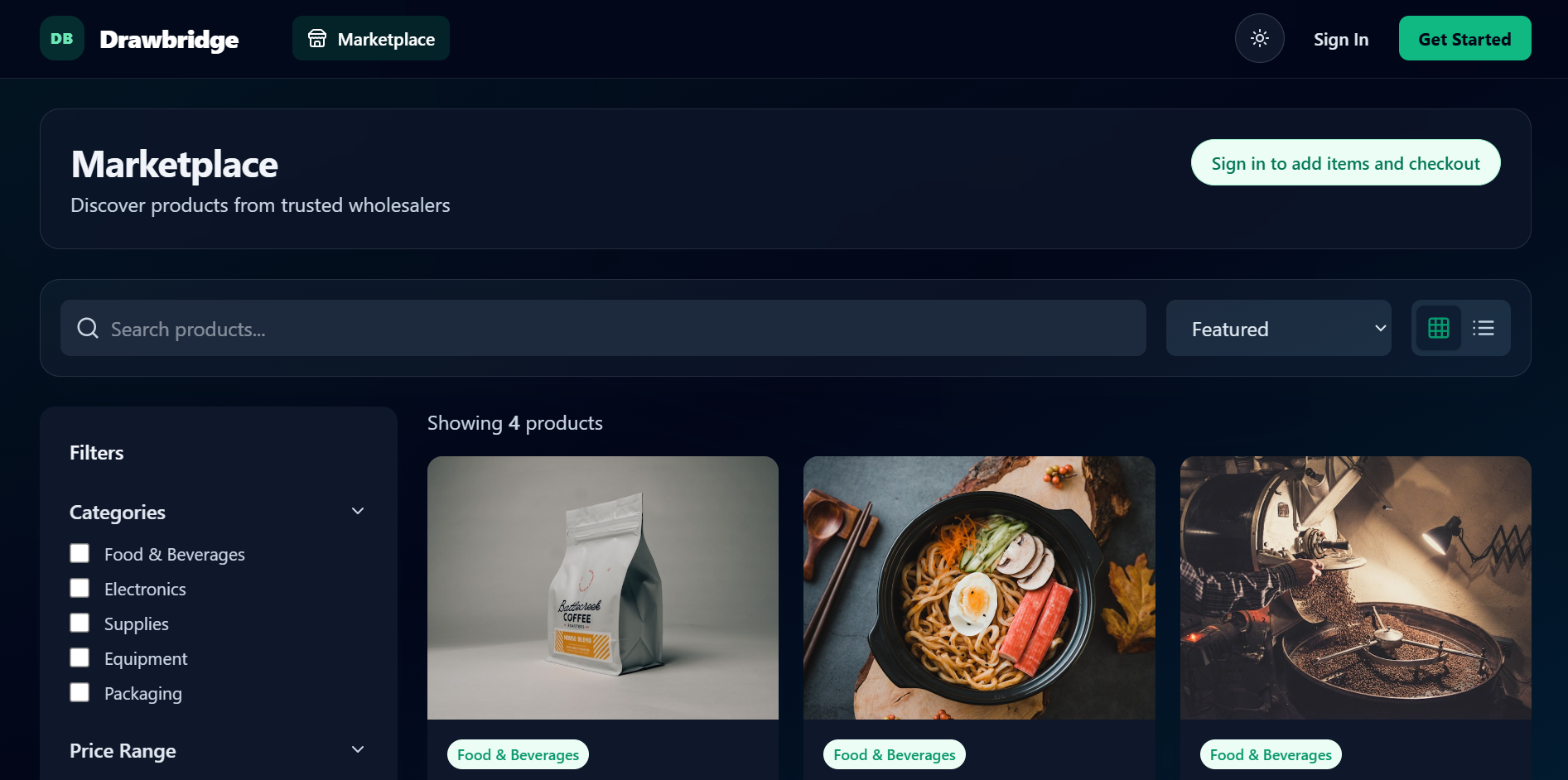
TC-F2.1-01 |
Browse all products |
Retailer logged in, products exist |
Category: All Sort: default |
1. Go to /marketplace 2. View product list |
Products displayed with name, price, image |
All products loaded and displayed in grid |
Pass |
TC-F2.1-02 |
Filter products by category |
Retailer logged in, categories exist |
Category: any available |
1. Go to /marketplace 2. Select a category in sidebar |
Only selected-category products shown |
Products filtered to selected category only |
Pass |
TC-F2.1-03 |
Sort products by price low to high |
Retailer logged in |
Sort: price-low |
1. Go to /marketplace 2. Select 'Price: Low to High' |
Products ordered ascending by price |
Products re-ordered from lowest to highest price |
Pass |
TC-F2.1-04 |
Filter by price range |
Retailer logged in |
priceRange: [100, 500] |
1. Go to /marketplace 2. Set price range slider |
Only products within price range shown |
Products outside range hidden |
Pass |
TC-F2.1-05 |
Switch to list view |
Retailer logged in |
viewMode: list |
1. Go to /marketplace 2. Click list view icon |
Products displayed in list layout |
Layout switched to list view |
Pass |
TC-F2.1-06 |
Network error loading products |
Backend unavailable |
N/A |
1. Go to /marketplace with backend down |
page displayed empty silently |
page displayed empty silently |
Pass |
F2.2 - Search Products
| Test Case ID | Description | Precondition | Test Data | Steps | Expected Outcome | Actual Outcome | Status (Pass/Fail) |
|---|---|---|---|---|---|---|---|
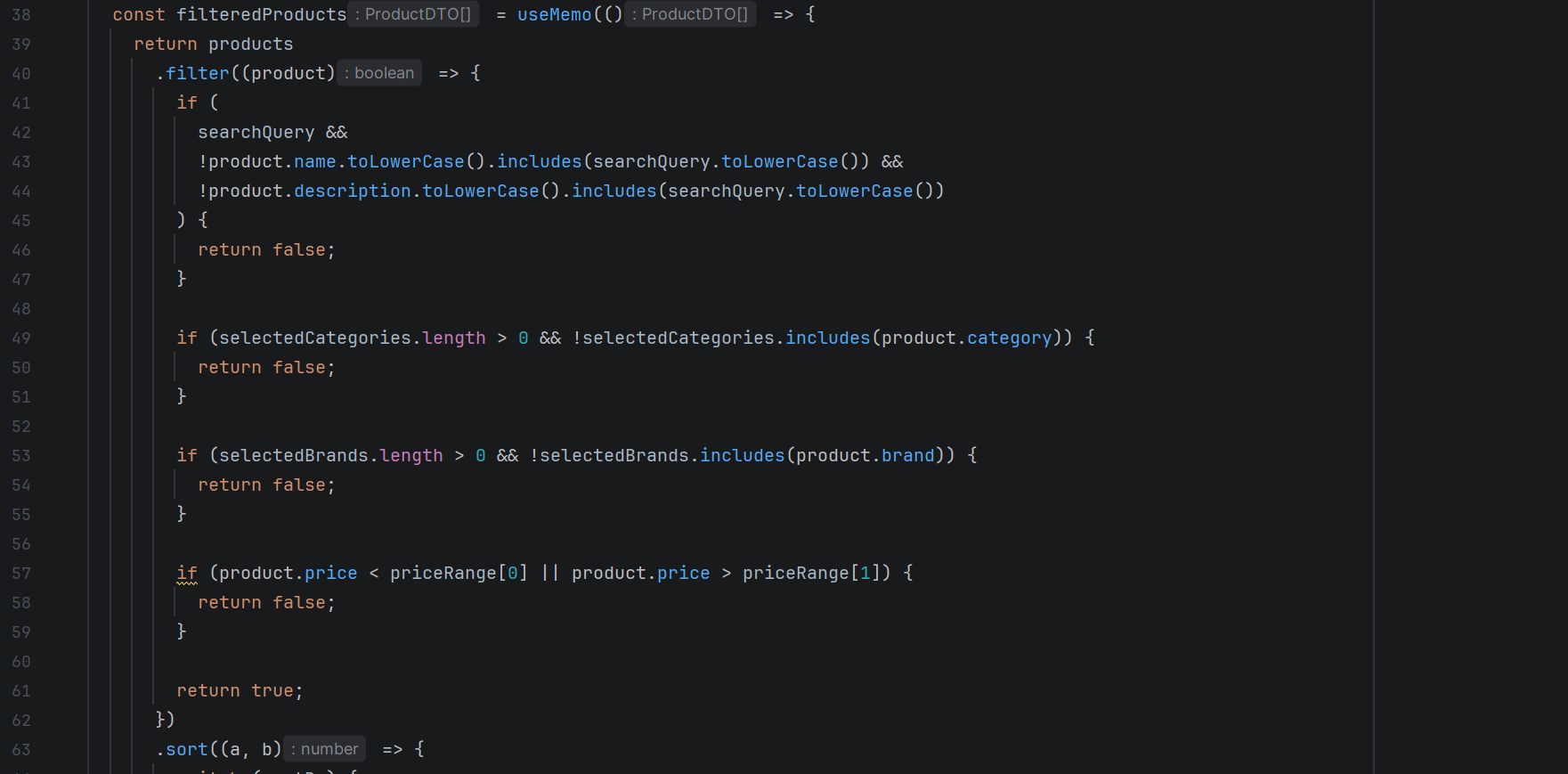
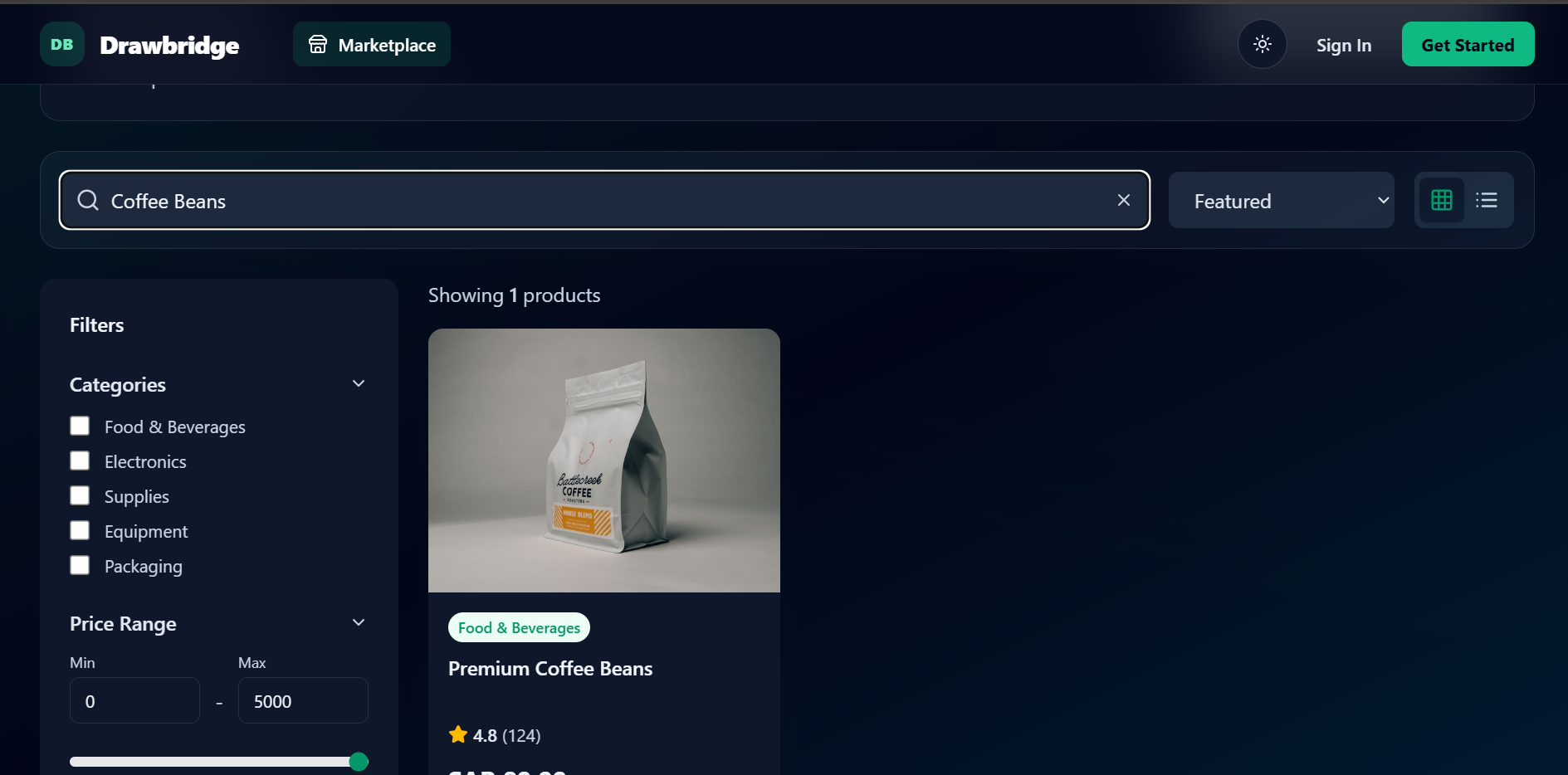
TC-F2.2-01 |
Search by product name |
Retailer logged in, products exist |
query: existing product name |
1. Go to /marketplace 2. Type name in search bar |
Matching products listed |
Matching products displayed in real time |
Pass |
TC-F2.2-02 |
Search by description keyword |
Retailer logged in |
query: word from product description |
1. Type keyword in search bar |
Products containing keyword in description shown |
Products with matching description displayed |
Pass |
TC-F2.2-03 |
Search with no matching results |
Retailer logged in |
query: xyznotexist |
1. Type non-existent keyword |
No results / empty state shown |
Empty state displayed with no products |
Pass |
TC-F2.2-04 |
Search with empty field |
Retailer logged in |
query: (empty) |
1. Leave search bar empty |
all products displayed instead |
all products displayed instead |
Pass |
F2.3 - View Product Details
| Test Case ID | Description | Precondition | Test Data | Steps | Expected Outcome | Actual Outcome | Status (Pass/Fail) |
|---|---|---|---|---|---|---|---|
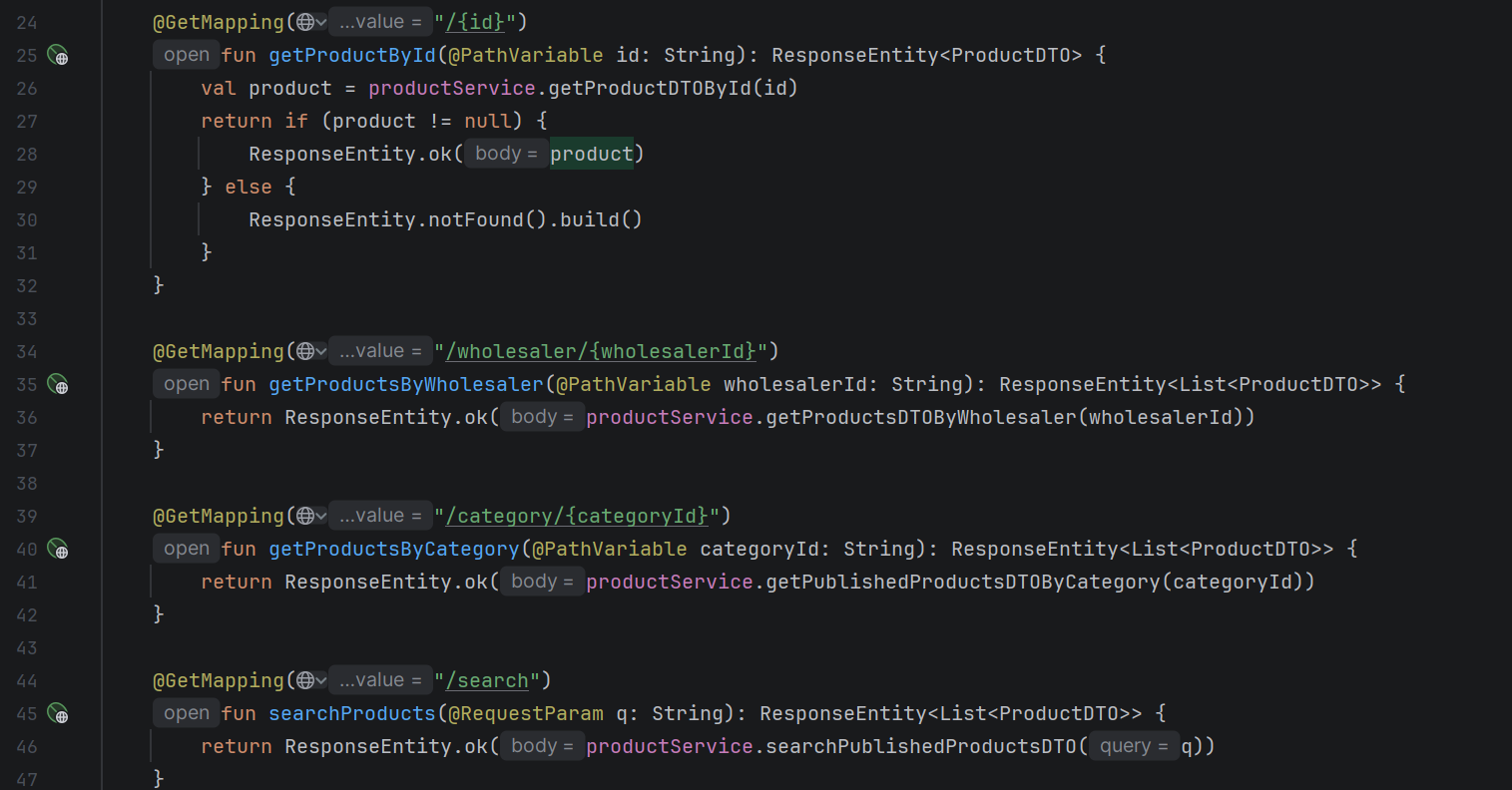
TC-F2.3-01 |
View product detail page |
Product exists in system |
productId: valid |
1. Go to /marketplace 2. Click a product card |
Product name, price, description, images shown |
Product detail page loaded with all info |
Pass |
TC-F2.3-02 |
Add product to cart from detail page |
Retailer logged in, product in stock |
productId: valid quantity: 2 |
1. Go to product detail 2. Set quantity 3. Click Add to Cart |
Product added to cart, cart count updated |
Product added and button changed to 'Added to Cart!' |
Pass |
TC-F2.3-03 |
Out-of-stock product cannot be added |
Product stock = 0 |
productId: out-of-stock product |
1. Go to product detail 2. Observe Add to Cart button |
Button shows 'Out of Stock' and is disabled |
Button disabled and labeled 'Out of Stock' |
Pass |
F3: Inventory Management
F3.1 - Update Inventory
| Test Case ID | Description | Precondition | Test Data | Steps | Expected Outcome | Actual Outcome | Status (Pass/Fail) |
|---|---|---|---|---|---|---|---|
TC-F3.1-01 |
View inventory list |
Retailer logged in, items exist |
N/A |
1. Go to /inventory 2. View list |
Items shown with name, stock, supplier, status |
Inventory list loaded with all item details |
Pass |
TC-F3.1-02 |
Edit stock quantity inline |
Retailer logged in, item exists |
itemId: valid newStock: 50 |
1. Go to /inventory 2. Click edit on stock field 3. Enter new value 4. Save |
Stock updated, status badge recalculated |
Stock quantity updated and status badge changed |
Pass |
TC-F3.1-03 |
Add new inventory item |
Retailer logged in |
productId: valid stock: 30 |
1. Go to /inventory 2. Click Add Item 3. Fill modal 4. Submit |
New item appears in inventory list |
New item added and visible in list |
Pass |
TC-F3.1-04 |
Delete inventory item |
Retailer logged in, item exists |
itemId: valid |
1. Go to /inventory 2. Click delete icon 3. Confirm in dialog |
Item removed from list |
Item deleted and removed from list |
Pass |
TC-F3.1-05 |
Search inventory by name or supplier |
Retailer logged in |
query: item name or supplier name |
1. Go to /inventory 2. Type in search bar |
Only matching items shown |
List filtered to matching items in real time |
Pass |
TC-F3.1-06 |
Wholesaler cannot access /inventory |
Wholesaler logged in |
N/A |
1. Log in as Wholesaler 2. Navigate to /inventory |
Redirected to /dashboard |
Redirected to dashboard immediately |
Pass |
TC-F3.1-07 |
Enter invalid stock value |
Retailer logged in |
stock: -5 |
1. Edit stock 2. Enter negative number 3. Save |
'Update failed' error message shown |
No error message shown to user |
Fail |
F3.2 - Integrated POS System with Platform
| Test Case ID | Description | Precondition | Test Data | Steps | Expected Outcome | Actual Outcome | Status (Pass/Fail) |
|---|---|---|---|---|---|---|---|
TC-F3.2-01 |
POS Integration UI |
Retailer logged in. POS system available. |
N/A |
1. Log in as Retailer 2. Navigate to Inventory 3. Look for POS Integration option |
POS configuration form shown. Fields: POS Vendor, API Key, Account ID. |
Page not built (Backend data model exists but no frontend page) |
N/A |
TC-F3.2-02 |
Toggle auto-restock on an inventory item |
Retailer logged in, item exists |
itemId: valid, autoRestock: false |
1. Navigate to /inventory 2. Toggle auto-restock switch on item |
Auto-restock toggled, API call made, item updated |
Toggle works and updates state |
Pass |
F3.3 - Configure Auto Order
| Test Case ID | Description | Precondition | Test Data | Steps | Expected Outcome | Actual Outcome | Status (Pass/Fail) |
|---|---|---|---|---|---|---|---|
TC-F3.3-01 |
Open auto-restock config modal |
Retailer logged in, item exists |
itemId: valid |
1. Go to /inventory 2. Click settings icon on item |
Modal opens with threshold and reorder qty fields |
Auto-restock modal opened with current values |
Pass |
TC-F3.3-02 |
Save auto-restock configuration |
Modal open |
minThreshold: 10 reorderQty: 50 |
1. Open modal 2. Enter values 3. Click Save |
Configuration saved to item |
Configuration saved successfully |
Pass |
TC-F3.3-03 |
Toggle auto-restock on/off |
Retailer logged in, item exists |
itemId: valid |
1. Go to /inventory 2. Click auto-restock toggle |
Toggle state changes, API updated |
Toggle switched and state updated |
Pass |
F4: Order Management
F4.1 - Place Order
| Test Case ID | Description | Precondition | Test Data | Steps | Expected Outcome | Actual Outcome | Status (Pass/Fail) |
|---|---|---|---|---|---|---|---|
TC-F4.1-01 |
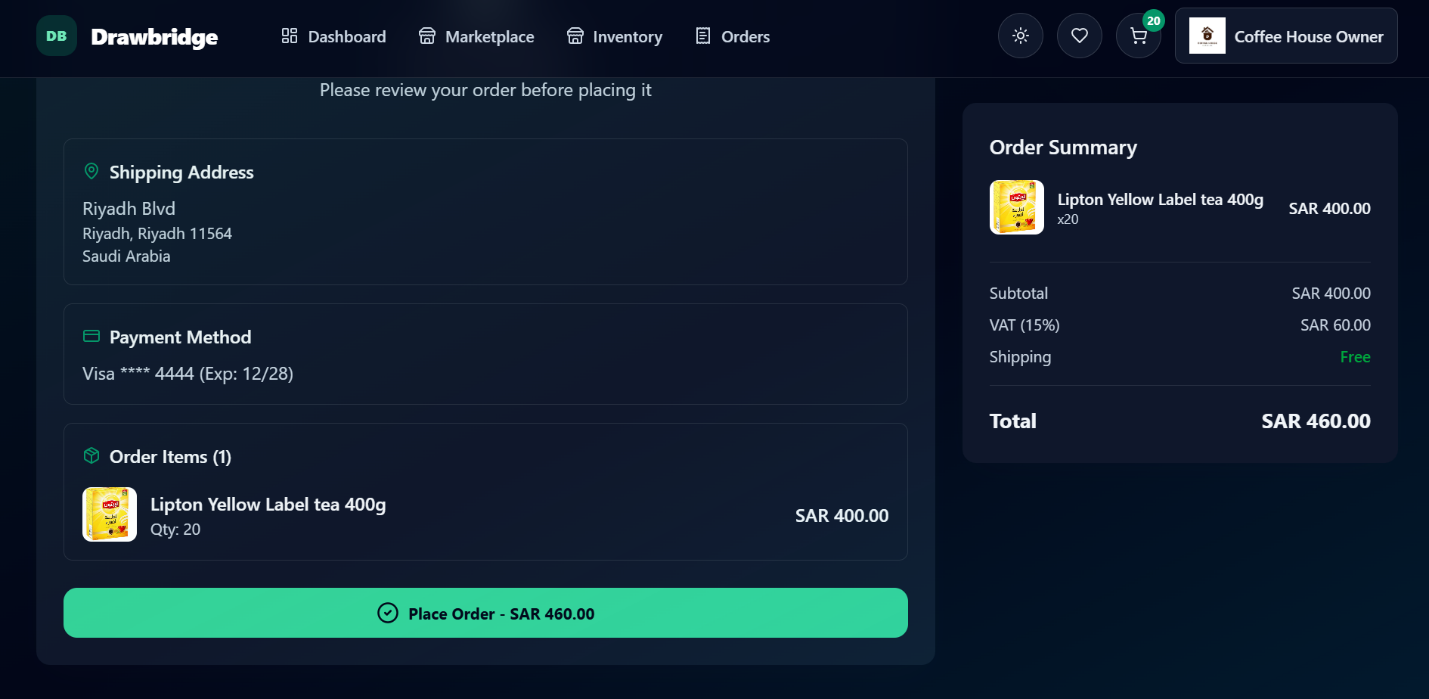
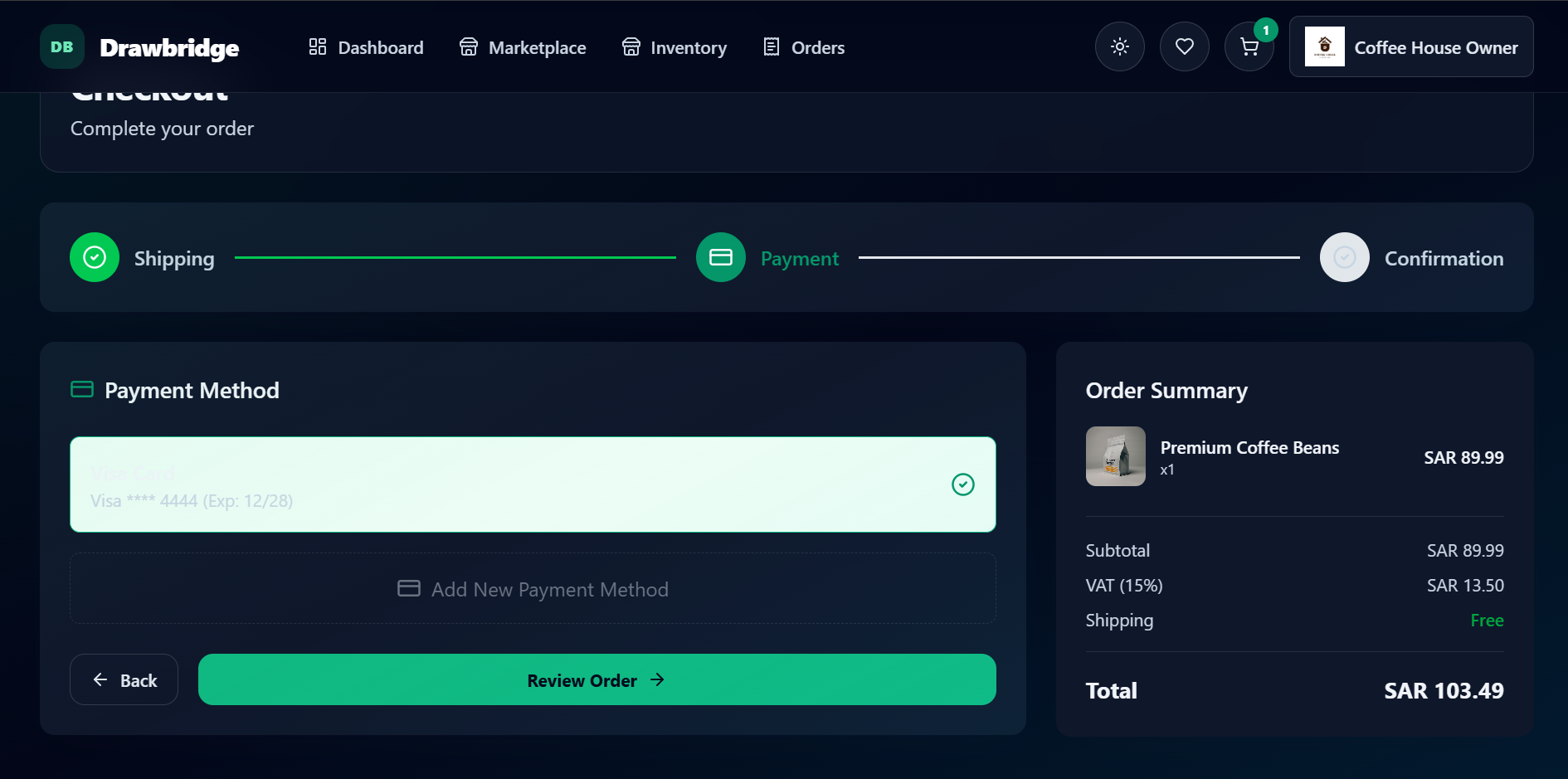
Place order with saved address and payment |
Retailer logged in, cart has items |
addressId: valid paymentMethodId: valid |
1. Add items to cart 2. Go to /checkout 3. Select address and payment 4. Confirm |
Order placed, cart cleared, confirmation shown |
Order placed and confirmation screen displayed |
Pass |
TC-F4.1-02 |
Place order adding new address at checkout |
Retailer logged in, no saved address |
street, city, country: valid |
1. Go to /checkout 2. Add new address 3. Complete and confirm |
Address saved, order placed |
Address saved and order confirmed |
Pass |
TC-F4.1-03 |
Payment failure during checkout |
Bad payment method |
paymentMethodId: declined card |
1. Go to /checkout 2. Confirm with failing payment |
'Payment failure' message shown |
No error message shown to user |
Fail |
TC-F4.1-04 |
Wholesaler blocked from cart/checkout |
Wholesaler logged in |
N/A |
1. Log in as Wholesaler 2. Navigate to /cart or /checkout |
Redirected to /dashboard |
Redirected to dashboard |
Pass |
4.2 - Cancel Order
| Test Case ID | Description | Precondition | Test Data | Steps | Expected Outcome | Actual Outcome | Status (Pass/Fail) |
|---|---|---|---|---|---|---|---|
TC-F4.2-01 |
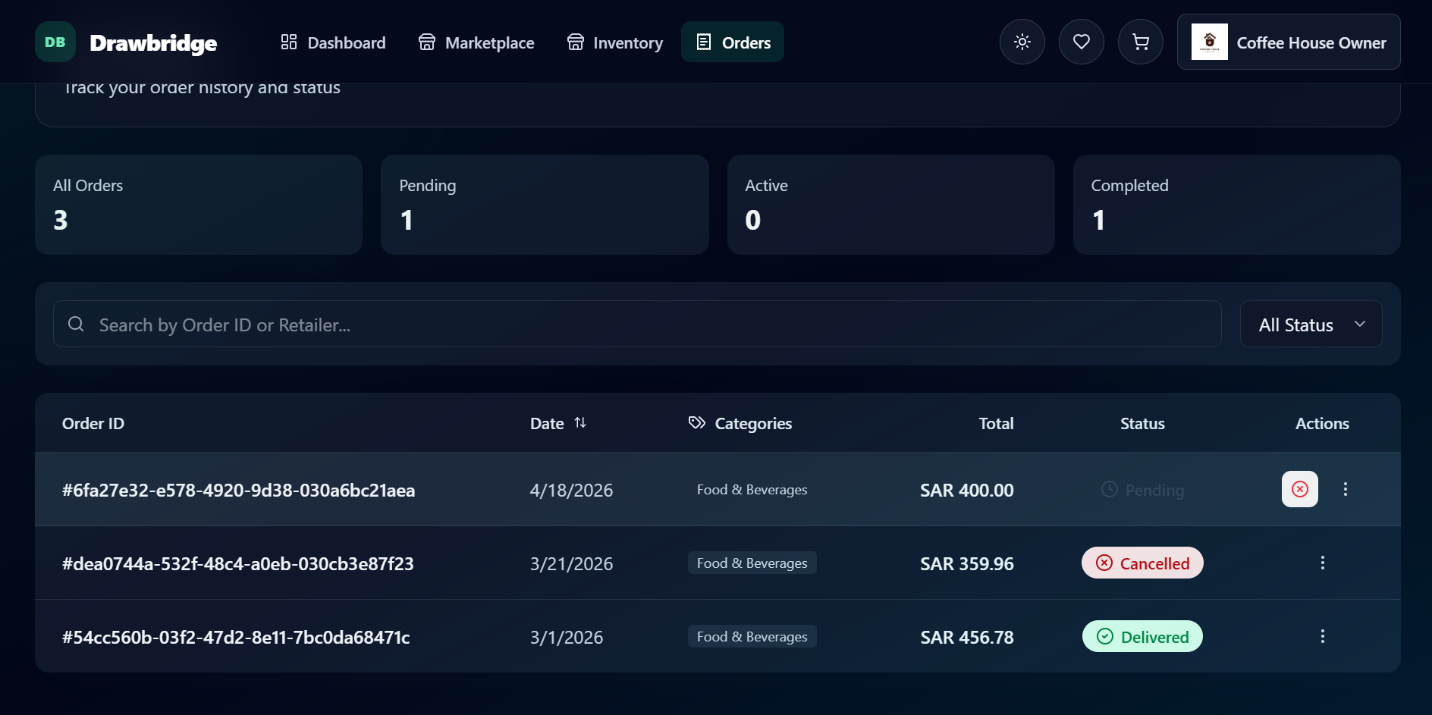
Cancel a pending order |
Order status: PENDING |
orderId: valid pending order |
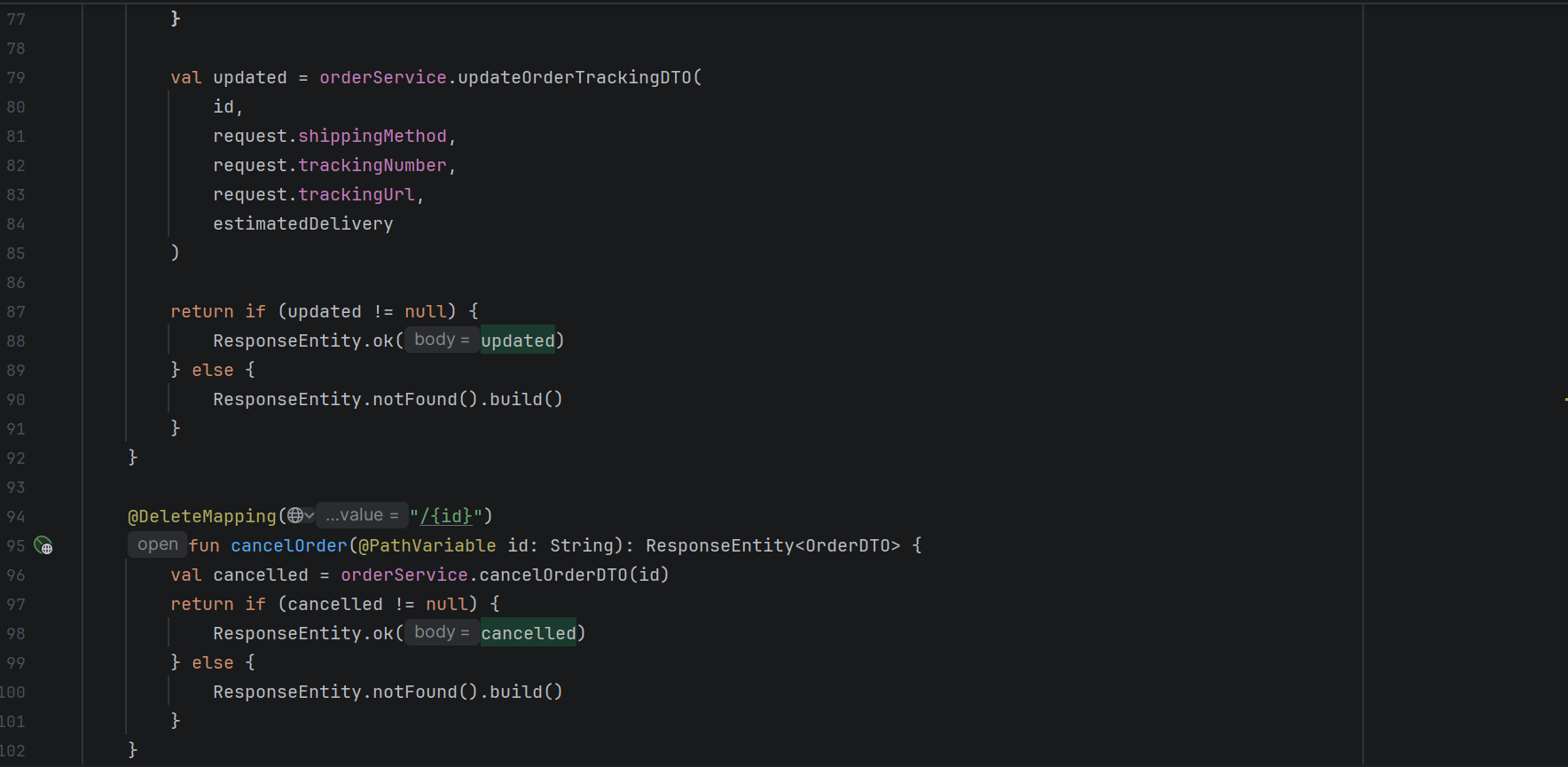
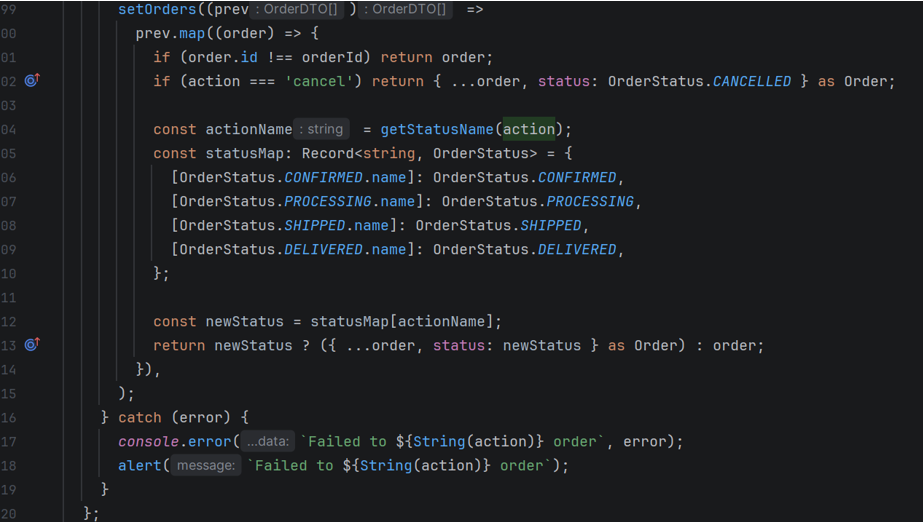
1. Go to /orders 2. Open action menu 3. Select Cancel 4. Confirm |
Order status changed to CANCELLED |
status updated to CANCELLED |
Pass |
TC-F4.2-02 |
Dismiss cancellation dialog |
Order status: PENDING |
orderId: valid |
1. Click Cancel on order 2. Dismiss confirm dialog |
Order remains unchanged |
Cancellation aborted, order status unchanged |
Pass |
TC-F4.2-03 |
Cancel already shipped order |
Order status: SHIPPED |
orderId: shipped order |
1. Try to cancel a shipped order |
'Order already shipped' message shown |
'Order already shipped' message shown |
Pass |
F4.3 - View Orders Details
| Test Case ID | Description | Precondition | Test Data | Steps | Expected Outcome | Actual Outcome | Status (Pass/Fail) |
|---|---|---|---|---|---|---|---|
TC-F4.3-01 |
View orders list as Retailer |
Retailer logged in, orders exist |
N/A |
1. Go to /orders |
Orders shown with ID, date, total, status |
All retailer orders loaded and displayed |
Pass |
TC-F4.3-02 |
View orders list as Wholesaler |
Wholesaler logged in, orders exist |
N/A |
1. Log in as Wholesaler 2. Go to /orders |
Incoming orders shown with retailer name |
Wholesaler orders displayed with retailer info |
Pass |
TC-F4.3-03 |
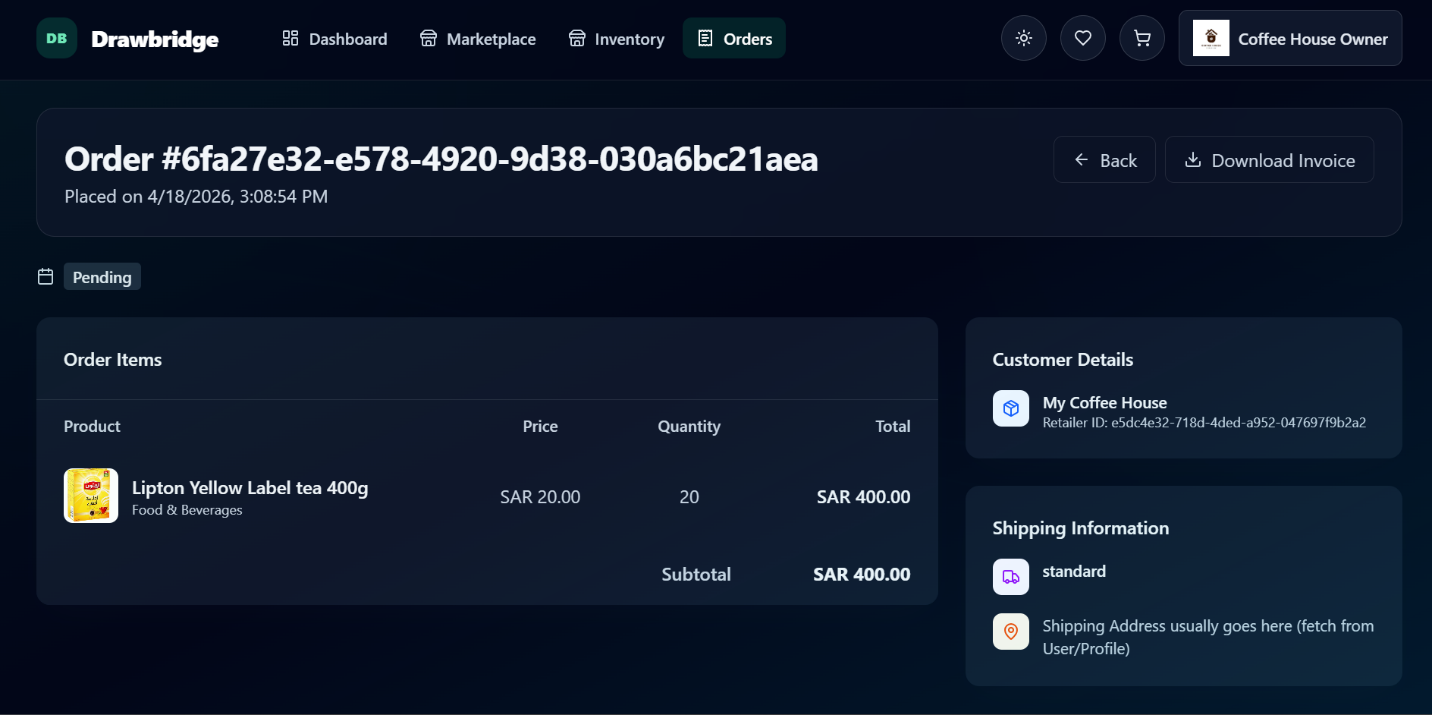
View individual order detail |
User logged in, order exists |
orderId: valid |
1. Go to /orders 2. Click an order |
Order items, shipping, payment, status shown |
Order detail page loaded with all info |
Pass |
TC-F4.3-04 |
Filter orders by status |
Multiple orders exist |
statusFilter: PENDING |
1. Go to /orders 2. Select status filter |
Only orders with selected status shown |
Orders filtered to PENDING status only |
Pass |
TC-F4.3-05 |
Sort orders by date |
Multiple orders exist |
sortField: placedAt sortOrder: desc |
1. Go to /orders 2. Click date column header |
Orders sorted newest first |
Orders sorted by date descending |
Pass |
F5: Notifications
F5.1 - Push Notification
| Test Case ID | Description | Precondition | Test Data | Steps | Expected Outcome | Actual Outcome | Status (Pass/Fail) |
|---|---|---|---|---|---|---|---|
TC-F5.1-01 |
View notifications inbox |
Notifications exist |
N/A |
1. Go to /notifications |
Notifications listed with title, type, timestamp |
Notifications loaded and displayed |
Pass |
TC-F5.1-02 |
Mark single notification as read |
Unread notification exists |
notificationId: valid |
1. Go to /notifications 2. Click an unread notification |
Notification marked as read, styling changes |
Notification marked read and style updated |
Pass |
TC-F5.1-03 |
Mark all notifications as read |
Multiple unread notifications |
N/A |
1. Go to /notifications 2. Click 'Mark all read' |
All notifications marked read |
All notifications marked as read |
Pass |
TC-F5.1-04 |
System sends low-stock notification |
Item below threshold |
eventType: LOW_STOCK |
1. Inventory drops below threshold 2. Check notifications inbox |
Notification of type INVENTORY appears |
Low-stock notification received and displayed in inbox |
Pass |
F5.2 - Manage Notifications
| Test Case ID | Description | Precondition | Test Data | Steps | Expected Outcome | Actual Outcome | Status (Pass/Fail) |
|---|---|---|---|---|---|---|---|
TC-F5.2-01 |
View notification preferences page |
User logged in |
N/A |
1. Go to /settings/notifications |
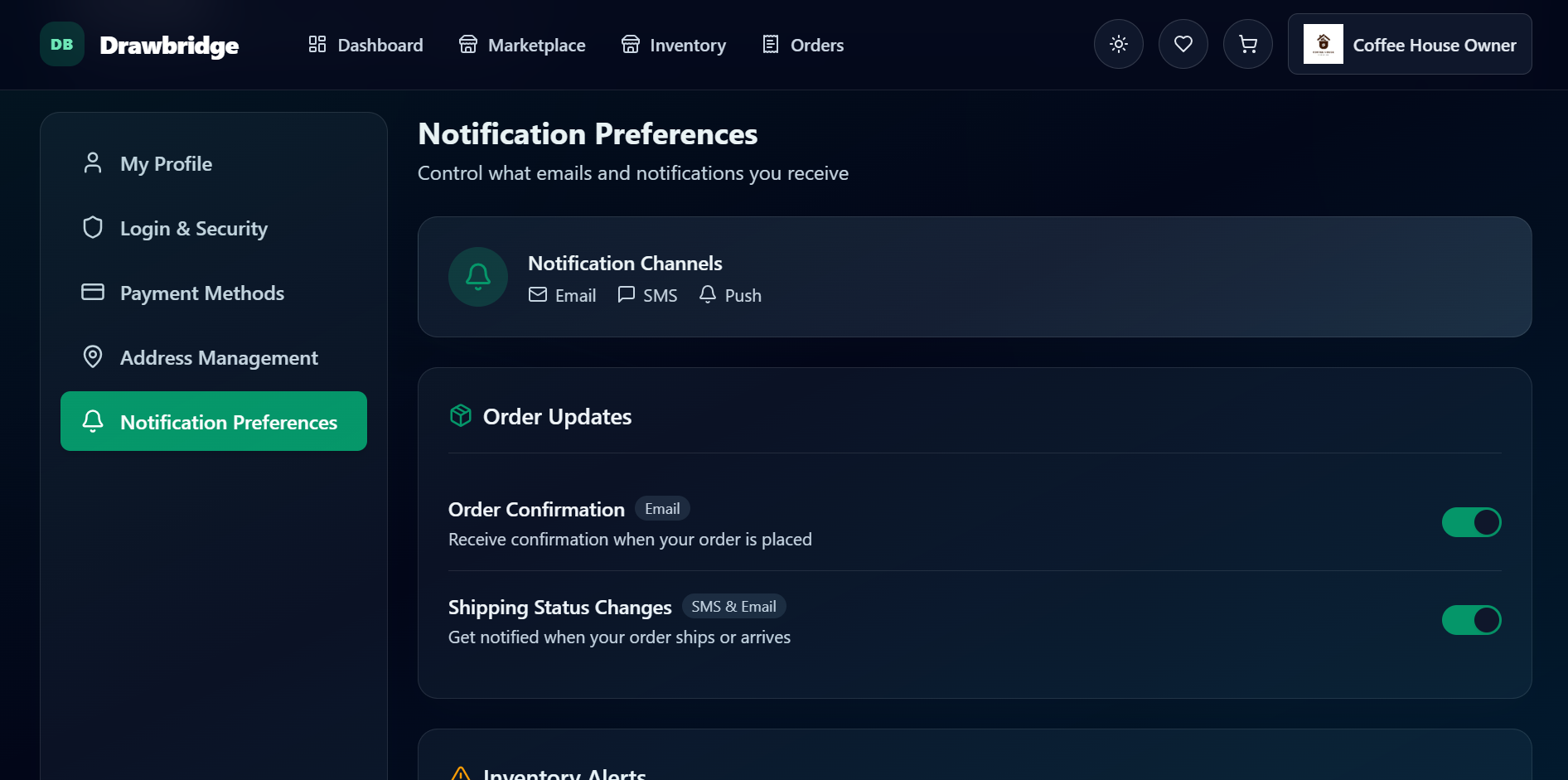
Event types with Email/SMS/Push channel shown |
Preferences page loaded with all channel options |
Pass |
TC-F5.2-02 |
Toggle Email preference for an event |
User logged in |
preferenceKey: order-updates channel: EMAIL |
1. Go to /settings/notifications 2. Click Email chip for event |
Preference saved, chip shows active/inactive |
Chip toggled and preference updated |
Pass |
TC-F5.2-03 |
Enable Push notifications |
Browser supports push |
channel: PUSH |
1. Go to /settings/notifications 2. Click Push chip 3. Accept browser permission |
Push subscription registered |
Browser permission granted and push subscription registered |
Pass |
F6: Dashboard
F6.1 - View Inventory Statistics
| Test Case ID | Description | Precondition | Test Data | Steps | Expected Outcome | Actual Outcome | Status (Pass/Fail) |
|---|---|---|---|---|---|---|---|
TC-F6.1-01 |
View inventory stats on Retailer dashboard |
Retailer logged in, items exist |
N/A |
1. Go to /dashboard 2. Check inventory section |
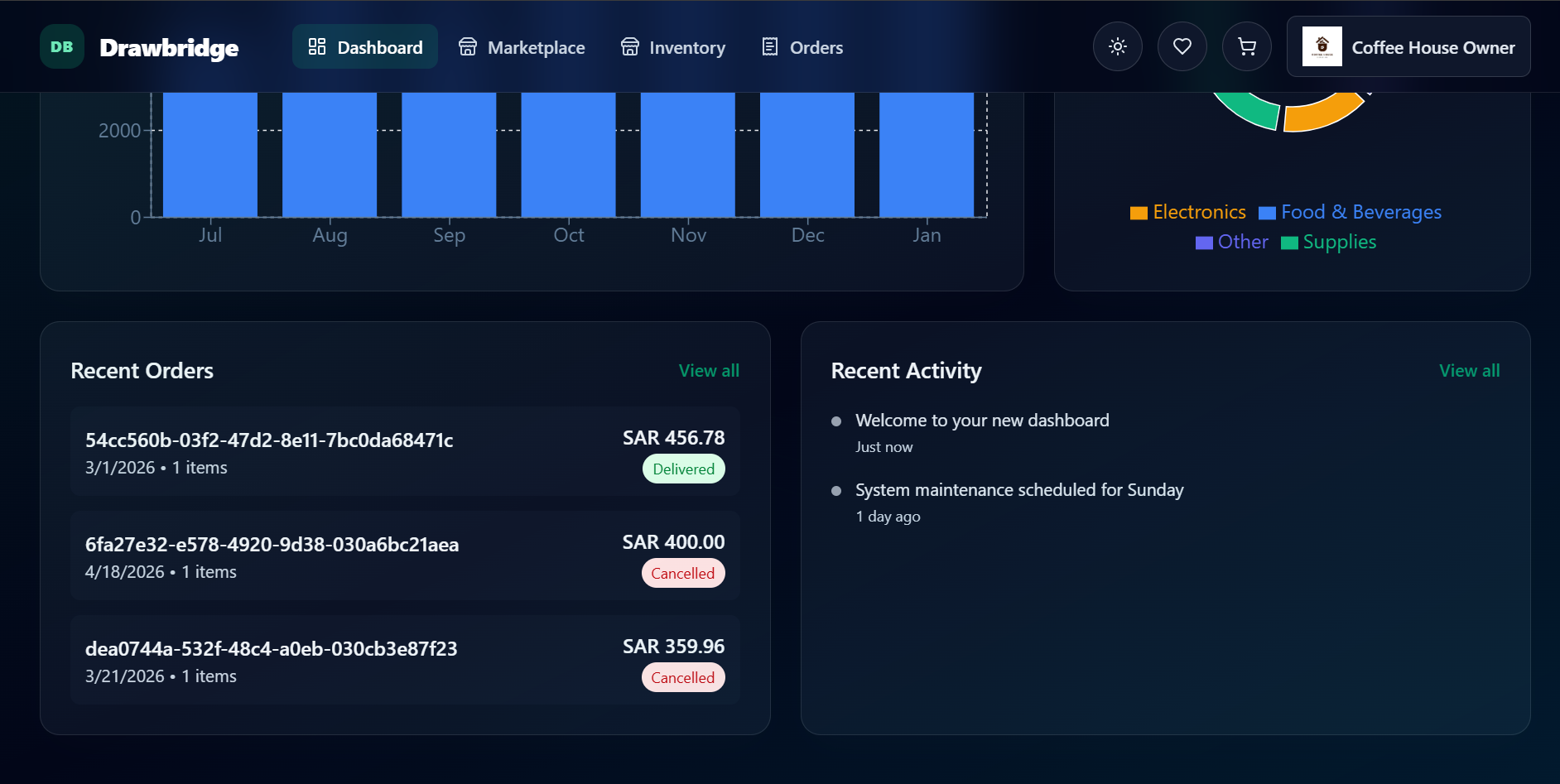
Total items, low-stock count, auto-restock count shown |
Inventory KPI cards displayed with correct counts |
Pass |
TC-F6.1-02 |
Inventory stats not shown for Wholesaler |
Wholesaler logged in |
N/A |
1. Log in as Wholesaler 2. Go to /dashboard |
Inventory section hidden, order KPIs shown |
Inventory section not shown to wholesaler |
Pass |
F6.2 - View Order Statistics
| Test Case ID | Description | Precondition | Test Data | Steps | Expected Outcome | Actual Outcome | Status (Pass/Fail) |
|---|---|---|---|---|---|---|---|
TC-F6.2-01 |
View order stats on Retailer dashboard |
Retailer logged in, orders exist |
N/A |
1. Go to /dashboard |
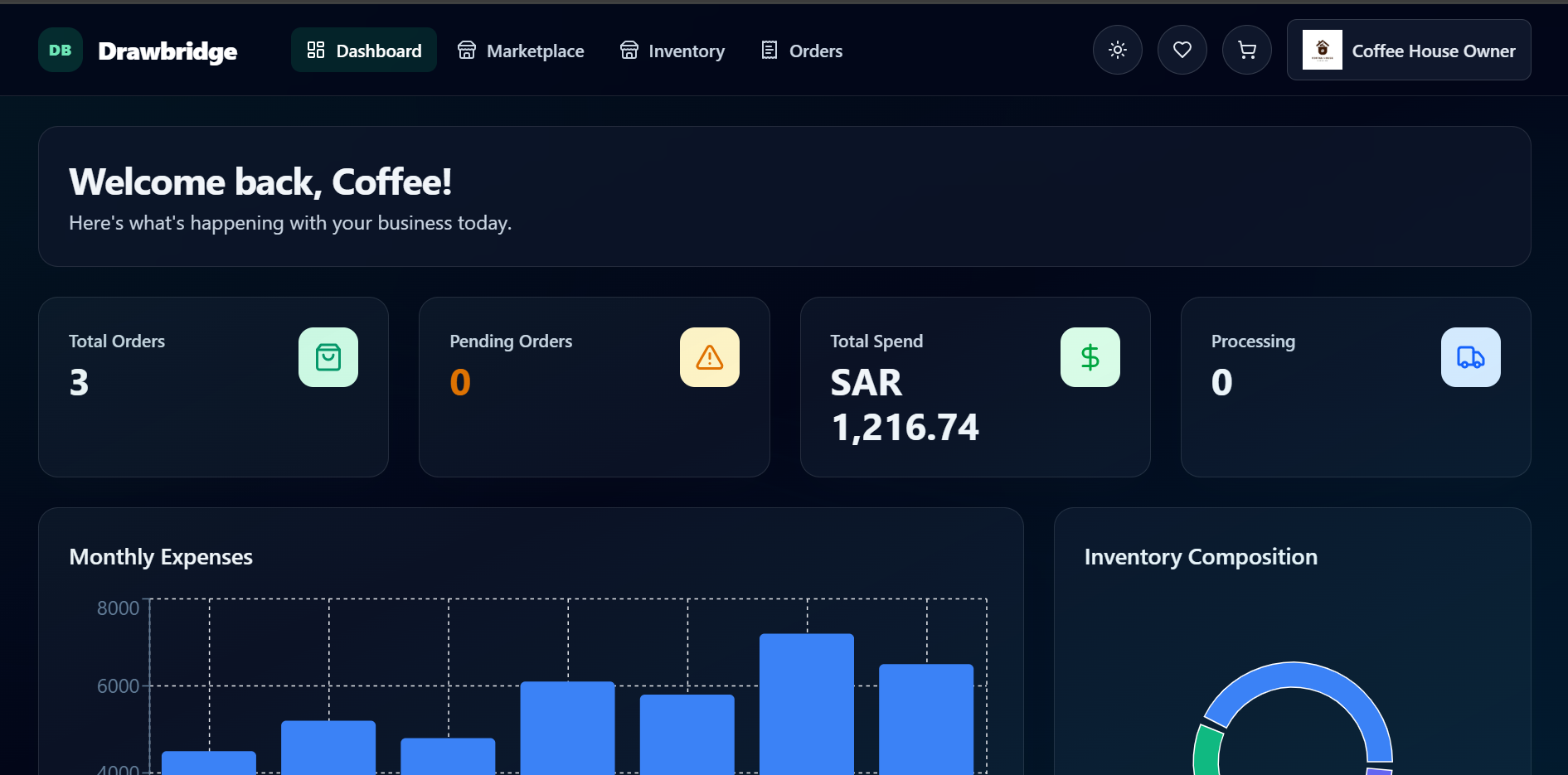
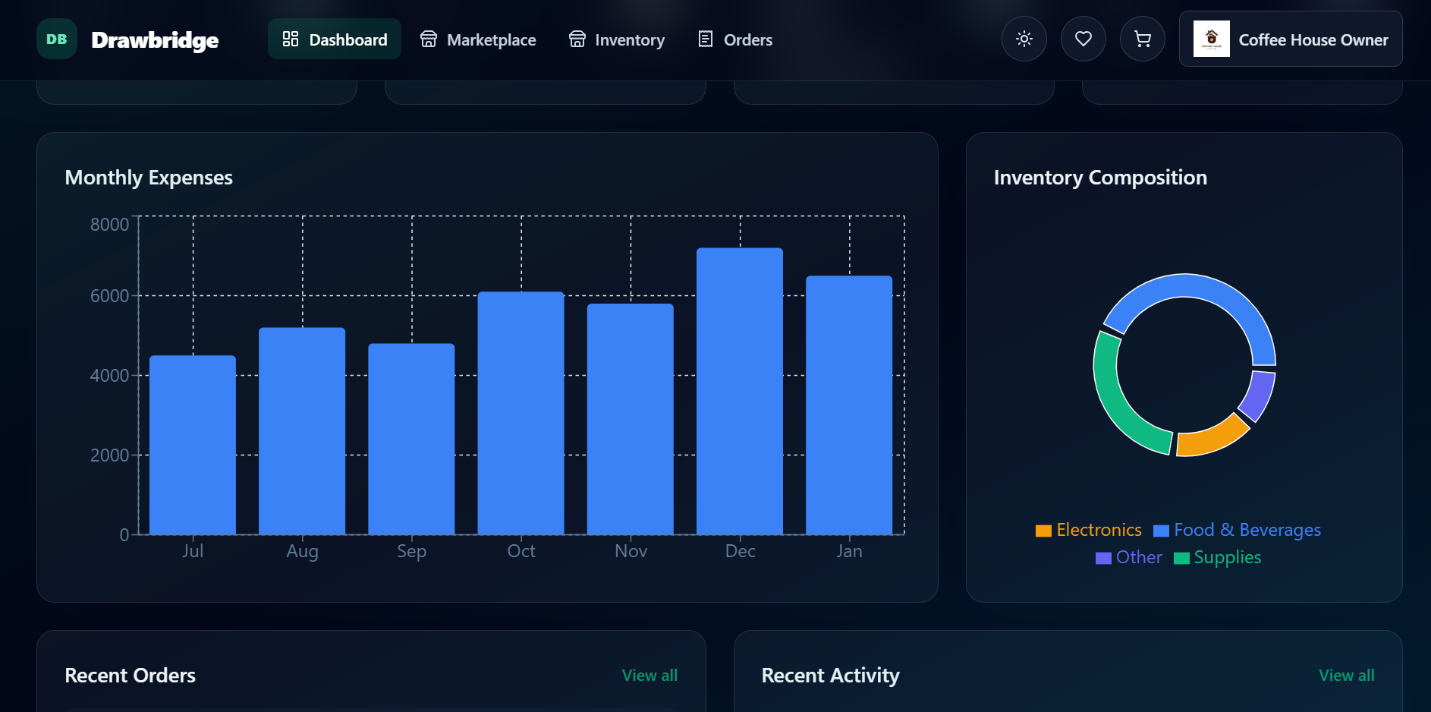
Total orders, pending count, revenue shown with chart |
Order KPI cards and bar chart displayed |
Pass |
TC-F6.2-02 |
View order stats on Wholesaler dashboard |
Wholesaler logged in, orders exist |
N/A |
1. Log in as Wholesaler 2. Go to /dashboard |
Wholesaler order KPIs displayed |
Wholesaler-specific order stats displayed |
Pass |
TC-F6.2-03 |
Dashboard with no orders |
No orders exist |
N/A |
1. Go to /dashboard with no orders |
Zero state shown in KPI cards |
KPI cards displayed with 0 values |
Pass |
F6.3 - View Latest Notifications
| Test Case ID | Description | Precondition | Test Data | Steps | Expected Outcome | Actual Outcome | Status (Pass/Fail) |
|---|---|---|---|---|---|---|---|
TC-F6.3-01 |
View latest notifications on dashboard |
Notifications exist |
N/A |
1. Go to /dashboard 2. Check notifications panel |
Latest notifications shown with title and type |
Recent notifications displayed |
Pass |
TC-F6.3-02 |
Navigate to full inbox from dashboard |
User logged in |
N/A |
1. Go to /dashboard 2. Click 'View All' or a notification |
Redirected to /notifications page |
Navigated to full notifications inbox |
Pass |
TC-F6.3-03 |
No notifications on dashboard |
No notifications |
N/A |
1. Go to /dashboard with no notifications |
Notifications section appears empty with no message |
Notifications section appears empty with no message |
Pass |
F7: Support
F7.1 - View Accessibility Panel
| Test Case ID | Description | Precondition | Test Data | Steps | Expected Outcome | Actual Outcome | Status (Pass/Fail) |
|---|---|---|---|---|---|---|---|
TC-F7.1-01 |
View Accessibility Panel (Settings) |
User logged in |
N/A |
1. Navigate to Settings 2. Look for accessibility / settings |
Accessibility/theme options visible |
options visible available |
Pass |
F7.2 - Contact Support Team
| Test Case ID | Description | Precondition | Test Data | Steps | Expected Outcome | Actual Outcome | Status (Pass/Fail) |
|---|---|---|---|---|---|---|---|
TC-F7.2-01 |
Submit ticket with required fields empty |
User logged in. |
Subject: (empty) Message: (empty) |
1. Navigate to /support 2. Leave required fields empty 3. Click Submit |
"All fields are required" message shown. Ticket NOT submitted. |
"All fields are required" shown. Ticket NOT submitted. |
Pass |
TC-F7.2-02 |
Submit a support ticket via contact form |
User logged in. |
Subject: Login issue Message: Cannot login to account Email: user@test.com |
1. Navigate to /support 2. Fill in subject, message, email fields 3. Click Submit |
Support ticket created. Confirmation message shown. |
Support ticket created. Confirmation message shown. |
Pass (N/A) |
F8: Payment Management
F8.1 - Add Payment Method
| Test Case ID | Description | Precondition | Test Data | Steps | Expected Outcome | Actual Outcome | Status (Pass/Fail) |
|---|---|---|---|---|---|---|---|
TC-F8.1-01 |
Add card |
Retailer logged in |
cardNumber:4111111111111111 expiry:12/27 cvv:123 name:Test User |
1. Go to /settings/payments 2. Click Add New Card 3. Fill details 4. Submit |
Card saved and shown as Visa ** 1111 |
card added and displayed in payment methods list |
Pass |
TC-F8.1-02 |
First card auto-set as default |
No cards saved |
First valid card details |
1. Go to /settings/payments 2. Add first card |
Card saved and marked as default automatically |
Card added and default badge displayed |
Pass |
TC-F8.1-03 |
Delete a payment method |
At least one card saved |
paymentMethodId: valid |
1. Go to /settings/payments 2. Click Delete 3. Confirm dialog |
Card removed from list |
Card deleted and removed from list |
Pass |
TC-F8.1-04 |
Set non-default card as default |
Multiple cards saved |
paymentMethodId: non-default card |
1. Go to /settings/payments 2. Click Set Default on card |
Card marked as default, previous default unmarked |
Default card updated successfully |
Pass |
F8.2 - Pay Order
| Test Case ID | Description | Precondition | Test Data | Steps | Expected Outcome | Actual Outcome | Status (Pass/Fail) |
|---|---|---|---|---|---|---|---|
TC-F8.2-01 |
Pay order with saved payment method |
Cart has items, address and card saved |
paymentMethodId: valid addressId: valid |
1. Go to /checkout 2. Select address and payment 3. Confirm |
Payment processed, order confirmed, cart cleared |
Order placed and confirmation screen shown |
Pass |
TC-F8.2-02 |
Pay order adding new card at checkout |
Cart has items, no saved card |
cardNumber:4111… expiry:12/27 cvv:123 |
1. Go to /checkout 2. Add new card 3. Confirm order |
New card saved, payment processed, order confirmed |
Card added and order confirmed successfully |
Pass |
F8.3 - Generate Invoice
| Test Case ID | Description | Precondition | Test Data | Steps | Expected Outcome | Actual Outcome | Status (Pass/Fail) |
|---|---|---|---|---|---|---|---|
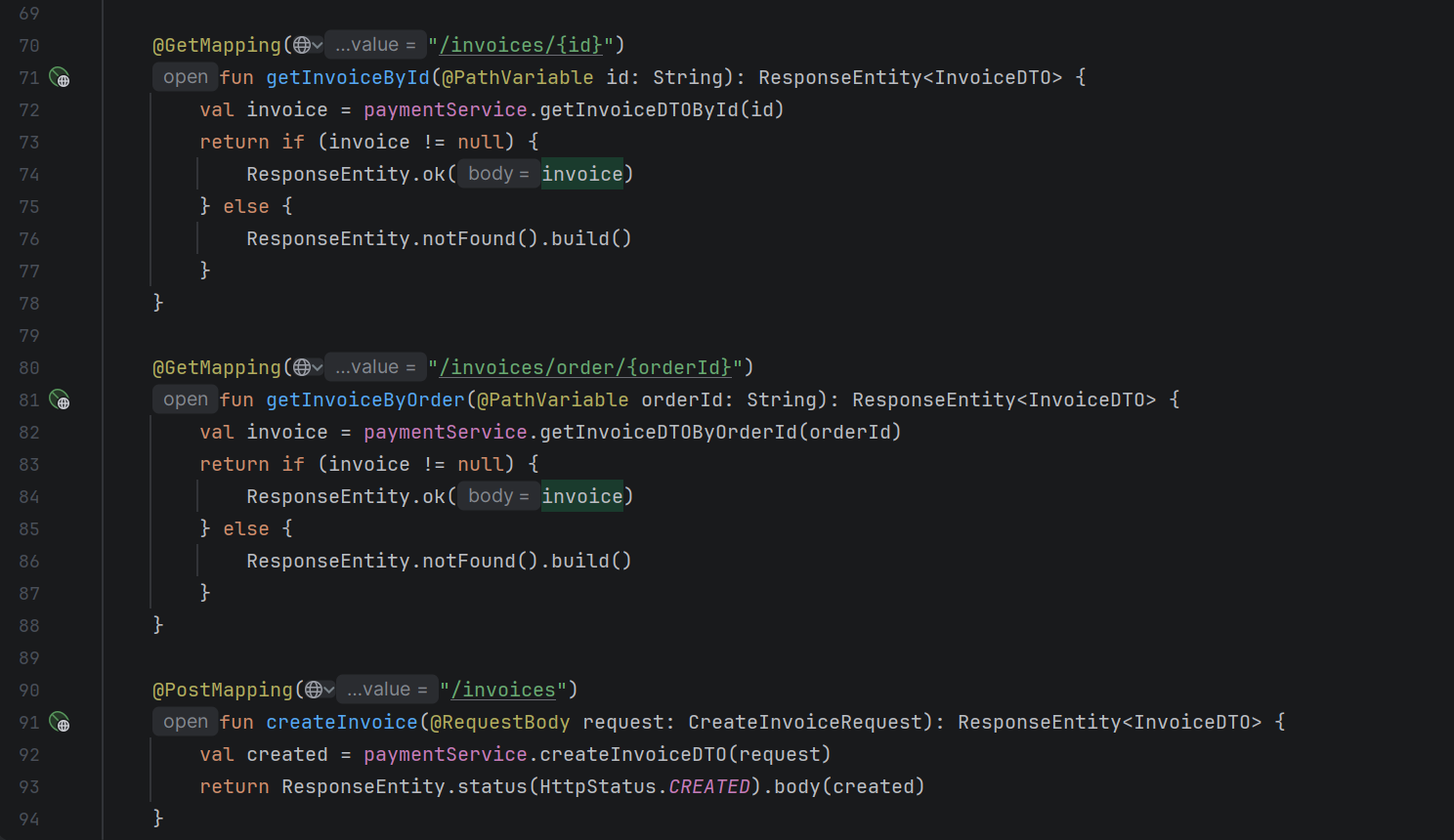
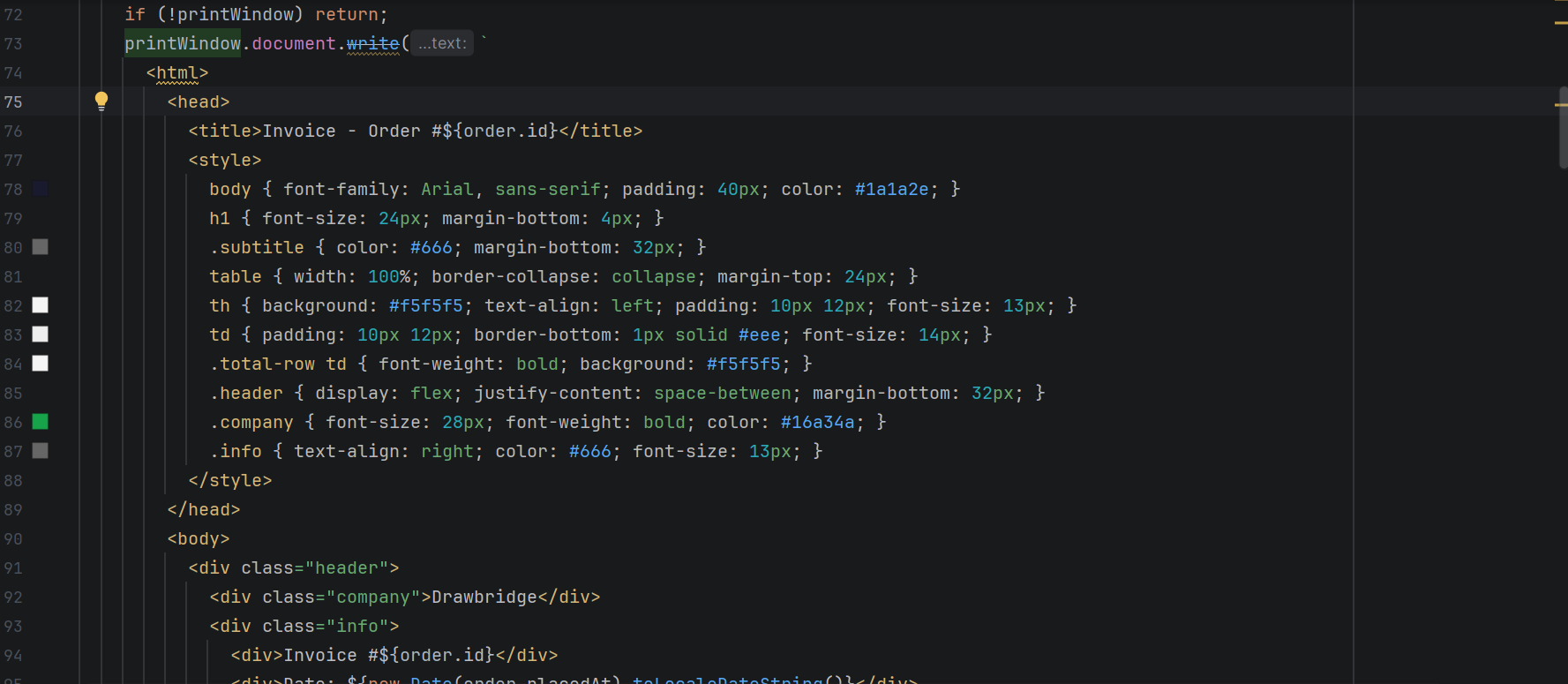
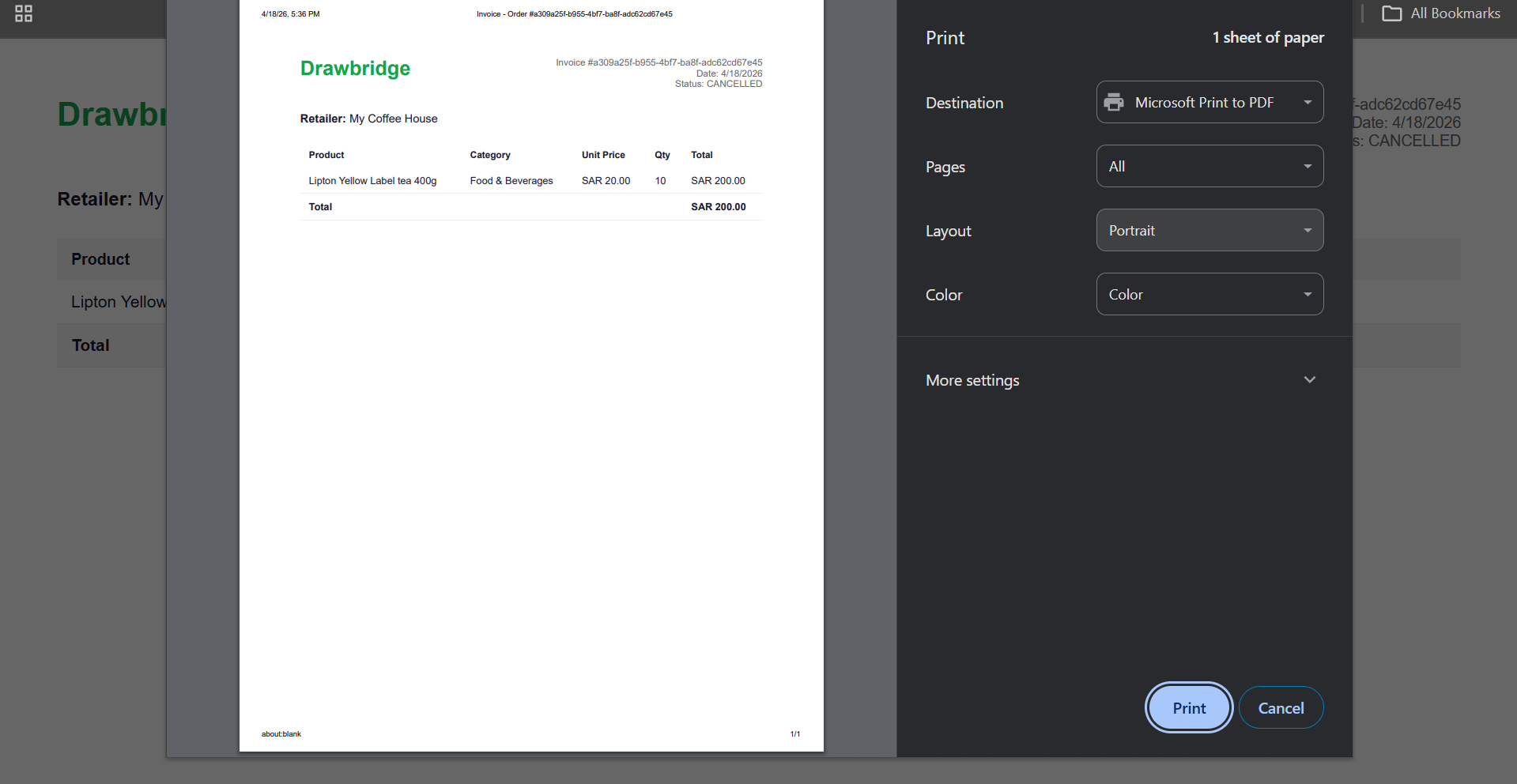
TC-F8.3-01 |
Download invoice from order detail |
Order exists with completed payment |
orderId: valid completed order |
1. Go to /orders 2. Click order 3. Click Download Invoice |
Invoice opens in new window for printing/saving |
Invoice opened in new window with print dialog |
Pass |
TC-F8.3-02 |
Invoice contains correct order data |
Completed order loaded |
orderId: valid with known items |
1. Go to /orders/:id 2. Click Download Invoice 3. Review contents |
Invoice shows order ID, date, items, qty, prices, totals |
Invoice displayed all correct order details |
Pass |
F9: Product Management
F9.1 - Create Product
| Test Case ID | Description | Precondition | Test Data | Steps | Expected Outcome | Actual Outcome | Status (Pass/Fail) |
|---|---|---|---|---|---|---|---|
TC-F9.1-01 |
Create product with all required fields |
Wholesaler logged in |
name:Coffee Beans category:Food price:150 MOQ:10 stock:100 |
1. Go to /products 2. Click Add Product 3. Fill form 4. Submit |
Product created and appears in list |
Product created and visible in manage products list |
Pass |
TC-F9.1-02 |
Create product with empty name |
Wholesaler logged in |
name: (empty) |
1. Go to /products/new 2. Leave name empty 3. Submit |
'Product name is required' shown |
Error message 'Product name is required' displayed |
Pass |
TC-F9.1-03 |
Upload product images |
Wholesaler logged in |
1-10 JPG/PNG files, each < 5MB |
1. Fill product form 2. Upload images 3. Submit |
Images uploaded and linked to product |
Images uploaded and shown on product |
Pass |
TC-F9.1-04 |
Upload non-image file |
Product form open |
file: document.pdf |
1. Try to upload PDF as product image |
'Please select image files only' shown |
Error message 'Please select image files only' |
Pass |
TC-F9.1-05 |
Retailer blocked from /products |
Retailer logged in |
N/A |
1. Log in as Retailer 2. Navigate to /products |
Redirected to /dashboard |
Redirected to dashboard |
Pass |
F9.2 - Edit Product
| Test Case ID | Description | Precondition | Test Data | Steps | Expected Outcome | Actual Outcome | Status (Pass/Fail) |
|---|---|---|---|---|---|---|---|
TC-F9.2-01 |
Edit product name and price |
Wholesaler logged in, product exists |
productId: valid newName: Updated Product newPrice: 175 |
1. Go to /products 2. Click Edit 3. Update fields 4. Submit |
Product updated with new values |
Product saved with updated name and price |
Pass |
TC-F9.2-02 |
Edit product images |
Product exists with images |
productId: valid newImage: valid JPG |
1. Go to /products/edit/:id 2. Upload new image 3. Submit |
New image added to product |
Image uploaded and added to product |
Pass |
TC-F9.2-03 |
Enter invalid price on edit |
Product exists |
price: -50 |
1. Edit product 2. Set negative price 3. Submit |
'Invalid field values' shown |
No error shown |
Fail |
F9.3 - Delete Product
| Test Case ID | Description | Precondition | Test Data | Steps | Expected Outcome | Actual Outcome | Status (Pass/Fail) |
|---|---|---|---|---|---|---|---|
TC-F9.3-01 |
Delete product with confirmation |
Wholesaler logged in, product exists |
productId: valid |
1. Go to /products 2. Click Delete 3. Confirm dialog |
Product permanently removed from list |
Product deleted and removed from list |
Pass |